Filter & More Options Description
Filter Fields Description
- — Select Course
- — Select Class teacher
More Options Description
Print Option:
Generate PDF
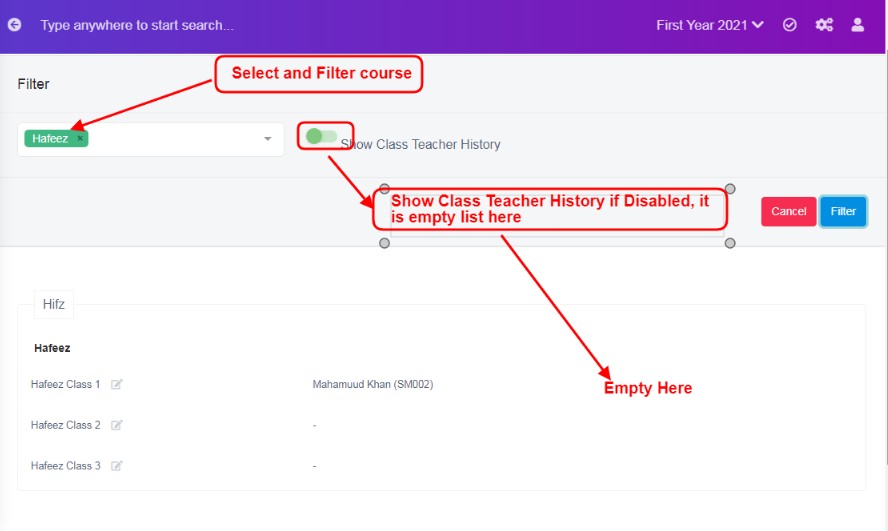
Figure 10Select Course
To view the list of class teacher of a course/class, select required one from the drop down list and teachers’ details of respective class is displayed in the view. This is helpful if your classes or courses are too many and scrolling & viewing them, is difficult on the table list view.
Select Class teacher:
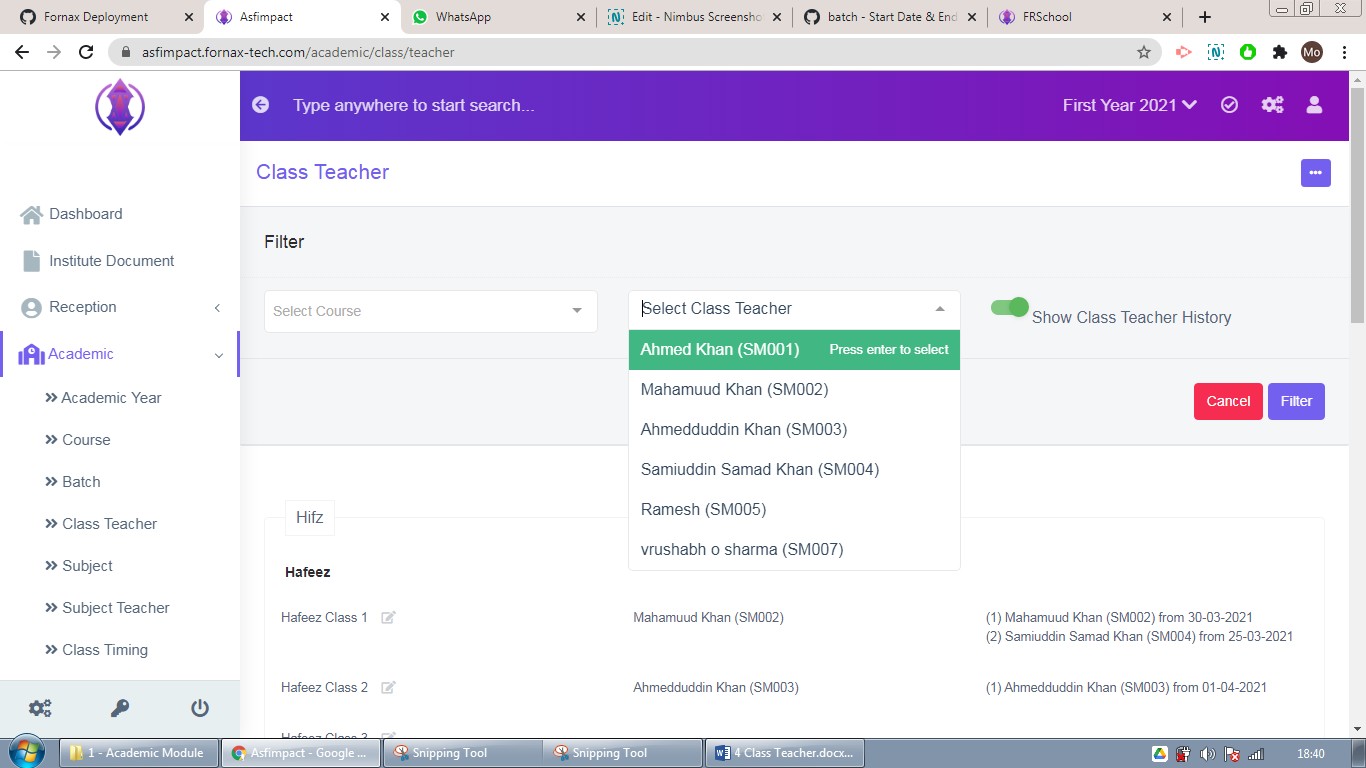
To view the class teacher, teaching which classes/course, select required one from the drop down list and respective teachers’ details of all class is displayed in the view. This is helpful if want to view one specific class teacher, is assigned to how many clasess.
Figure 11
Show Class Teacher History: If this option is disabled, in the data table view, the column will be empty, refer figure:10, if it is enabled, you will view the history of class teachers and its effective dates. Refer figure:11
More options Description
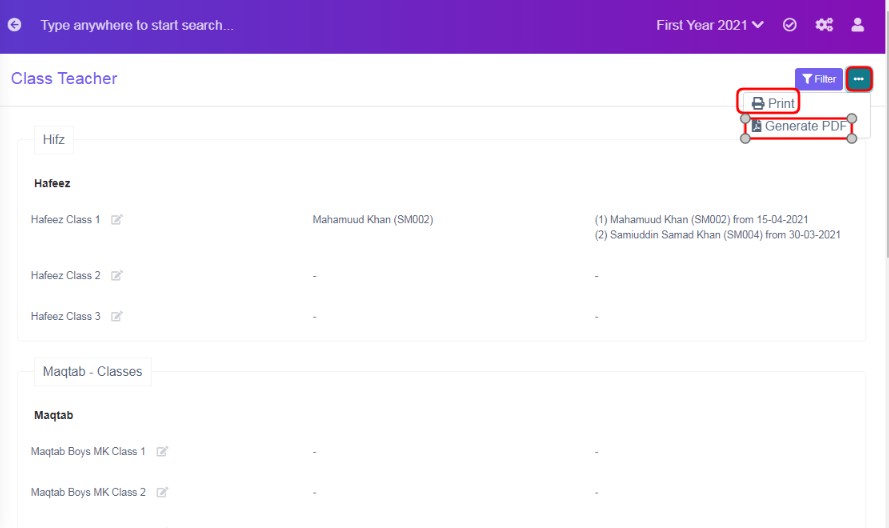
Figure 12The three dots tab contains two options, Print and Generate PDF.
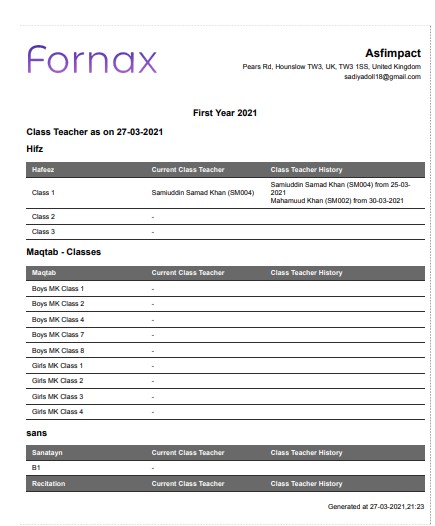
Figure 13Print Option:
To print the table list view data, click ‘Print’, this will Open a new page, listing table view data, to Print. Refer figure:13
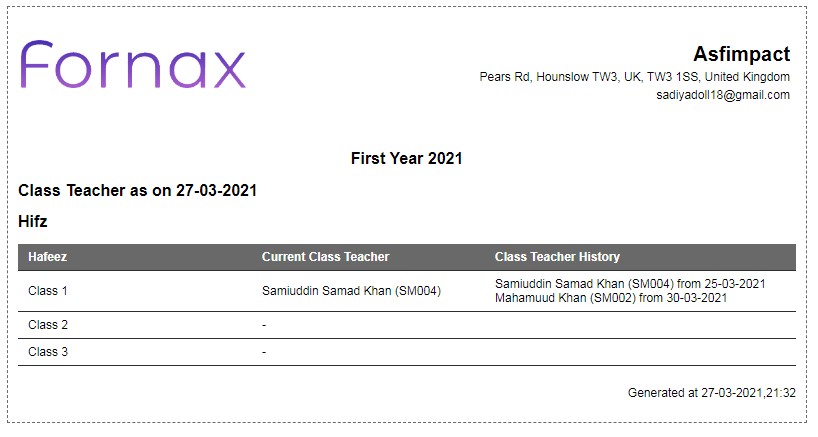
Figure 14 If you want to print more specific data, ex: all documents having word “form”, use filter option and then use print option, only filtered data will be listed in the new tab to print. refer figure:14.
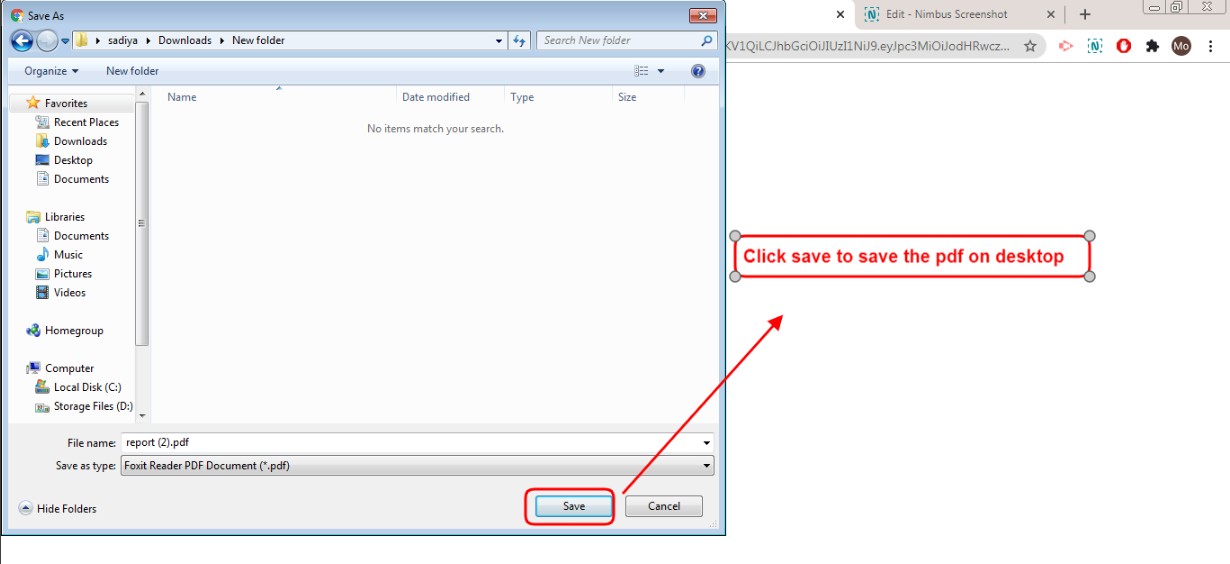
Figure 15Generate PDF:
To download PDF to the desktop, click ‘Generate PDF’, a pop up save as box will open confirming it to save it on desktop. Click ‘Save’ of the pop up box and the pdf will get saved on your desktop. Refer figure:15. You can also use filters, to export more specific data in pdf.