Filter, Sort By & More Options Description
Filter Fields Description
- — Select Course
Sort By Lists Description
More Options Description
- — Print Option
- — Generate PDF
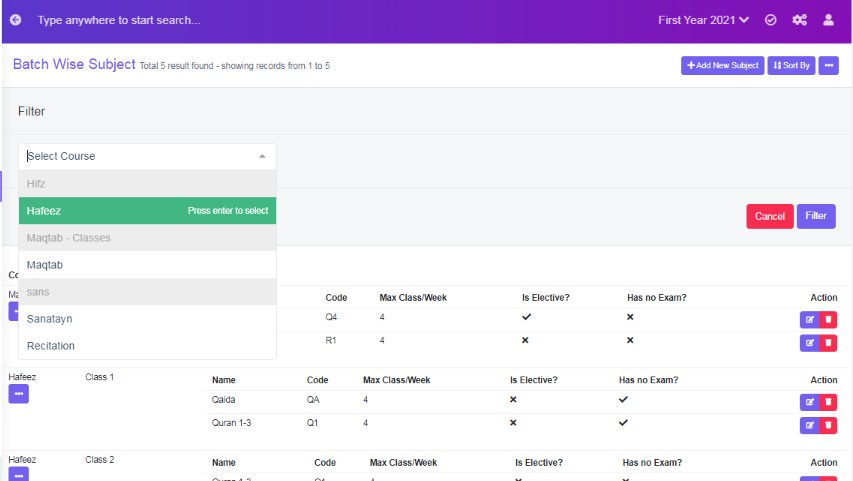
Figure 4Select Course
Select the course from the drop down list and click ‘filter’, to display its related data, refer figure:4
Sort By
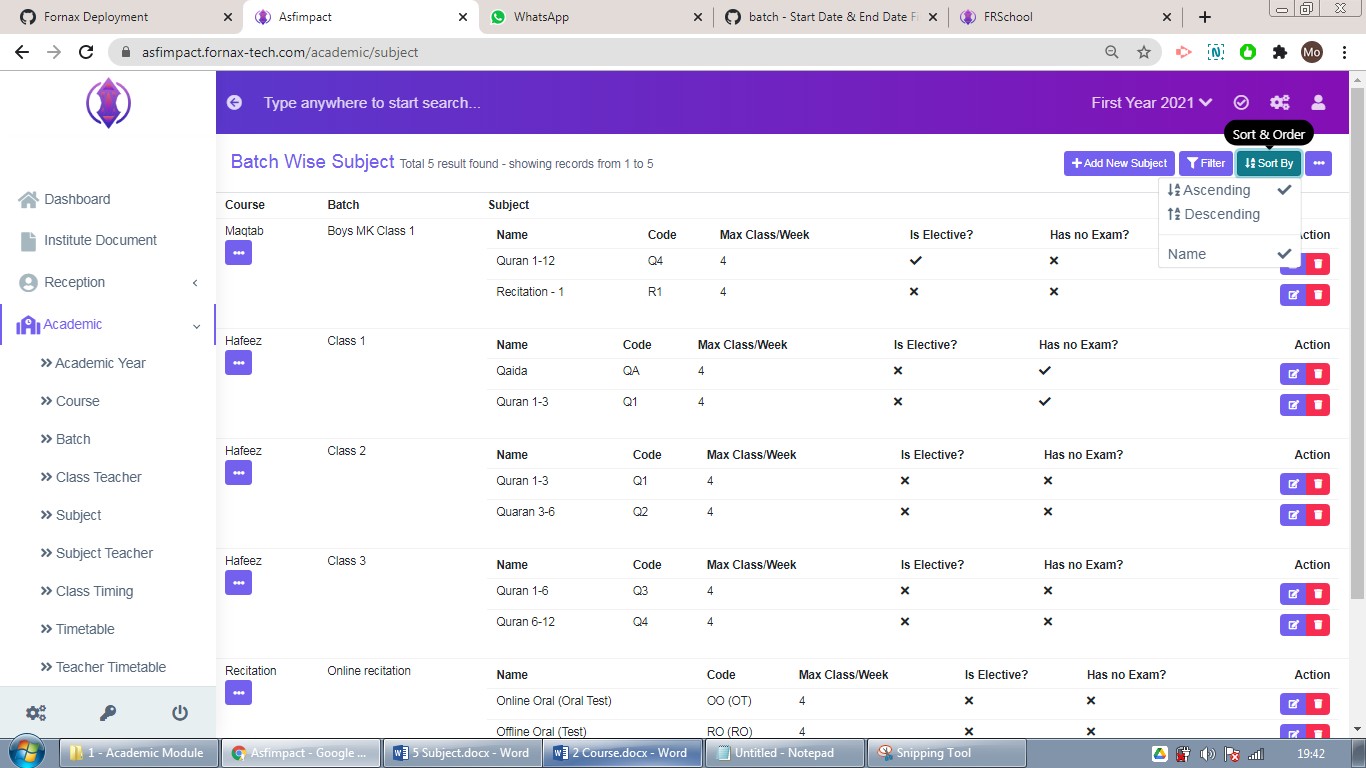
Figure 5
Ascending, Descending & Name: Selected Ascending & Name, it will list, name of subject, in A to Z, alphabetical order. Selected Descending & Name, it will list, name of subject, in Z to A, alphabetical order.
More options Description
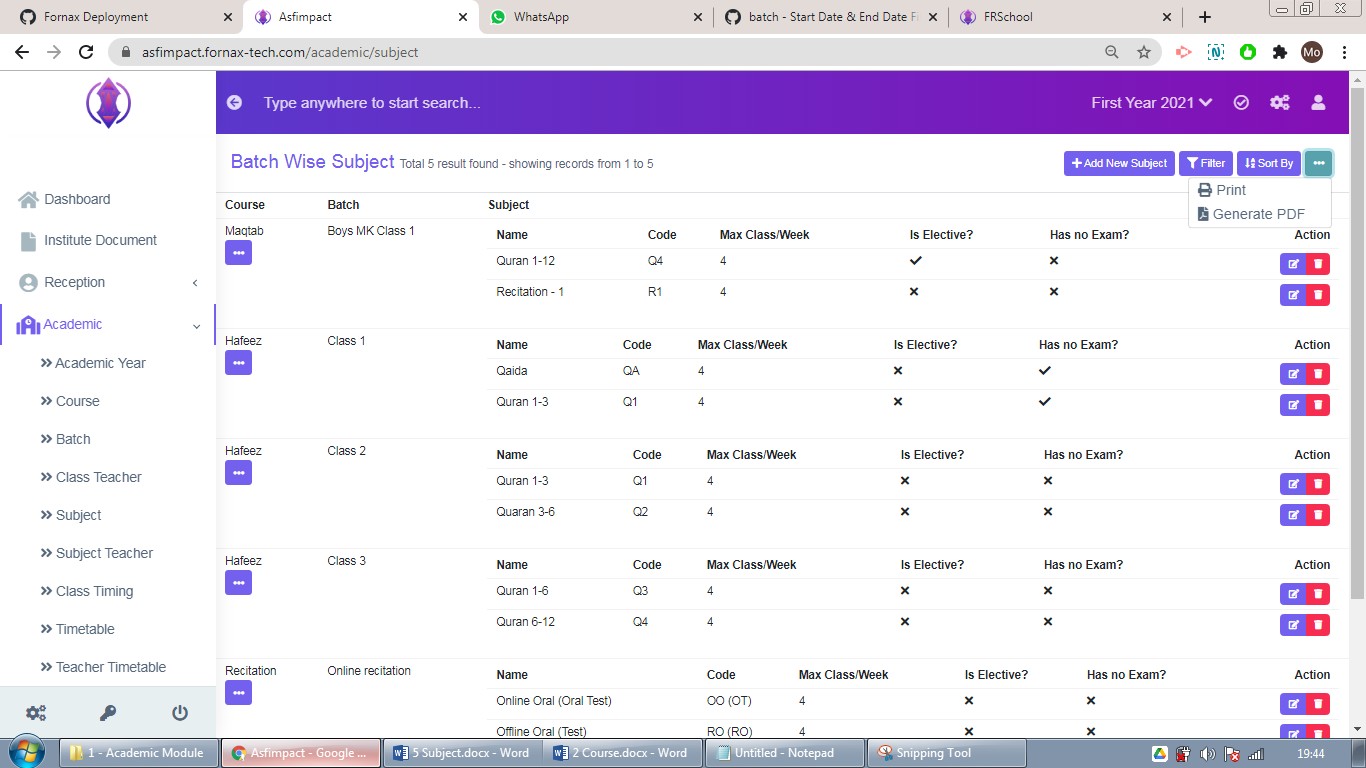
Figure 6The three dots tab contains two options, Print and Generate PDF.
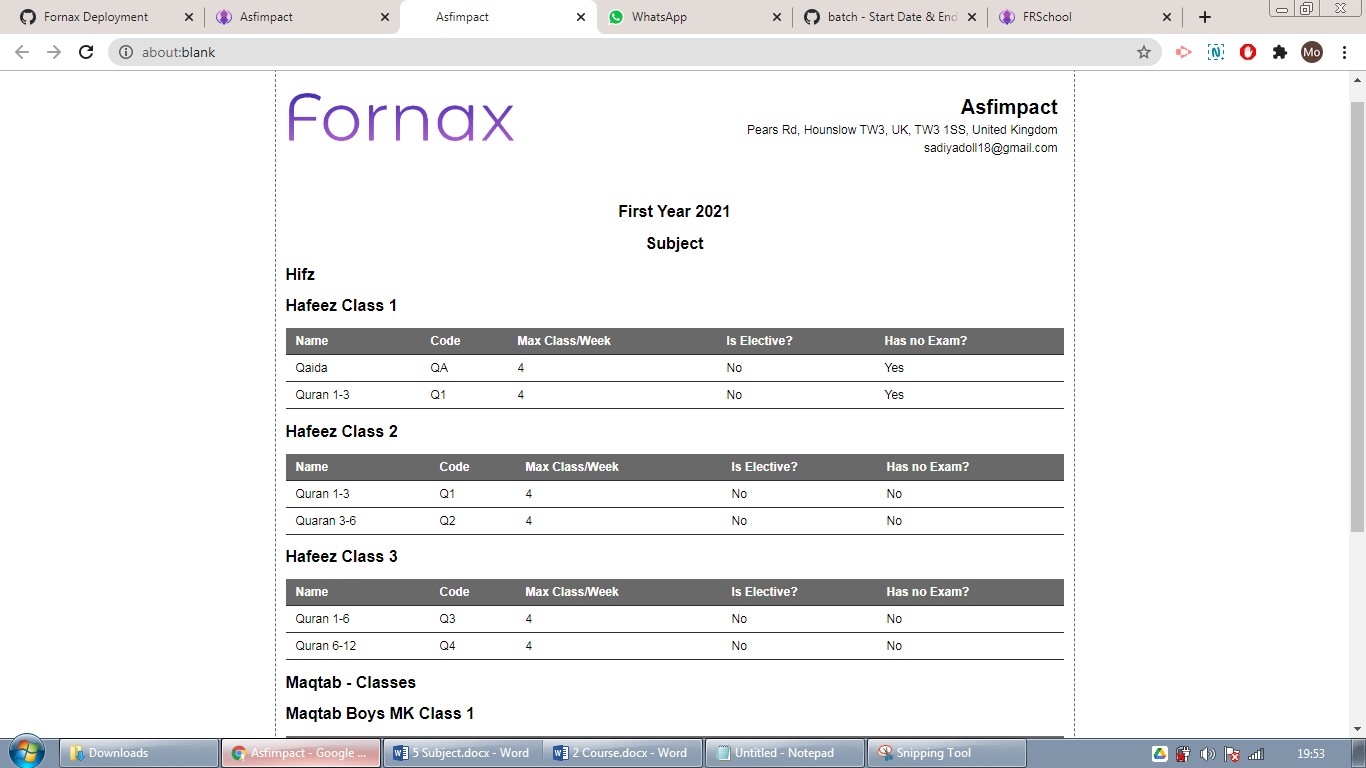
Figure 7Print Option:
To print the data table view data, click ‘Print’, this will Open a new tab, listing table view data, to Print. Refer figure:6&7.
To print more specific data, ex: all course as Primary, use filter option and then use print option, only filtered data will be listed in the new tab to print.
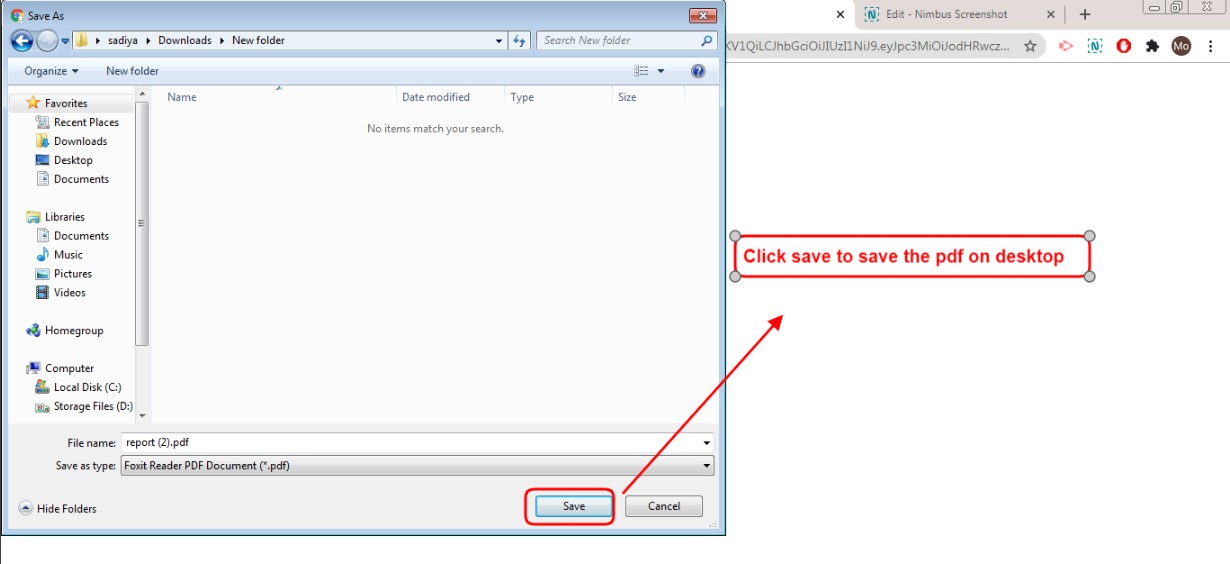
Figure 8Generate PDF:
To download PDF to the desktop, click ‘Generate PDF’, a pop up save as box will open confirming it to save it on desktop. Click ‘Save’ of the pop up box and the pdf will get saved on your desktop. Refer figure:8. You can also use filters, to export more specific data in pdf.