Batch
Batch
- — To Add New Batch
Forms Field Description
Name
- — Course
- — Max Strength
- — Start Date & End Date
- — Roll Number Prefix and Digit
- — Description
Data Table View Description
- — Add New Batch Tab
- — Edit Document
- — Holiday Configuration
- — Delete Document
| Course | Course Group | Batch |
|---|---|---|
| Grade 1 | Primary | Section A Section B |
| Grade 5 | Secondary | Section A Section B |
| Hafeez | Hifz | Class 1 – Boys Class 2 - Boys Class 1- Girls |
| Maqtab | Maqtab – Moms Maqtab - Dads |
Morning Class - Moms Evening Class - Dads |
Create multiple batches for a course, track student strength, and generate batch wise roll number of students.
Add different batches, institute offers, associate them with multiple subjects, subject teachers, class teacher, time table.
To Add New Batch:
To add a new course, click on Course Tab, refer figure:1, click on ‘Add New’ and a new screen to enter data is displayed, enter data in to their respective form fields, refer figure:2.
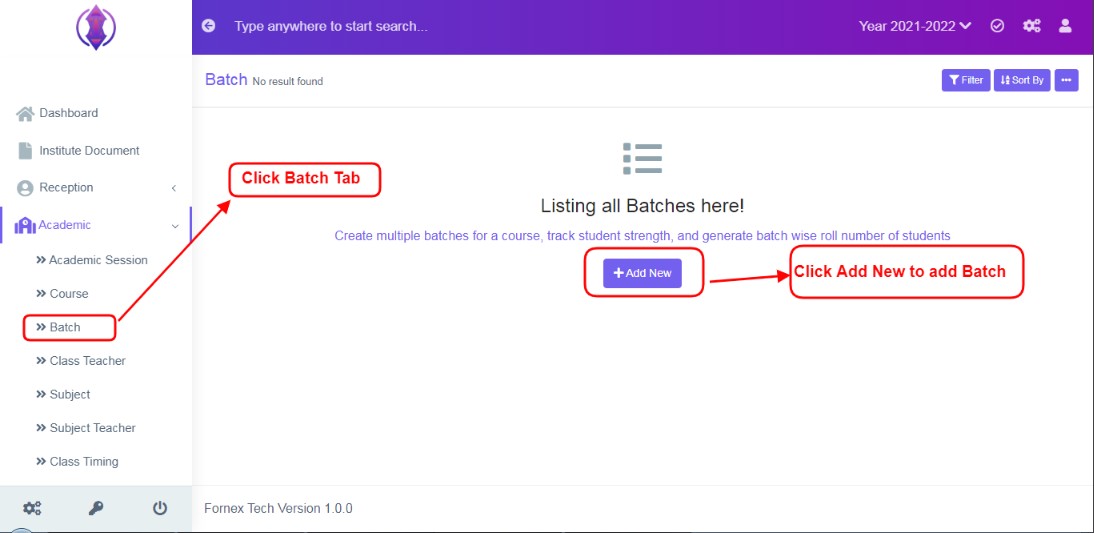
Figure 1Form Fields Description:
Name
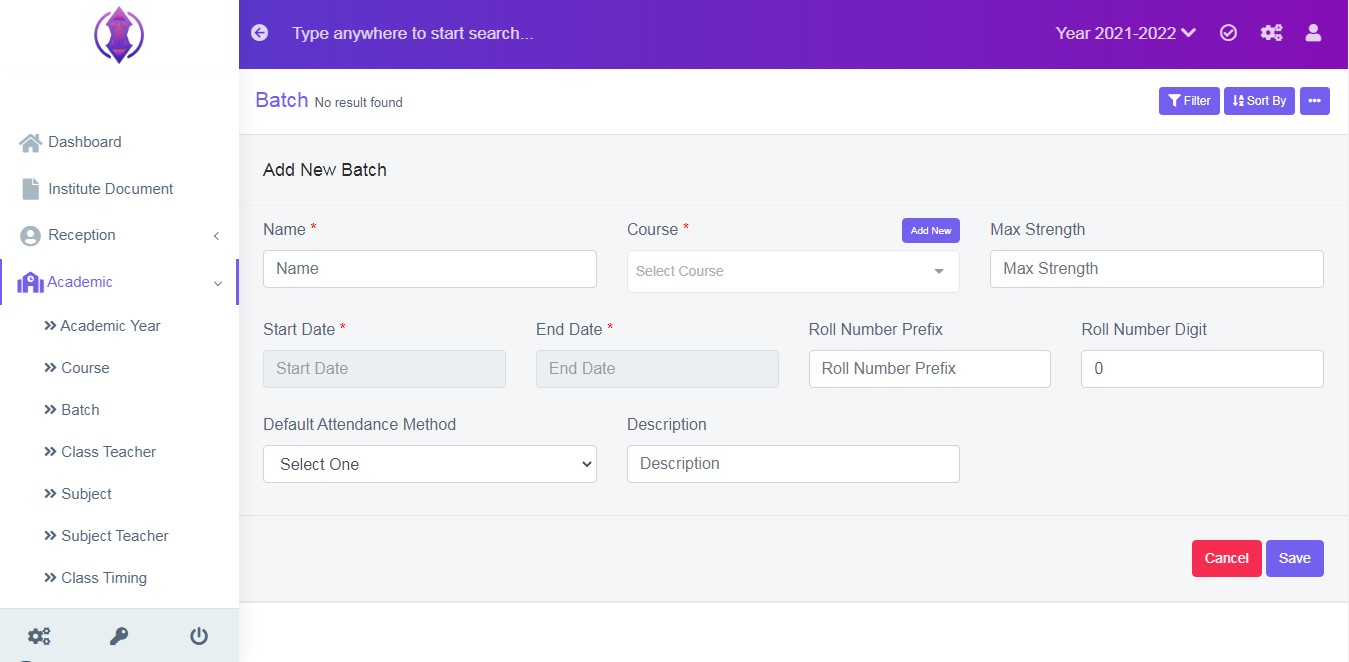
Figure 2Enter the name of the batch to be created.
Course:
Select the course for which a batch is to be assigned. Batches for one course can be created as many as want.
Ex: HTML Course has 5 batch/sections/groups in a day.
Grade 1 has 3 sections and many more scenarios can be created.
Max Strength:
Enter the Maximum Strength of the batch. (ex. 10,30,50 any).
Start Date & End Date:
Select Batch Start Date & End Date from calendar view.
Roll Number Prefix and Digit:
Enter Roll Number Prefix (ex. AA, B1, 21) and Roll Number Digit (ex.3 or 4 digit roll number 001 or 0001) for that batch, you would like to be followed.
Description:
It is to give description to the course, in detail. If this field is left empty, in the data table list view, description column will be empty. This field is optional.
Once the batches are saved, all the added batches information can be viewed at one place, at front–end in data table list View, refer figure:4 – Data table View
Data Table View Description:
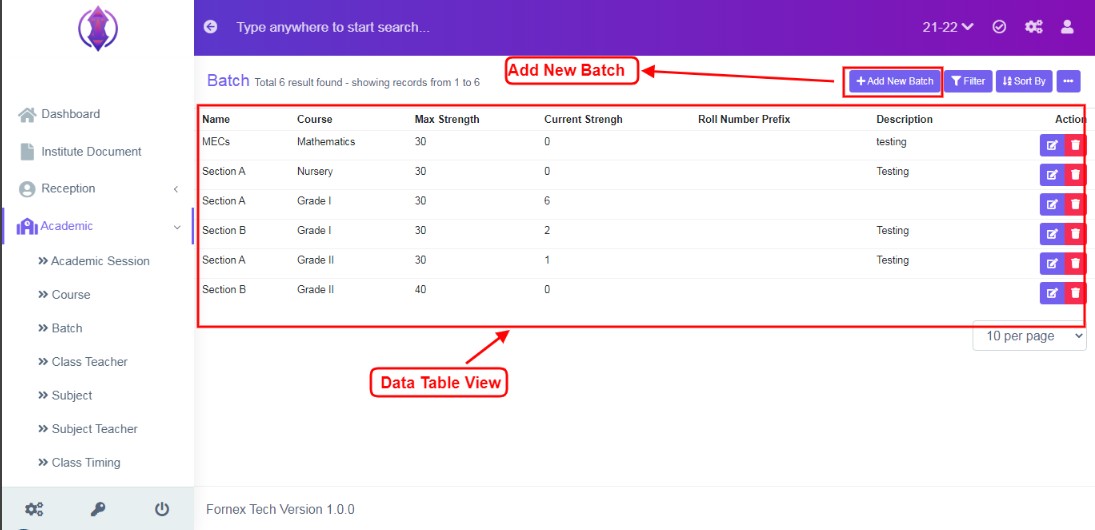
Figure 3Add New Batch Tab
If you have already added a batch, from the middle of the screen, the “Add New tab”, will get shifted to the top-right hand side, of the page title bar – “Add New Batch”, and Data Table View is displayed with different columns of data.
Max Strength & Current Strength: Max Strength Column shows the number of strength entered in the form field, and the number of student allocated to that batch, will be showed in the current strength column.
Edit Document:
To edit the existing batch, click  icon and a screen will be displayed to Edit batch. Fill the required information, to do the changes to the form fields or enable/disable options.
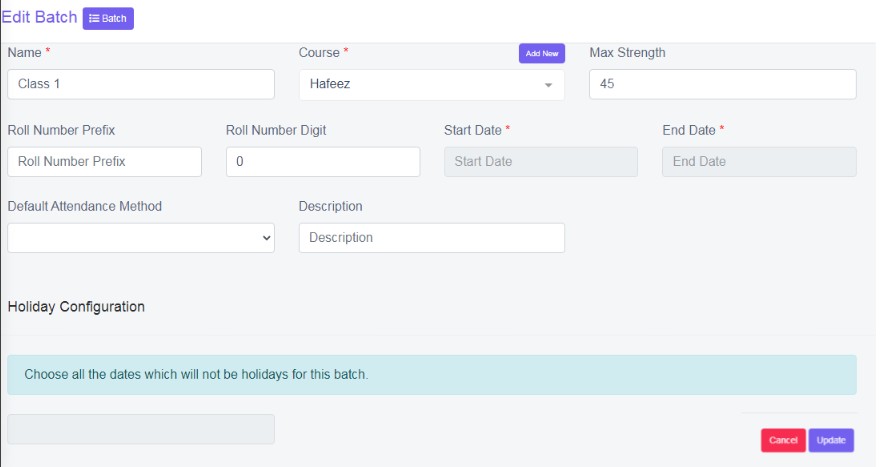
Figure 4In Edit mode, there is an extra field.
Holiday Configuration
It is used, to note down which days will not be a holiday for a batch. It will help to note down extra class to be taken in holidays and to take attendance in those days.
Once the required data is entered, click ‘update’, to save the changes. “Batch updated”, green popup notification will be displayed on the bottom right hand side of the screen.
Delete Document:
To delete , the saved batch, forever, click delete  icon and a pop up screen comes up, asking for your confirmation
 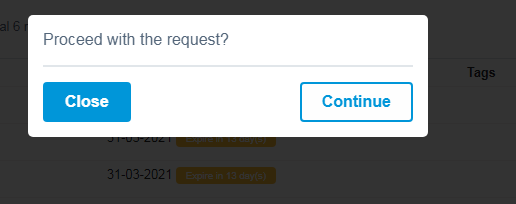 to proceed with the request, click, continue, to delete the data or click close to go back to the data table view. Data will get deleted from the database and it cannot be retrieved again.