Class Teacher
Class Teacher
- — To Add A Class Teacher:
Data Table View Description
- — Edit Class Teacher
- — Delete Class Teacher
This module helps you to assign a Class Teacher to their respective Classes and Batches. All Class teacher and their starting date as the class teacher, can be viewed, all at one place.
To Add A Class Teacher:
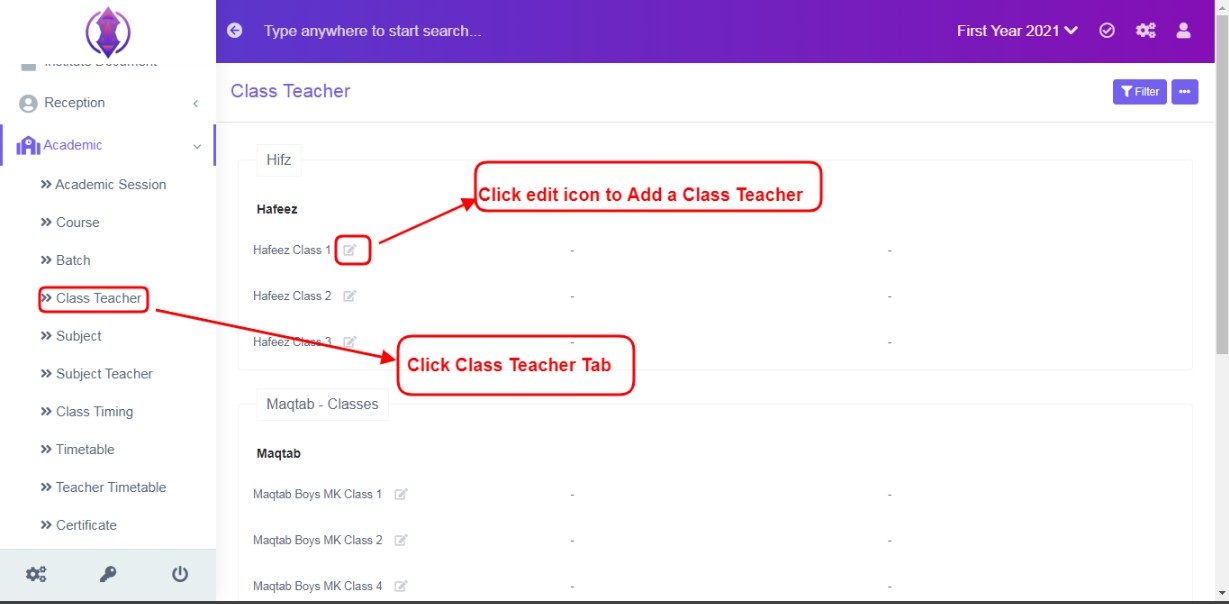
Figure 1
To assign a Class Teacher to their respective Classes, Click Class Teacher Tab and click edit icon  next to a class/batch, refer figure:1.

Figure 2Three fields Select Class Teacher, Date Effective, Description will be displayed below, refer figure:2.
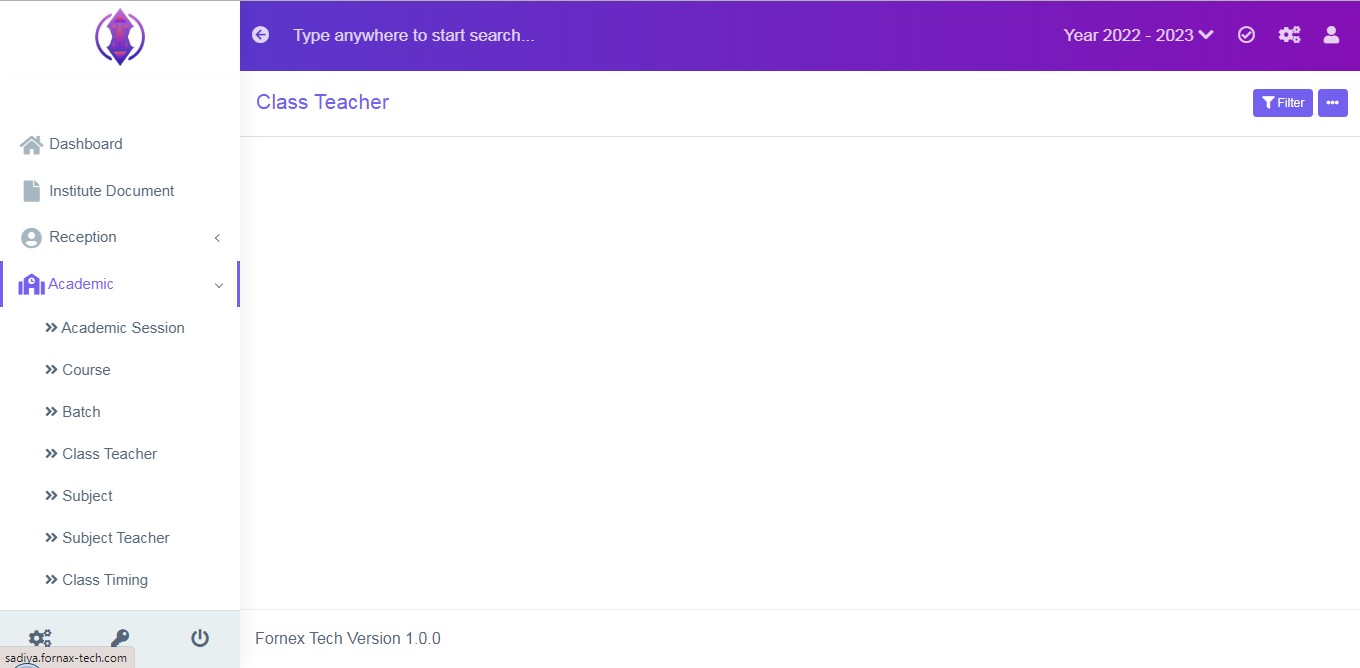
Figure 3Note: If Courses or Batches is not added to the system, you view it as empty. Refer figure:3.
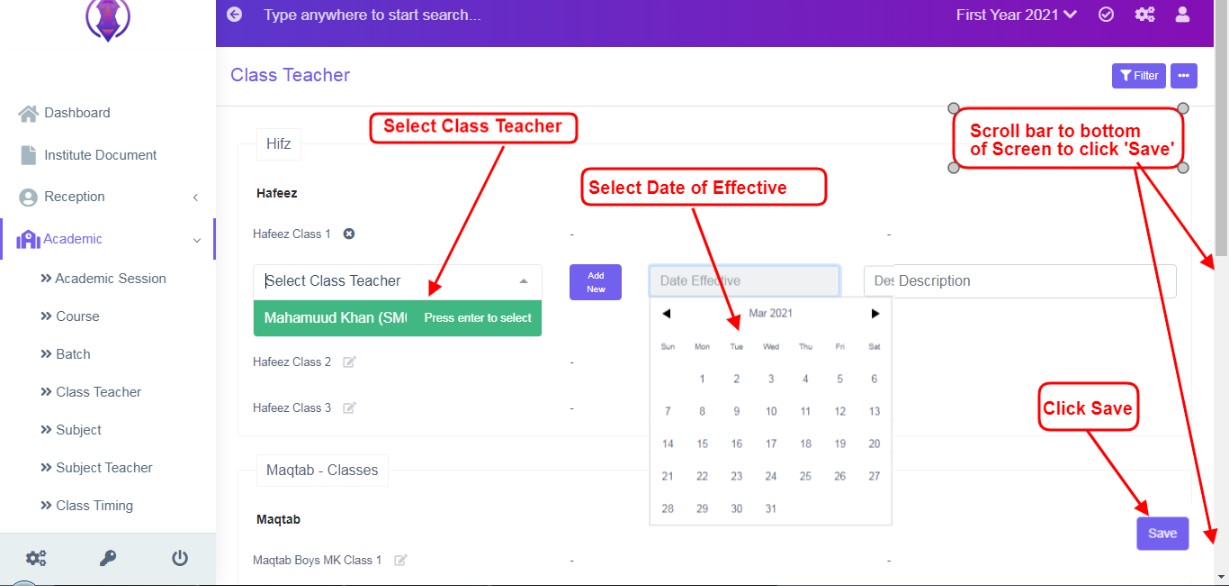
Figure 4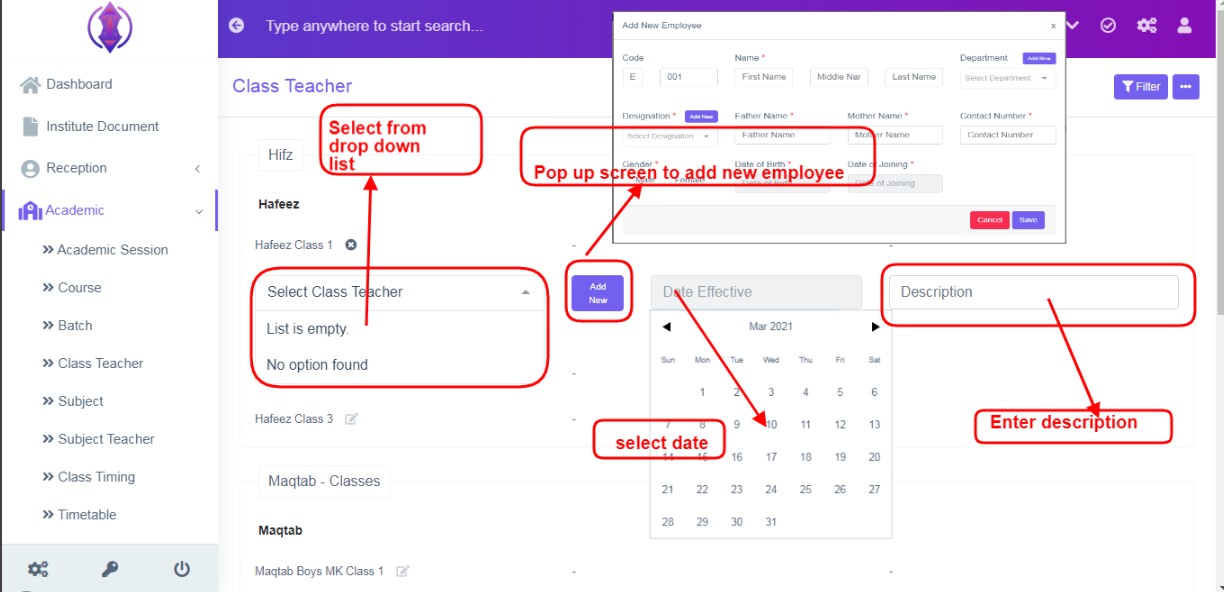
Figure 5
Select Class Teacher:This is to assign a Class Teacher/Batch Teacher to a class/course.Select a teacher from the drop down list. Refer figure:4. This field is Mandatory.
If you are in the initial stage of setup of management system, you see the drop-down list as “list is empty” is displayed, refer figure:5 and is empty.
To Add Employee/ Add Class Teacher, click ‘Add New’ tab  , a pop up screen will be displayed in the middle of the screen refer figure:5. Enter the required data, click save button of the pop up screen. For more details of Form Fields Description of adding employee, please refer to Employee Module.
Date of Effective:The Date of starting in a class as a teacher. This field is Mandatory.
Description:Enter the description as required. This field is optional.
Select a class teacher from the drop down list, select a date of effective from calendar view and enter description and scroll the right side bar to go to the bottom of the screen, refer figure:4, and click ‘Save’. At bottom right of the screen a green pop up will be displayed as “Class Teacher Added”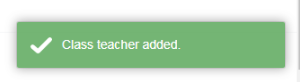 .
.
Once the class teacher is selected and saved, all the list of class teacher can be viewed at one place, at front–end in Table List View, refer figure:6 – Table List View.
Data Table View Description:
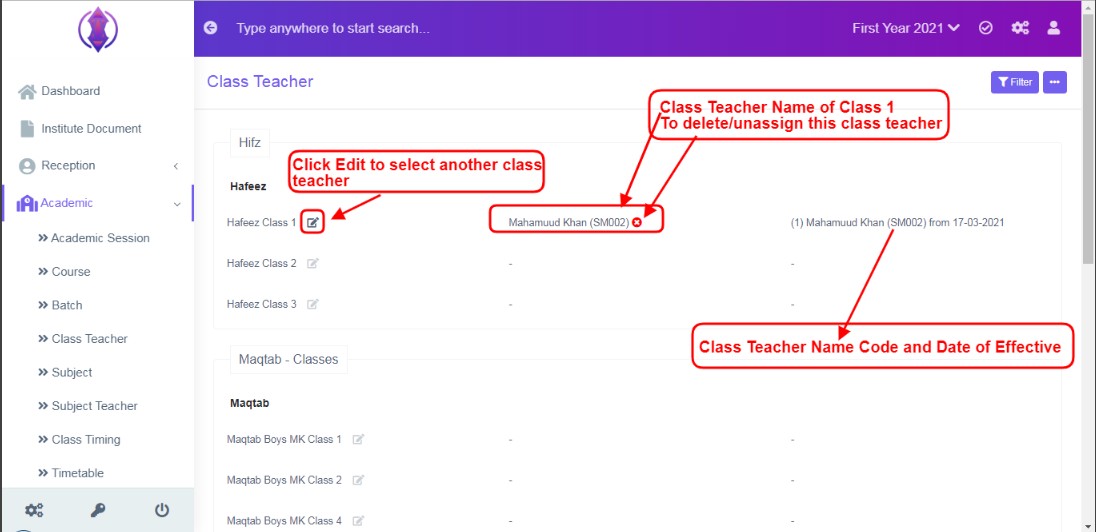
Figure 6Class Teacher Table View is based on the course/class group and its batches. Ex: Course group Hifz lists all its Courses/classes and its Batches. Refer figure:6.
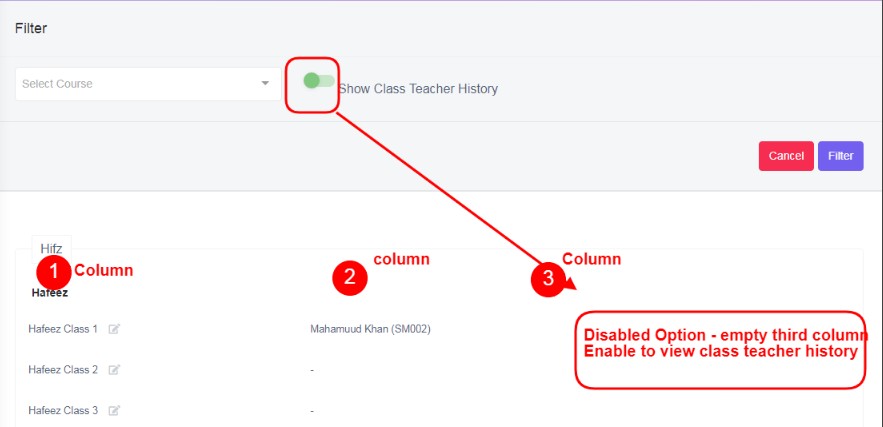
Figure 7
Column 1, Column 2 and a hidden Column 3: A class name is first column, a name of teacher and employee code ex:John(S01) is second column and an another column where class teacher name and employee code plus from date of effective is shown on the table list view and is the third column. Refer figure:7.
Note: Third column is displayed on the screen only, when in filter options, show class teacher history is enabled. Refer figure:7.
Edit Class Teacher
Click Edit  icon , to edit class teachers’ respective forms fields or to select a new class teacher.
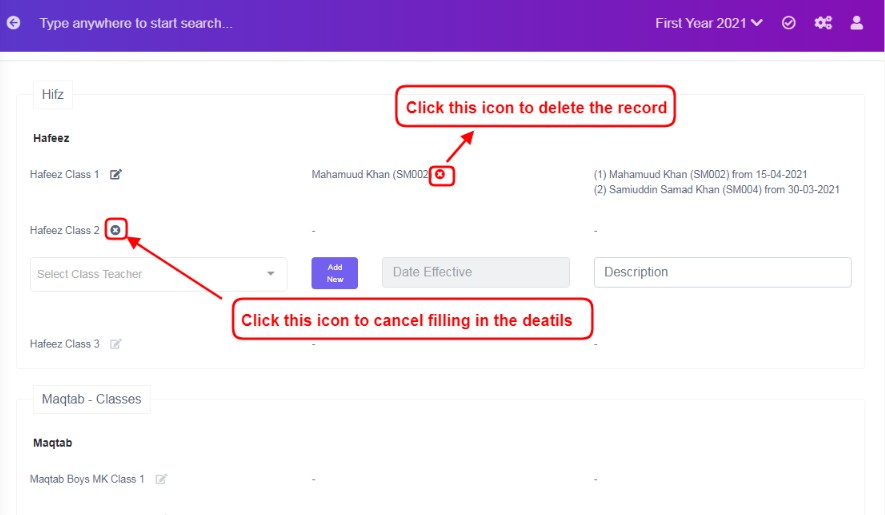
Figure 9
Delete Class Teacher:
Delete Class Teacher: Click  this icon to delete the record of the class teacher, a pop up screen comes up, asking for your confirmation
 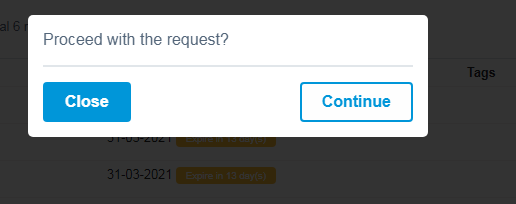 to proceed with the request, click, continue, to delete the record or click close to go back to the table list view.
Cancel Icon: This cancel icon  is showed up while adding a class teacher to cancel filling in the details and to go back to the list view click, this
cancel icon to go back to the list view.
is showed up while adding a class teacher to cancel filling in the details and to go back to the list view click, this
cancel icon to go back to the list view.