Course
Course
- — To Add New Course
Forms Field Description
Data Table View Description
- — Add New Document Tab
- — Reorder Course Tab
- — Option
- — Reorder Batch icon
- — Edit Course
- — Delete Course
This module is used to add the courses of the school/institute. Classes name or Course names, can be created/added to the management system. These courses can be allotted to a specific group.
| Course | Course Group | Batch |
|---|---|---|
| Grade 1 | Primary | Section A Section B |
| Grade 5 | Secondary | Section A Section B |
| Hafeez | Hifz | Class 1 – Boys Class 2 - Boys Class 1- Girls |
| Maqtab | Maqtab – Moms Maqtab - Dads |
Morning Class - Moms Evening Class - Dads |
Add different courses your institute offers, associate those with multiple batches, and configure course level options.
To Add New Course:
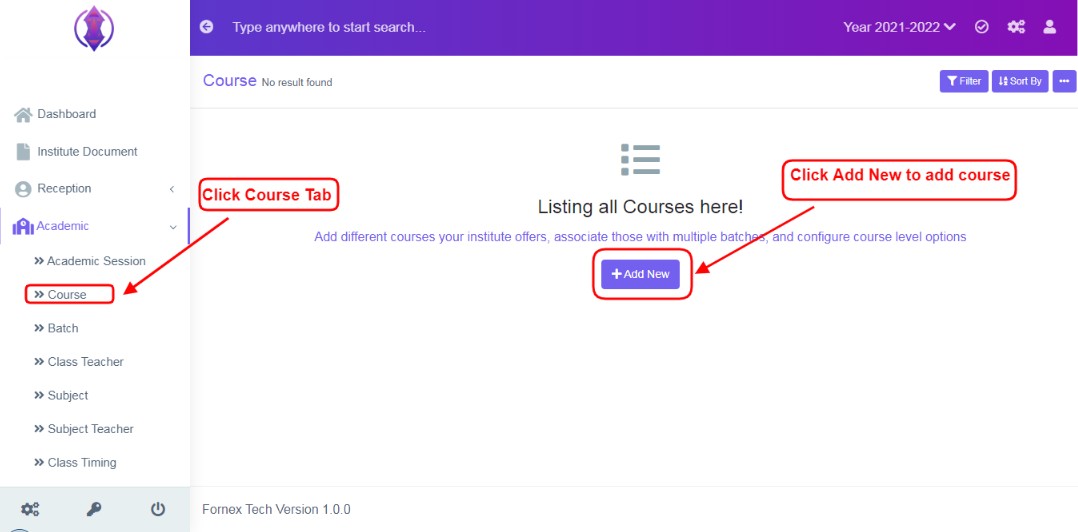
Figure 1
To add a new course, click on Course Tab, refer figure:1, click on ‘Add New’ and a new screen to enter data is displayed, enter data in to their respective form fields, refer figure:2.
Form Fields Description:
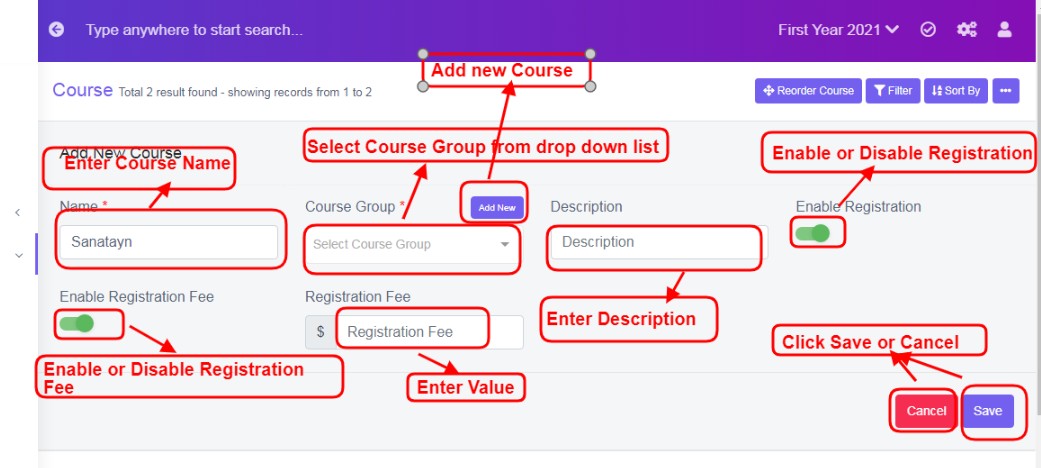
Figure 2
Name:Enter the name of the course. Ex: Nursery, Grade 1, Grade 2… or any other institute courses offered by you.
Course Group:Select Course Group from the drop down list. Ex: Refer figure:2
If you are in the initial stage of setup of management system, you view the drop-down list only as “list is empty” is displayed and is empty. In order to select, specific course group, click ‘Add New’ tab  , a pop up screen will be displayed, refer figure:3, in the middle of the screen, Enter Name – Mandatory Field and Description - Optional Field, as required and click save.
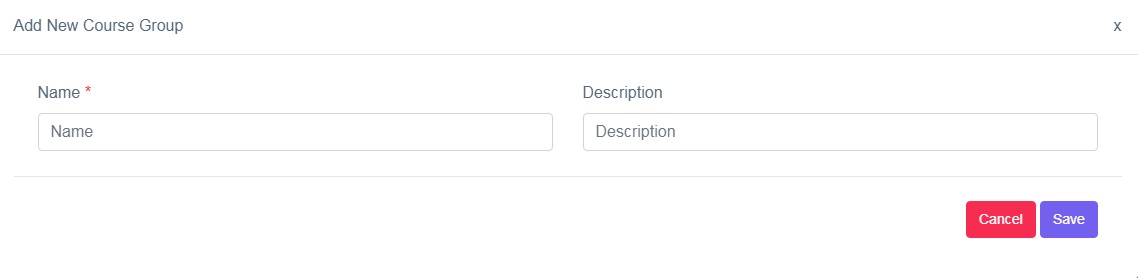
Figure 3
Once the data is saved, course group will be listed in in the drop-down-list, select the required one from the drop-down list, to save it.
To edit and change the name of course group or want delete it from drop down list. Go to Module Configuration or refer Points to be Noted 1 for more details.
Description:It is to give description to the course, in detail. If this field is left empty, in the data table list view, description column will be empty. This field is optional.
Enable Registration: Enable this option, to start enrolling the student for the course you are adding. It is to list this course in online registration form on your public website front-end and at back-end manual student registration form, click Enable icon. 
If disable icon is selected, , this course will not be listed in the drop down list to select, both in online registration form on your public website front-end and at back-end manual student registration form.
Enable Registration Fee: Enable this option, to charge the registration fee from the student. Ex: $5, $10.
The charge notification, will be displayed in online registration form on your public website front-end and at back-end manual student registration form, click Enable icon as below.

After the required information is entered, click ‘Save’, green popup screen will be displayed on the bottom right hand side of the screen, as
“Course added”.
Once the courses are saved, all the added courses information can be viewed at one place, at front–end in data table list View, refer figure:4 – Data table View.
Data Table View Description:
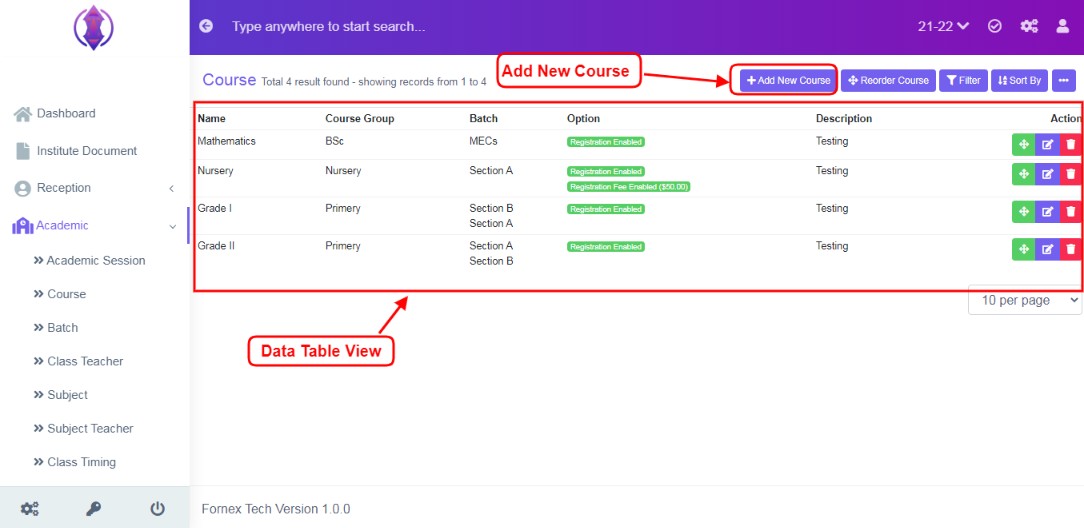
Figure 4
Data table view Important Fields Description
Add New Document Tab
If you have already added a course, from the middle of the screen, the “Add New tab”, it will get shifted to the top-right hand side, of the page title bar – “Add New Course”, and Data Table View is displayed with different columns of data.
Reorder Course Tab
This tab is used to reorder courses. Ex:Mathematics course to be moved to bottom, it can be re-order as required, refer figure:5&6, and click ‘Save’, to confirm the changes. A green notification pops up confirming, “Course Updated”.
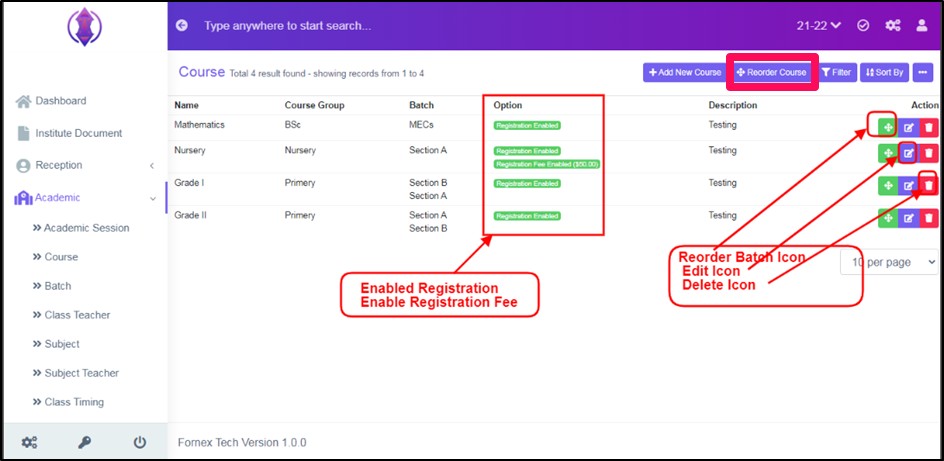
Figure 5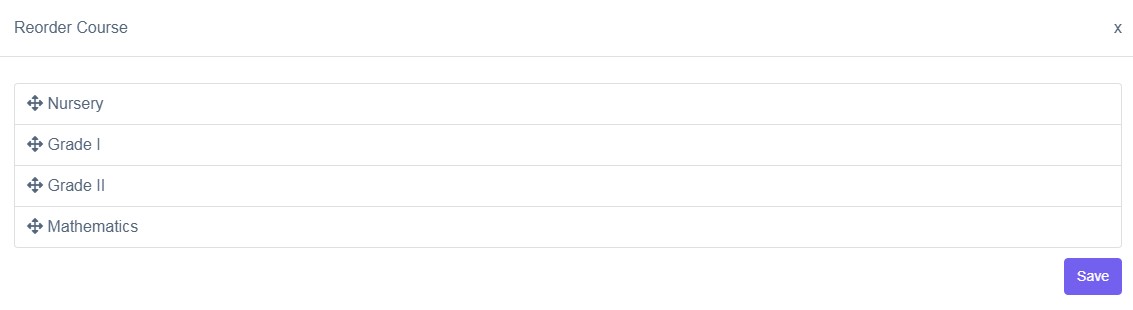
Figure 6Option
This Column displays as notification, if Registration and Registration Fee is Enabled in the form, to its respective course, refer figure:5.
Reorder Batch icon
Reorder Batch Icon 0.3.png) , is used to reorder batches. Ex: In Grade I, Section B to Section A, can be recorder as required, and click ‘Save’, to confirm the changes. A green notification pops up confirming,
“Batch Updated”.
, is used to reorder batches. Ex: In Grade I, Section B to Section A, can be recorder as required, and click ‘Save’, to confirm the changes. A green notification pops up confirming,
“Batch Updated”.
Edit Course
To edit the existing course, click  icon and a screen will be displayed to Edit course. Fill the required information, to do the changes to the form fields or enable/disable options. Once done, click ‘update’, to save the changes.
“Course updated”, green popup notification will be displayed on the bottom right hand side of the screen.
icon and a screen will be displayed to Edit course. Fill the required information, to do the changes to the form fields or enable/disable options. Once done, click ‘update’, to save the changes.
“Course updated”, green popup notification will be displayed on the bottom right hand side of the screen.
Delete Course
To delete , the saved course, click delete  icon and a pop up screen comes up, asking for your confirmation
 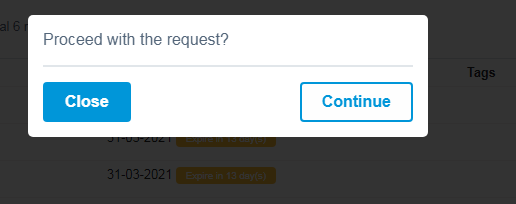 to proceed with the request, click,"continue", to delete the data or click close to go back to the data table view. Data will get deleted from the database and it cannot be retrieved again.
You can use Filter Fields, Sort By List and more options, Print and Generate PDF, to view and print, the displayed data table, according to your requirements.