Termination
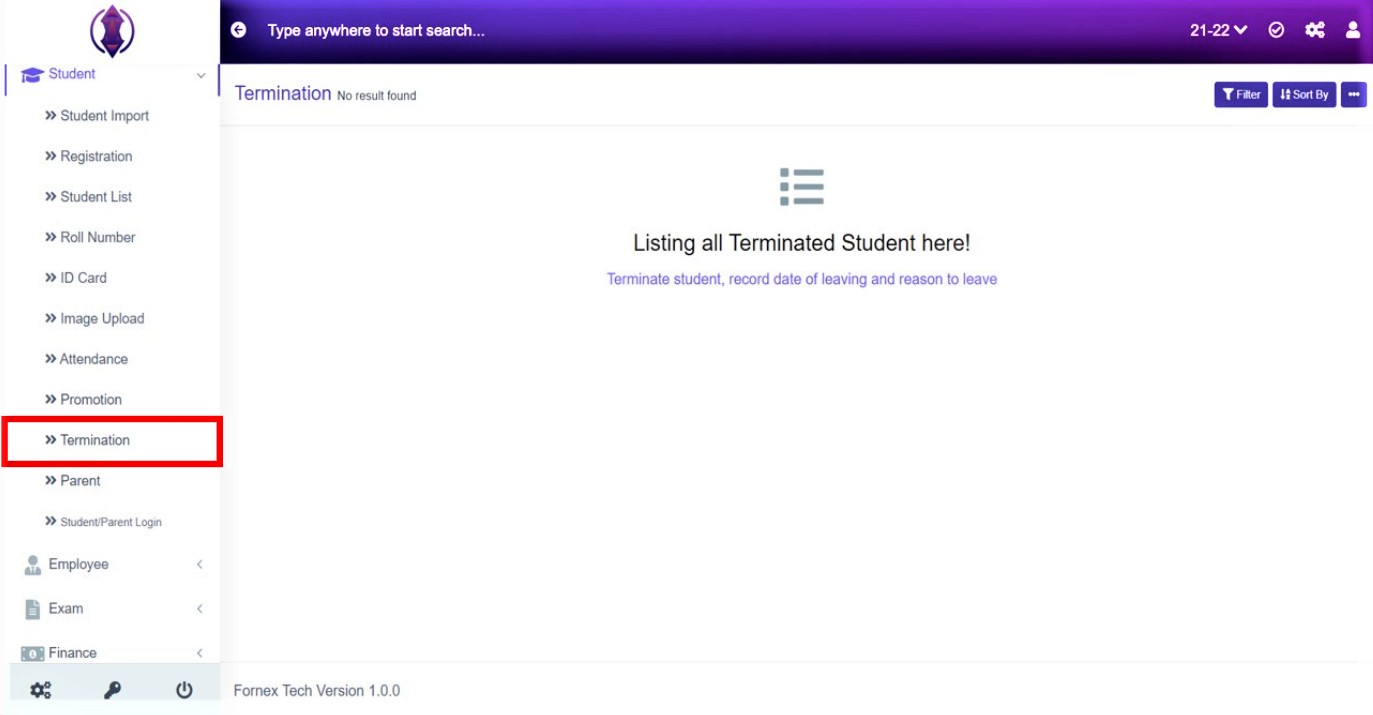
Figure 1
The list of all the terminated students will be displayed in Termination. In order to get the list of students in the Termination Tab, you need to first terminate the student from your student list.
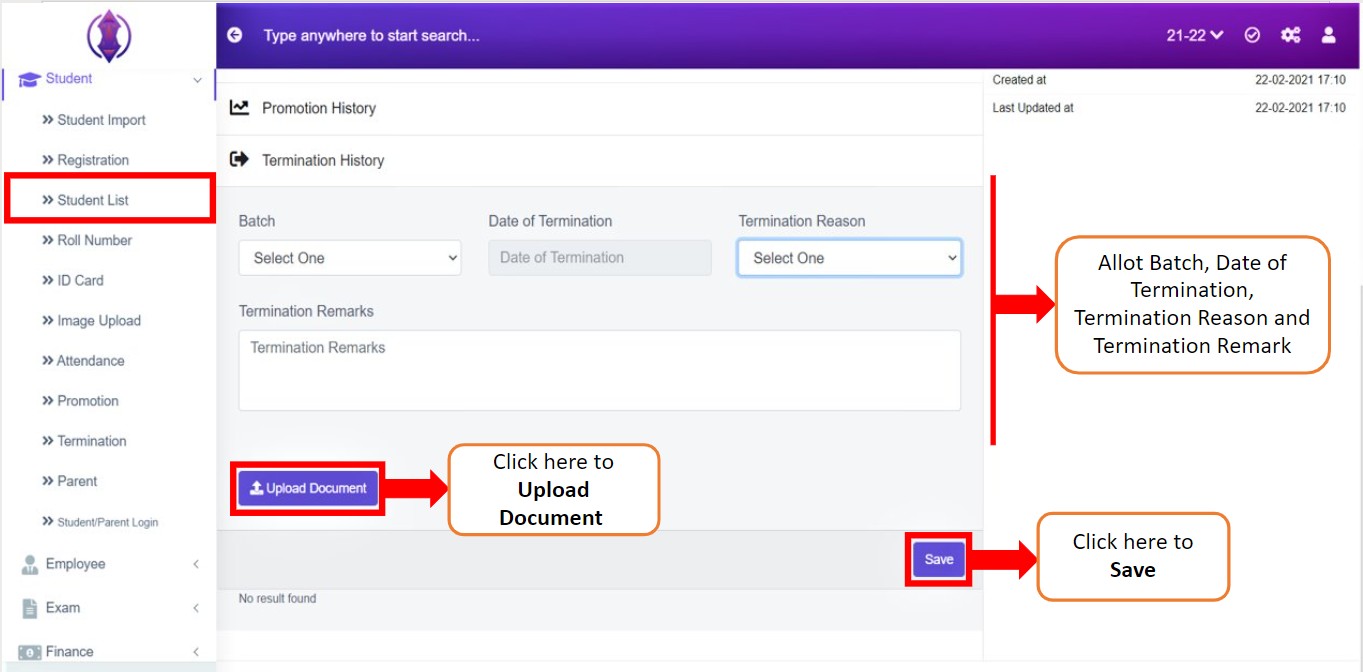
Figure 2
Go to-> Student List: Select the student that is to be Terminated
Go to->Student Details->Termination History: Allot Batch, Date of Termination, Termination Reason and Termination Remark.
The user can also upload documents by clicking Upload Document. Click Save to successfully terminate the student.
Table List View Description
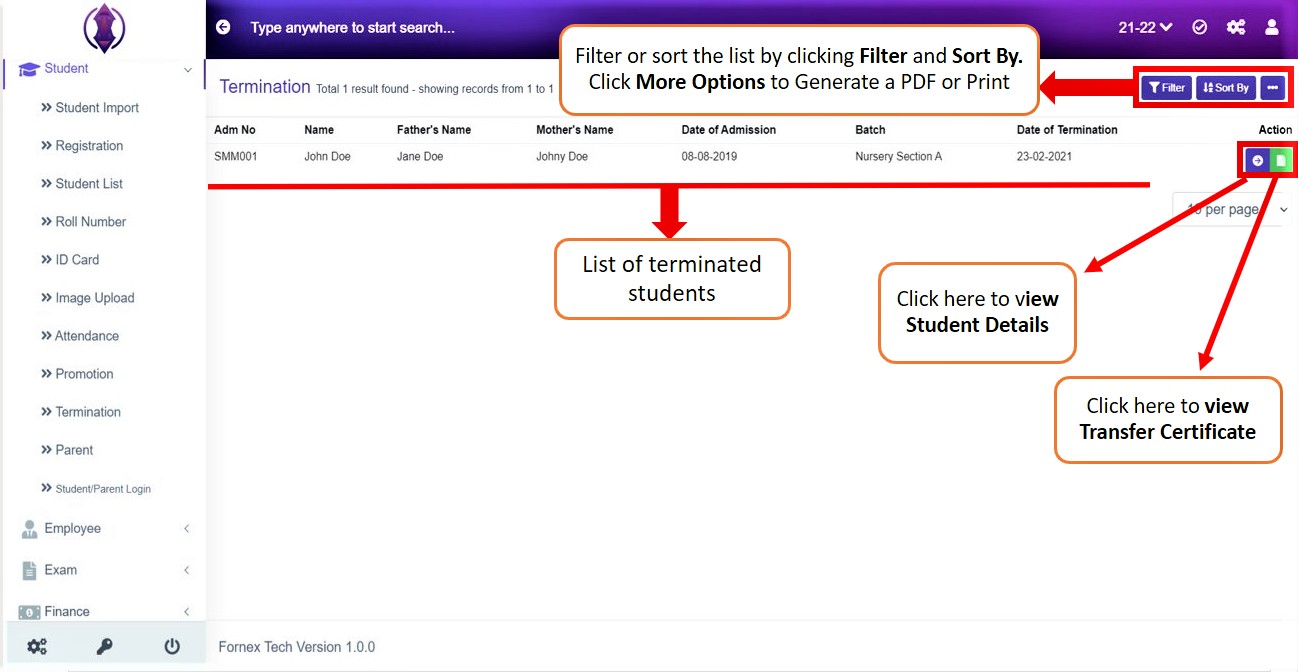
Once the student is terminated from the student list the name of the student is added to the Termination Tab in Table list view format.
The table list views the Admission Number of the student, Name of the student, Fathers Name of the student, Mothers Name of the student, Date of Admission, Batch, and Date of Termination and Action.
View Student Details: To view student details click icon  and you will be redirected to the student detail page where you can view all the student details.
View Transfer Certificate: To view the transfer certificate click icon  and a screen will be displayed to view the Transfer certificate. Refer Figure:3
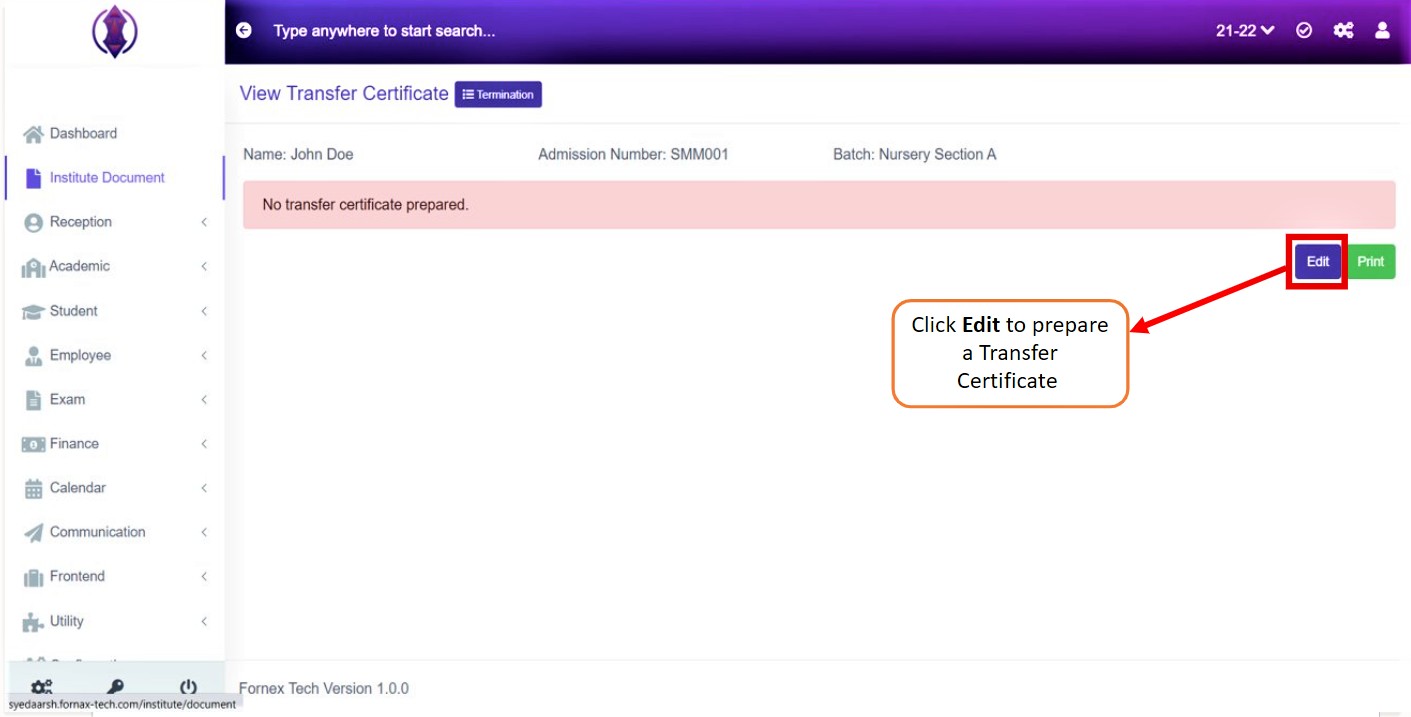
Figure 3
You will be directed to the page where you can view the transfer certificate. If the transfer certificate had been prepared you will see a message saying “No transfer certificate prepared.”
To prepare the Transfer certificate click on Edit and you will be redirected to the page where you can prepare the transfer certificate. Refer Figure:4
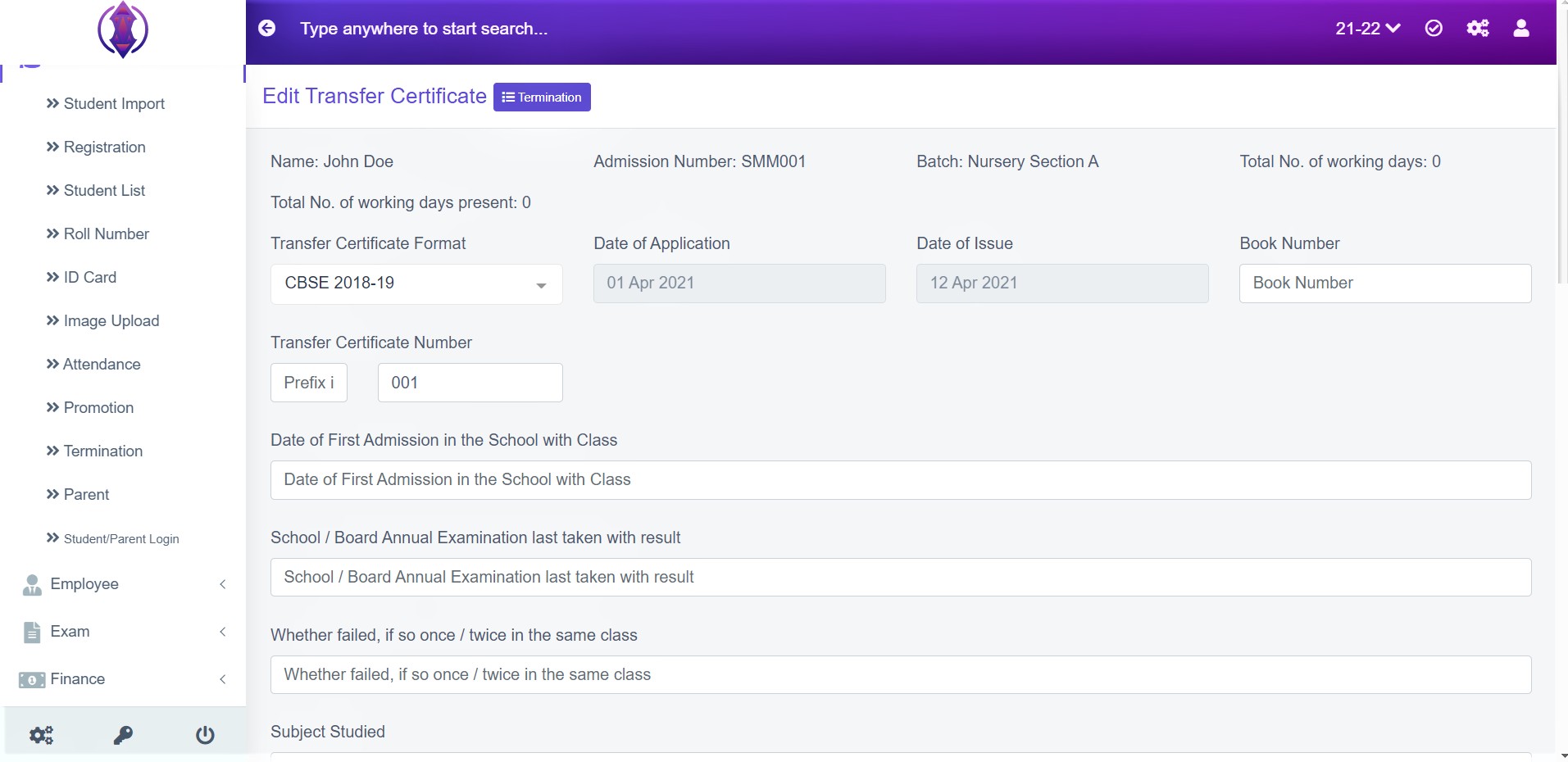
Figure 4
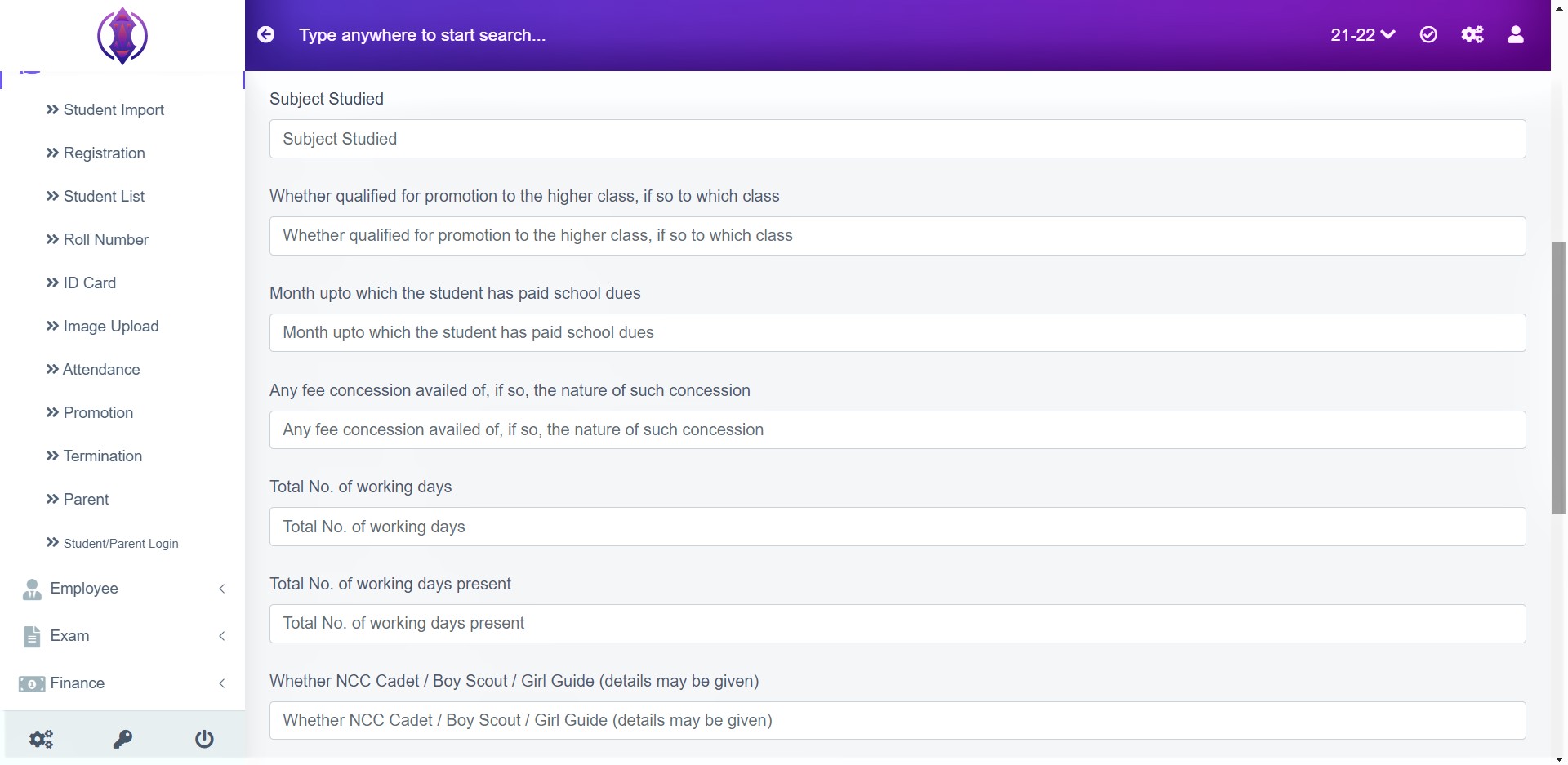
Figure 5
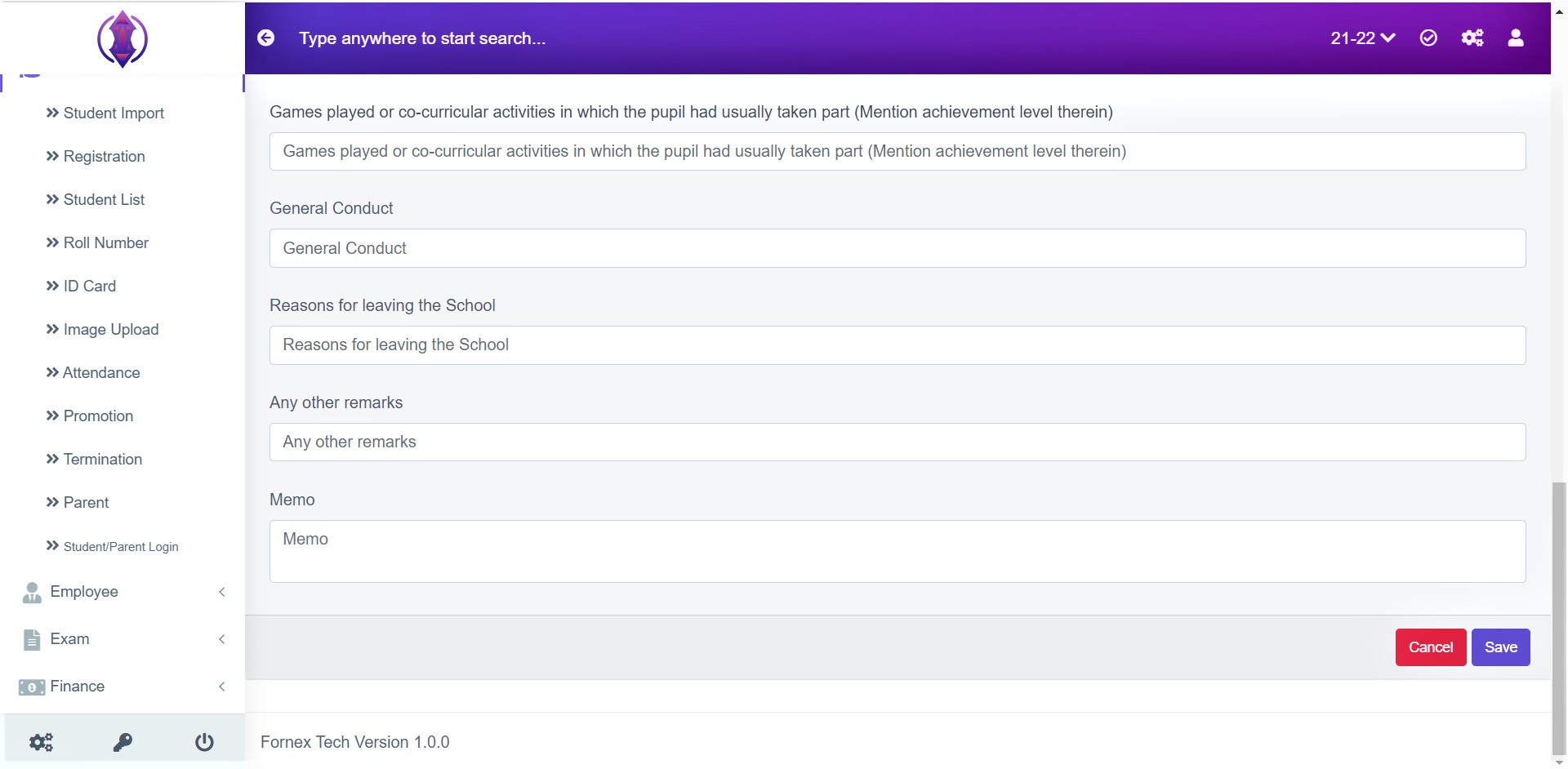
Figure 6
Fill in the details:Select Transfer Certificate Format from the drop-down list, select the Date of Application from the calendar, select Date of Issue from the calendar, Enter Book Number, Enter Transfer Certificate Number, Memo and all the details asked click Save to successfully prepare a Transfer Certificate.
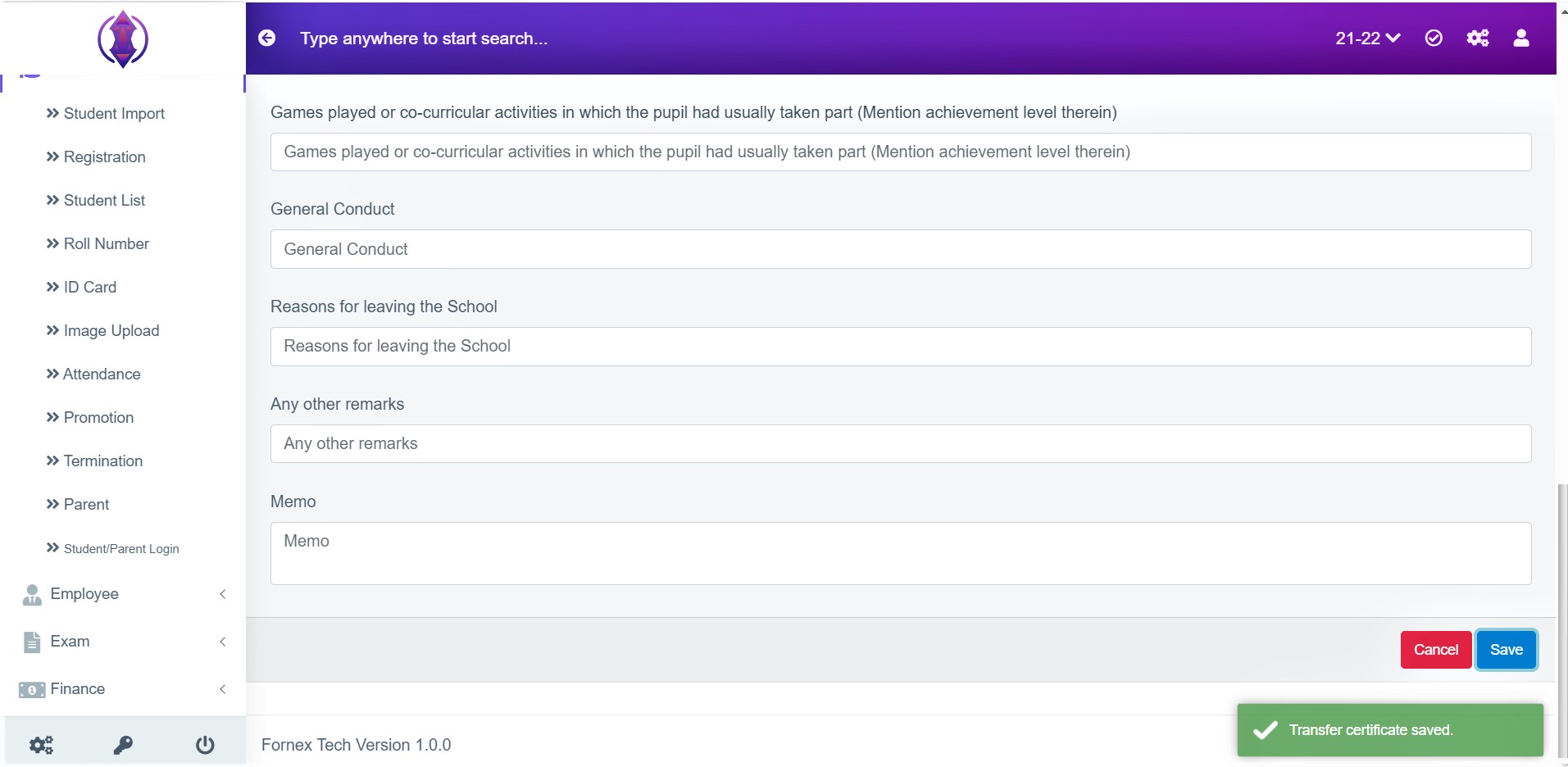
Figure 7
Once the Transfer Certificate is successfully Saved, a Green Pop-up message will be displayed at the bottom right of the screen as “Transfer Certificate Saved”. You can view this Transfer Certificate by clicking View Transfer Certificate. Refer figure:8.
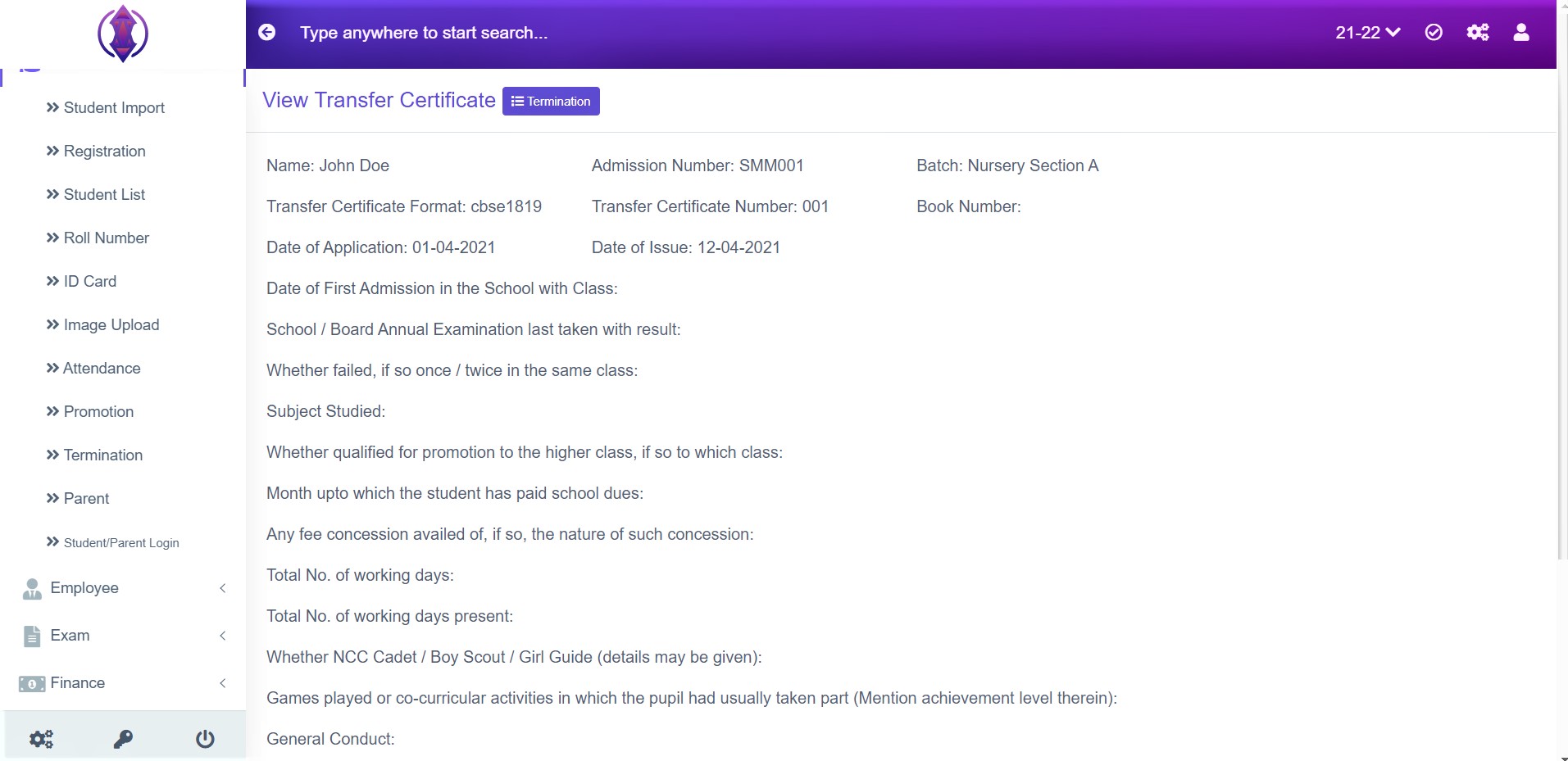
Figure 8
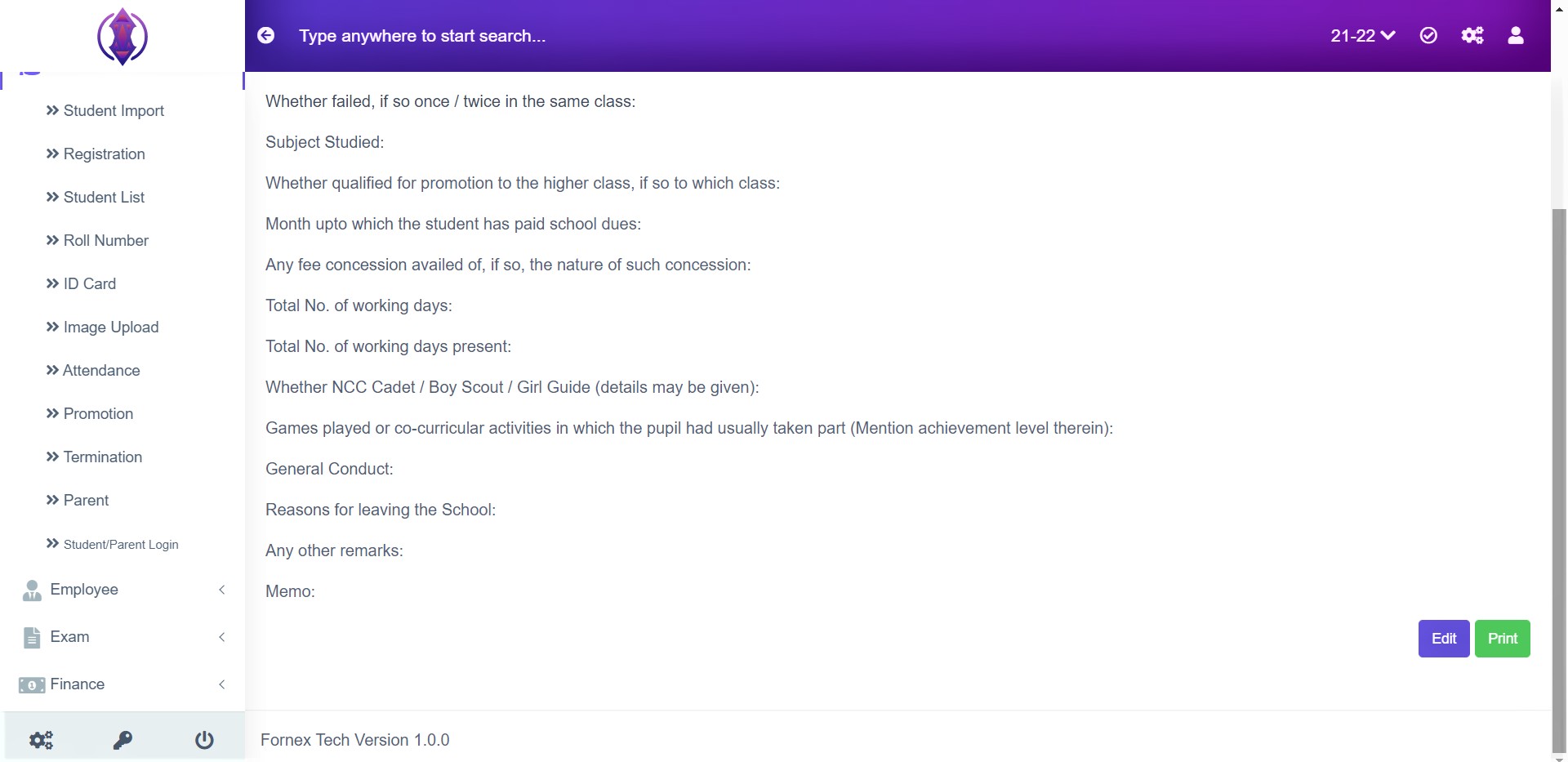
Figure 9
Click Print to take a print out of Transfer Certificate. Refer figure:10
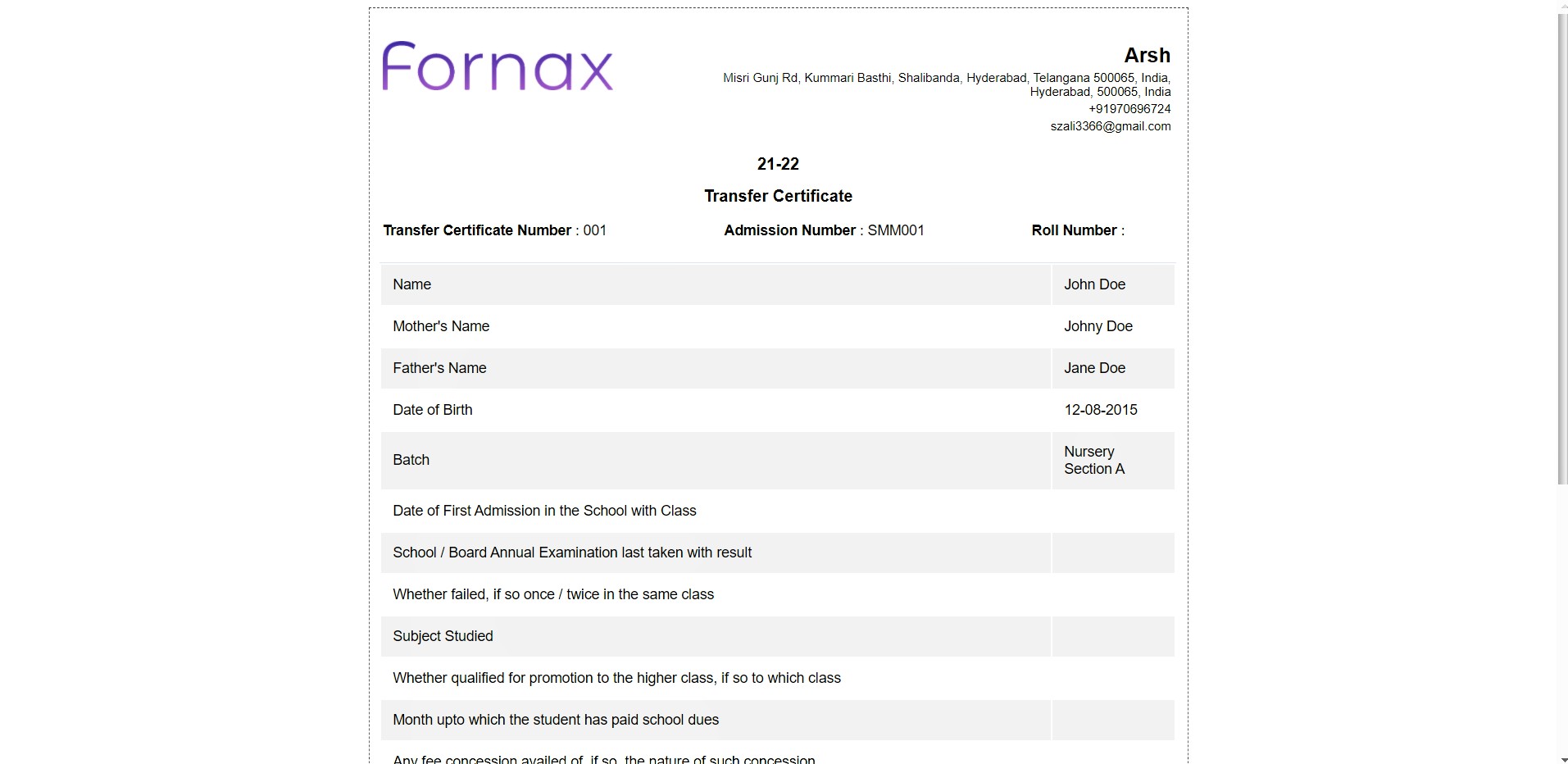
Figure 10
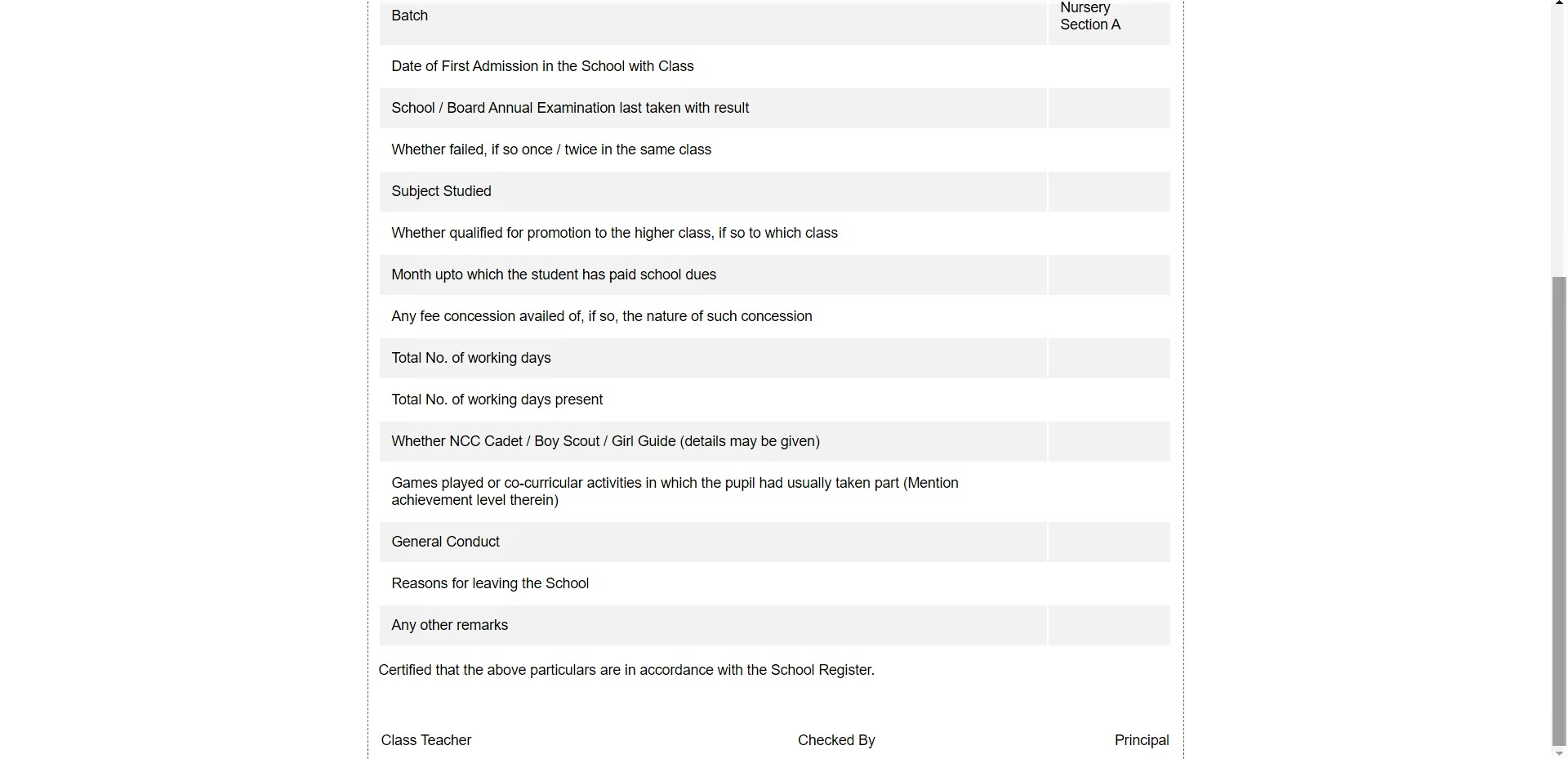
Figure 11