Filter, Sort By & More Options Description
Filter Fields Description
Sort By Lists Description
More Options Description
- Print Option
- Generate PDF
Filter Fields Description:
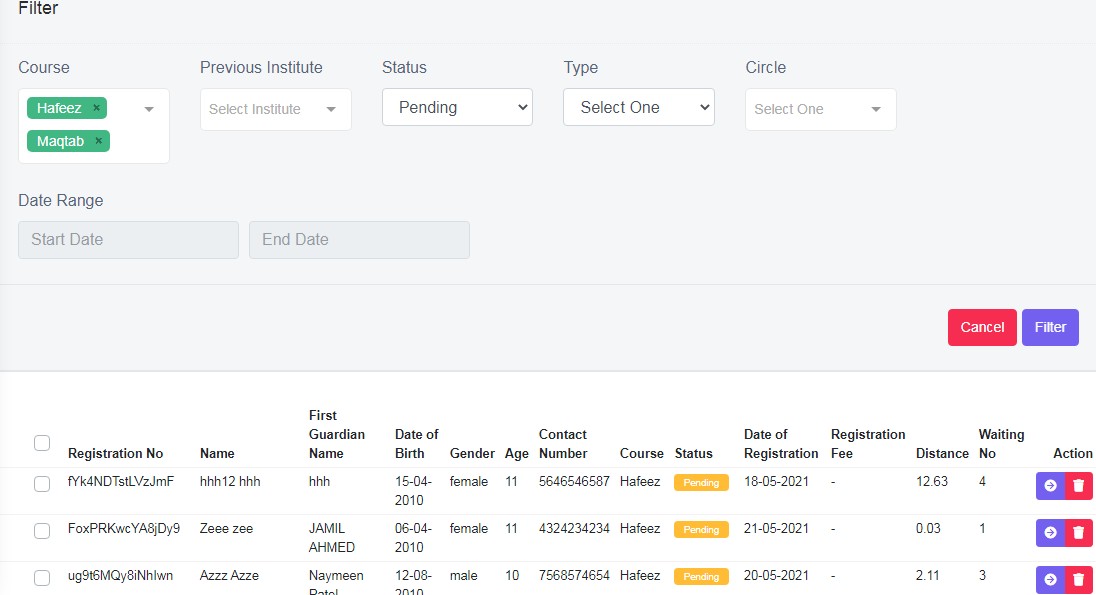
Figure 24
Course: Select one or multiple course to filter and refine data view results.
Previous: Select previous institute from the drop down list.
Status: Select pending, allotted status as required.
Type: Select type of registration online or offline to refine data view result.
Circle: Select the transportation circle, and view the list of students in that circle.
Date Range: Select Date of registration from and to dates, to refine data view results.
Click Filter, after the selection is made and view the results in data view table.
Sort By
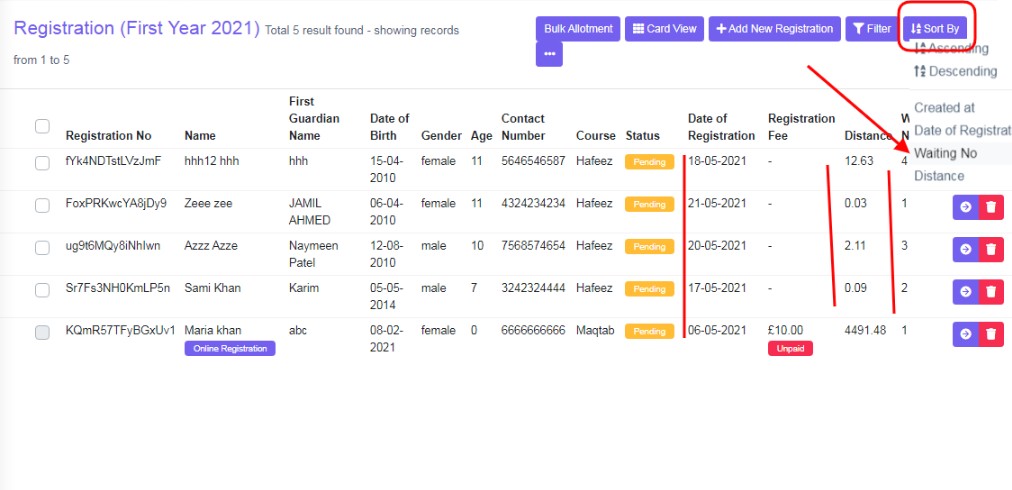
Figure 25
Ascending & descending
Created at:
To know when the record/data was entered-created.
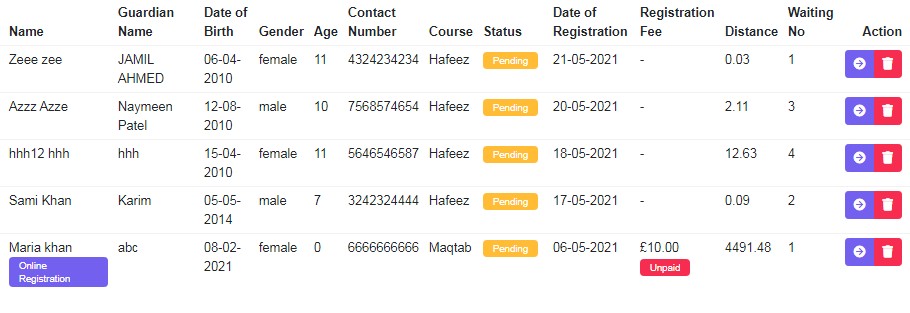
Figure 26
Date of Registration: Date of registration of the student. Ex: Descending date of registration order, refer figure:26
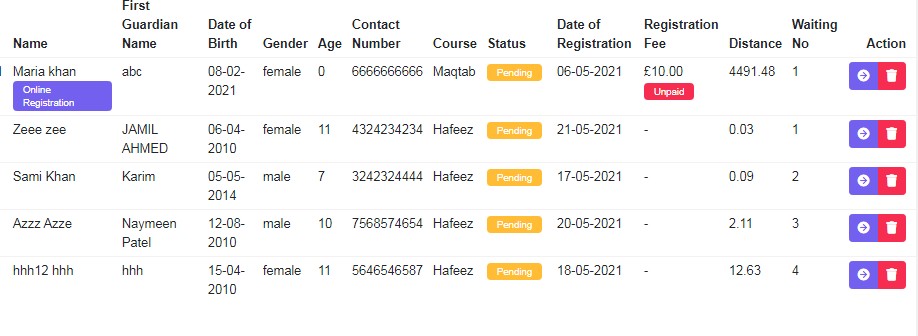
Figure 27
Waiting No: Waiting list number order. Ex: Ascending waiting list order. Refer figure:27
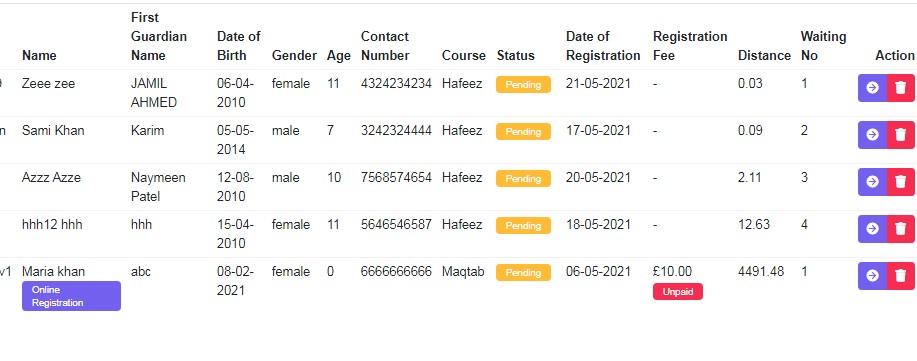
Figure 28
Distance: To know distance order. Ex: Ascending Distance order. Refer figure:28
So you can user filter and sort by simultaneously to refine your search results.
More options Description
Print Option:
To print the data table view data, click ‘Print’, this will Open a new tab, listing table view data, to Print. Refer figure:
To print more specific data, ex: all course group as Primary, use filter option and then use print option, only filtered data will be listed in the new tab to print.
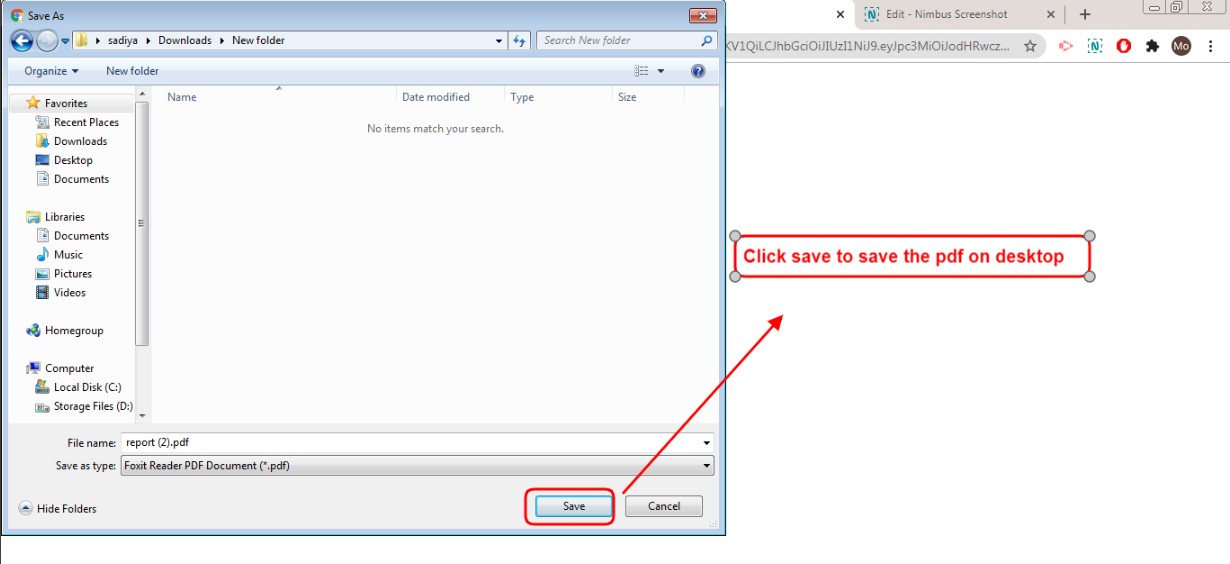
Figure 29Generate PDF:
To download PDF to the desktop, click ‘Generate PDF’, a pop up save as box will open confirming it to save it on desktop. Click ‘Save’ of the pop up box and the pdf will get saved on your desktop. Refer figure:29. You can also use filters, to export more specific data in pdf.