Importing Student Data
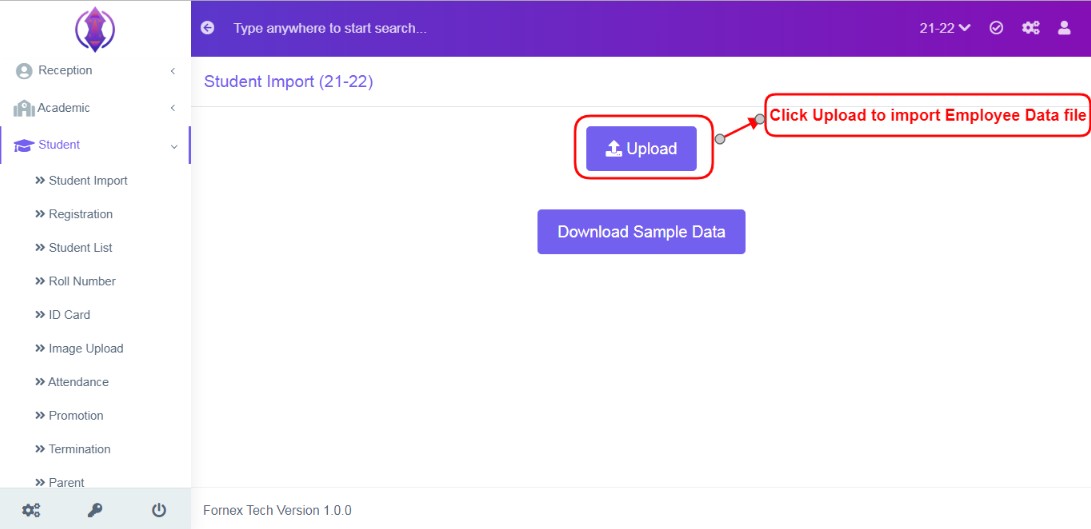
Figure 3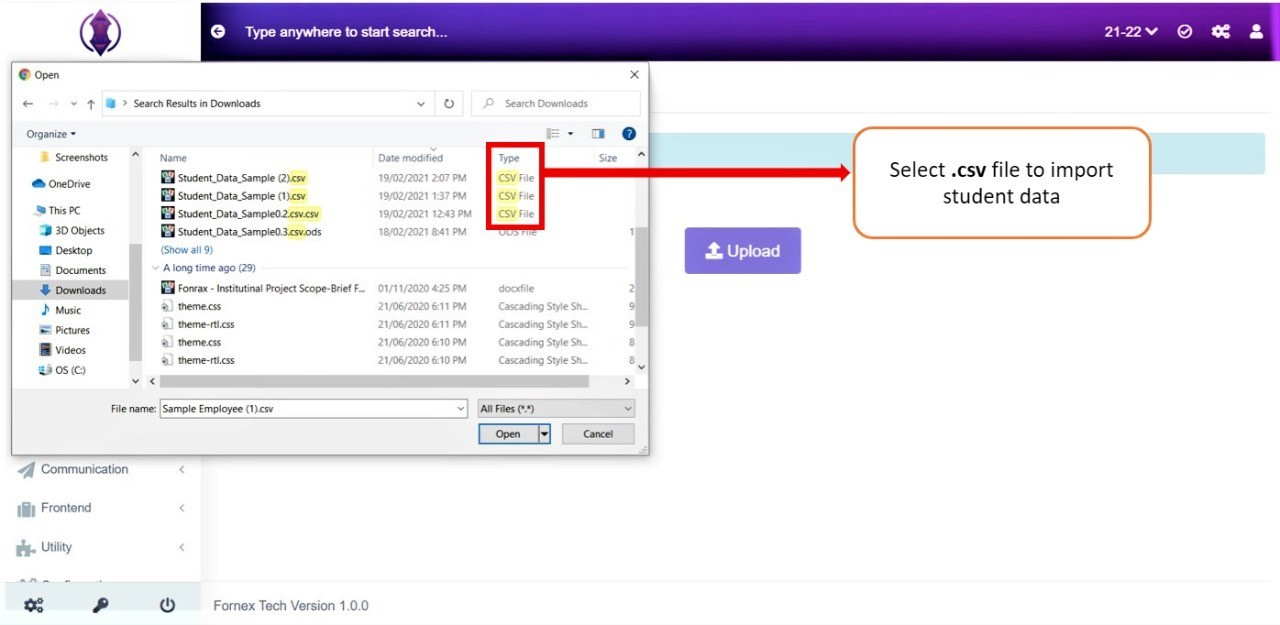
Figure 4Click upload, refer figure:3 and Select the excel .csv file, to import the Student Data, select “Open”, refer figure:4.
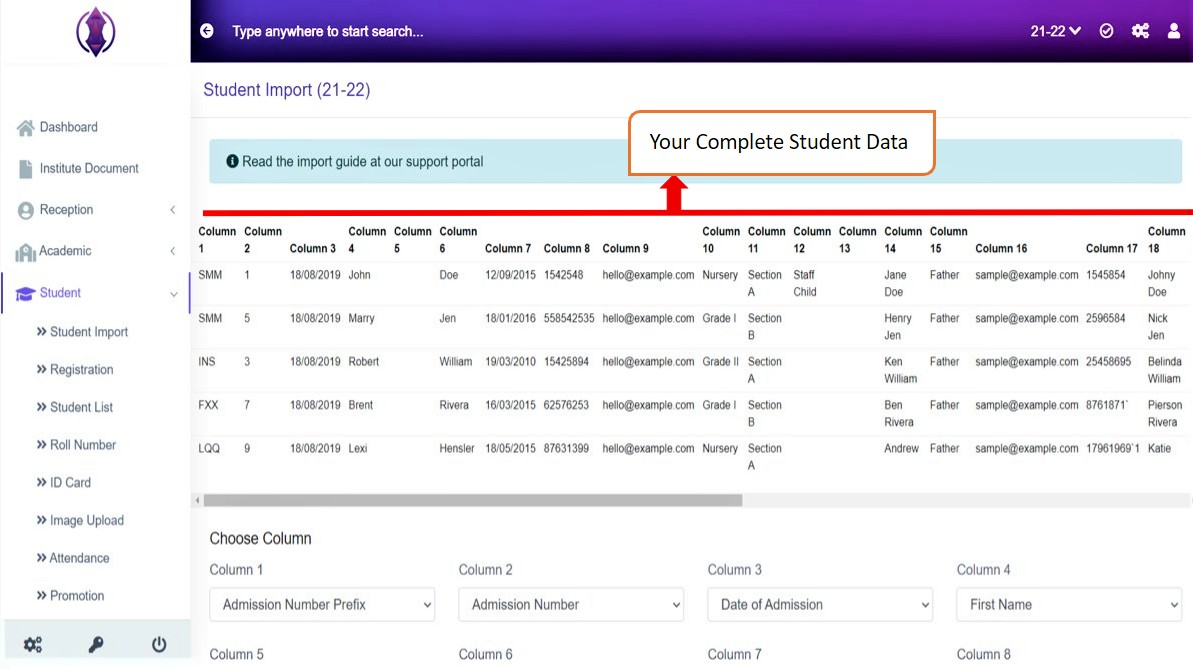
Figure 5Once the data is imported successfully without any validation error message, Figure: 5, screen page is displayed and it is your complete student Data. The number of Students and their data in all columns, of the excel sheet will get imported. Below it is the choose Column Section.
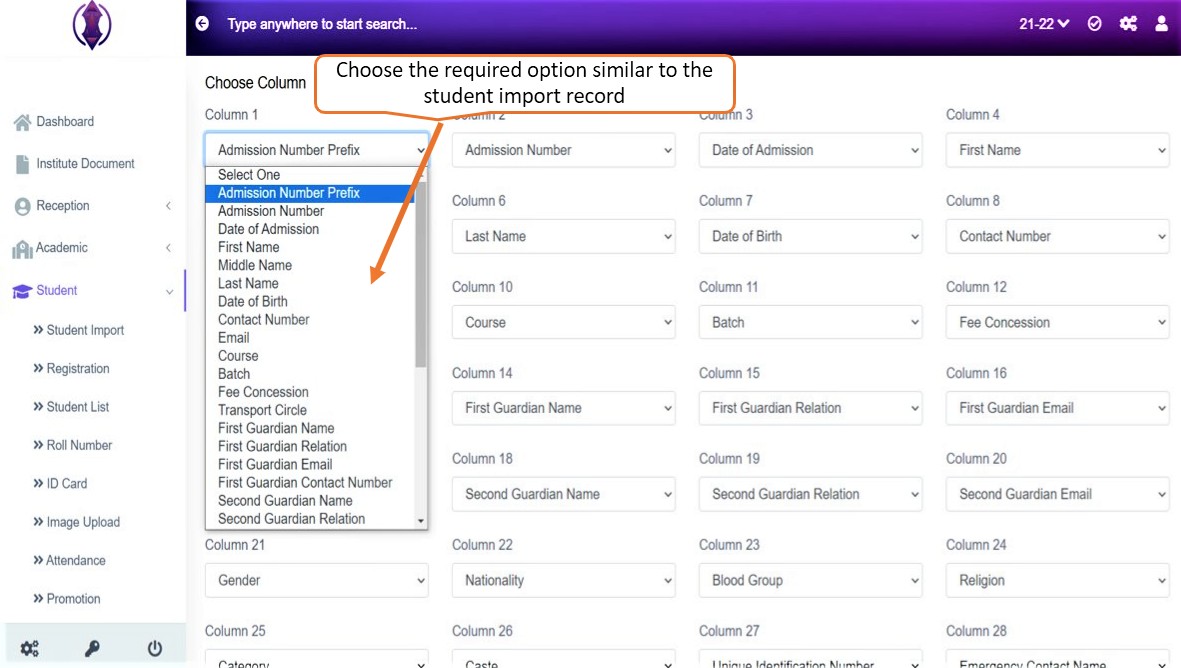
Figure 6Choose Column Section:
This section is optional. It helps you to choose the required option from the drop down list, to match and import your students record. If excel sheet columns are not same as the Columns Fields Name of header, of the Student_Data_Sample excel sheet which we provided in IMS, in that case, this section is useful.
Below is an Example:
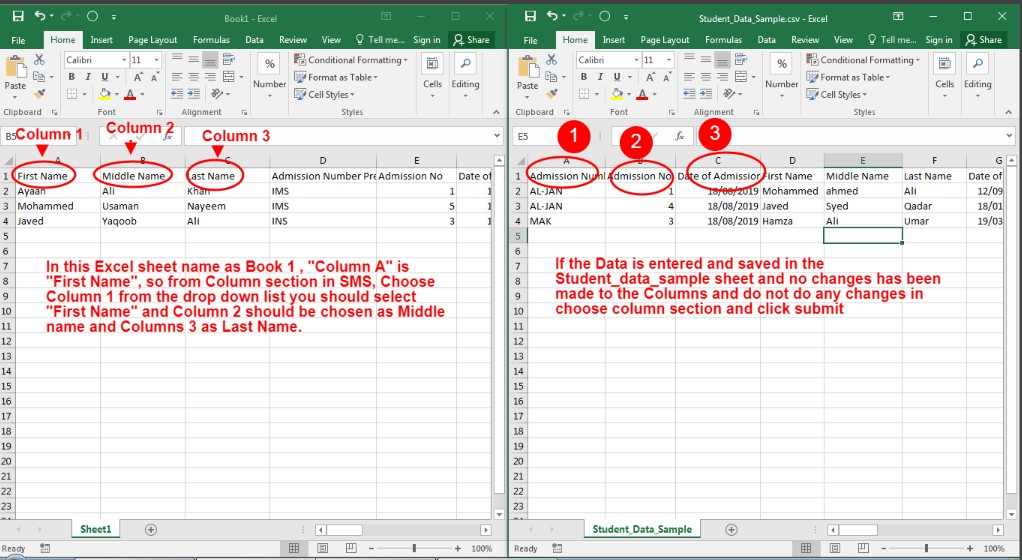
Figure 7
Importing Book 1 Excel File
Importing Student Data sample Excel file
In left side of excel sheet, in Figure 7, named as Book 1, Column A is “First Name, column B is “Middle Name” … here columns are different to the Student_Data_Sample.csv excel file, which we have provided, you should select the Column name from the drop down list. So in Choose Column section refer Figure: 6, In Column 1 select, First Name and in Column 2, select Middle Name and in Column 3 select Last Name…. and so on.
So, Choose Column section - it is used, if the columns are different in excel sheet which you are importing, you can use the choose column and match the column names by using the drop down list.
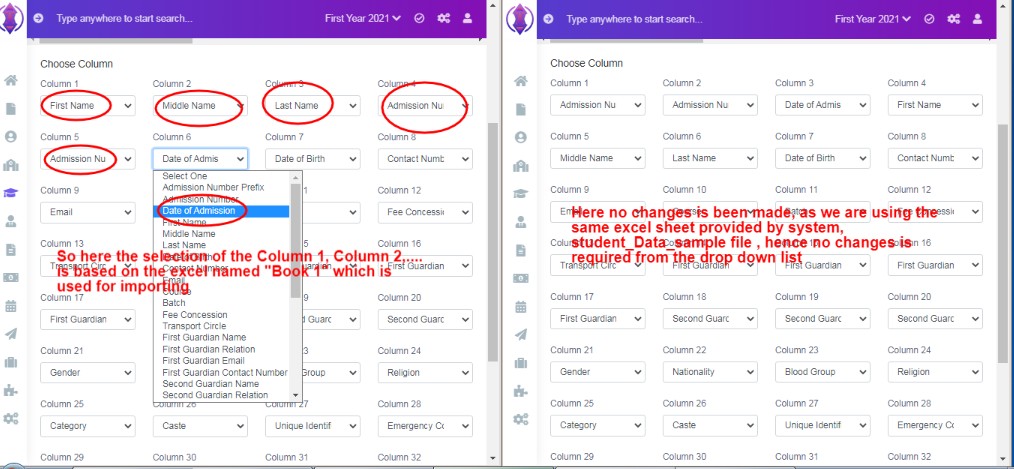
Figure 8
Imported Book 1 Excel File
Imported Student Data sample Excel file
If you have used Student_data_sample.csv excel file, which is provided and no changes have been made to the columns Field Names, and data is entered according to the Column Field Name of the header of the file, then, do not make any changes to the columns in the choose column section. In both the above Figure:8, screen scenarios, do as required, and just click “Submit” button, refer figure:9 and your data will get imported Successfully.
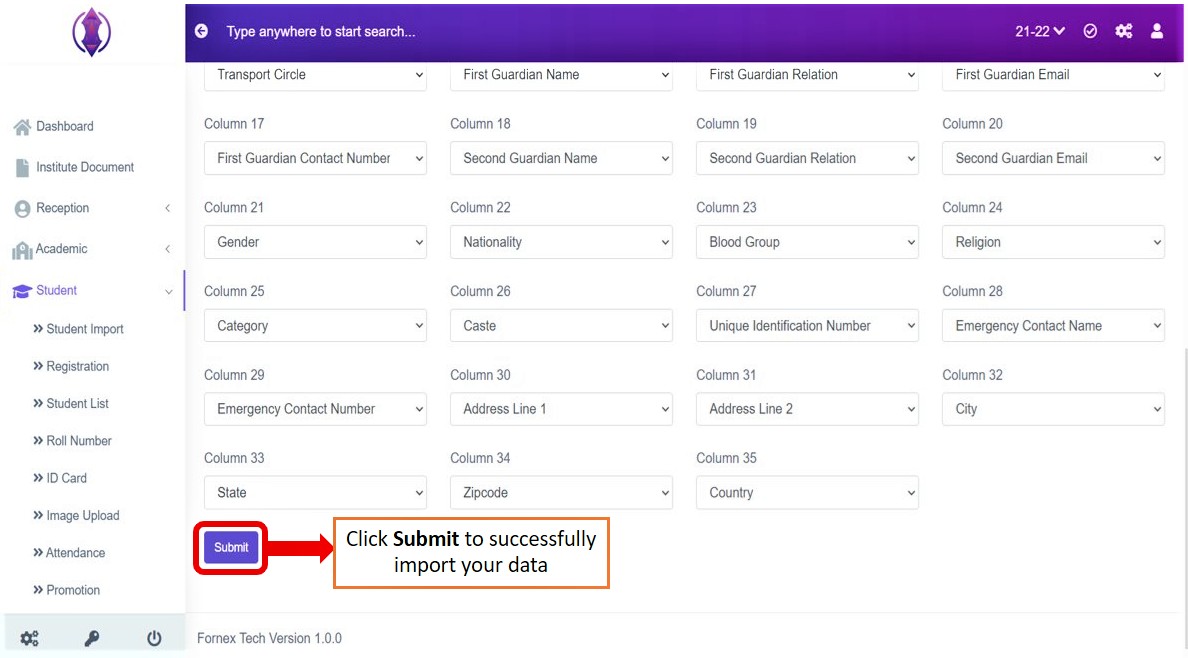
Figure 9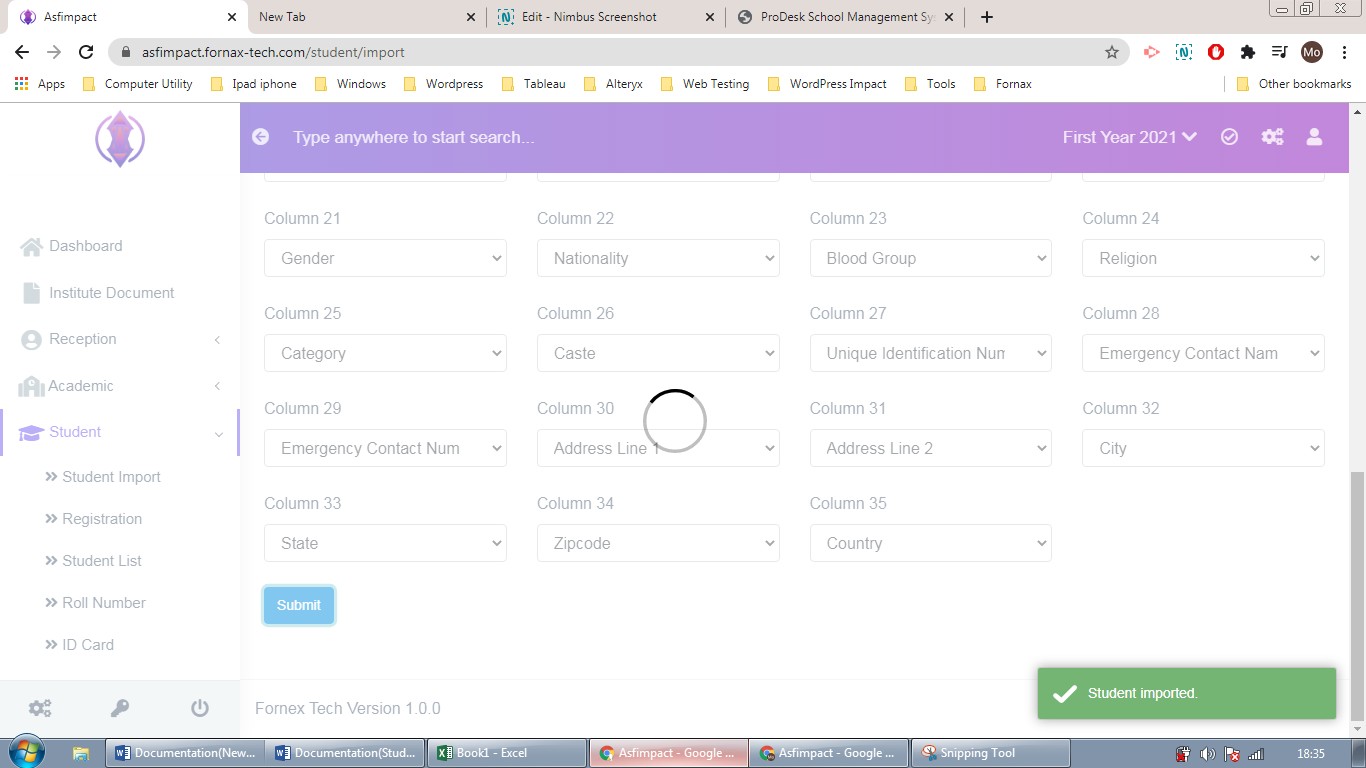
Figure 10Once the Student data file is imported successfully, you will see the Green pop up message to bottom right, refer figure:10, as “Student Imported” and the page, will be automatically redirect to, Student List Page, refer figure:11.
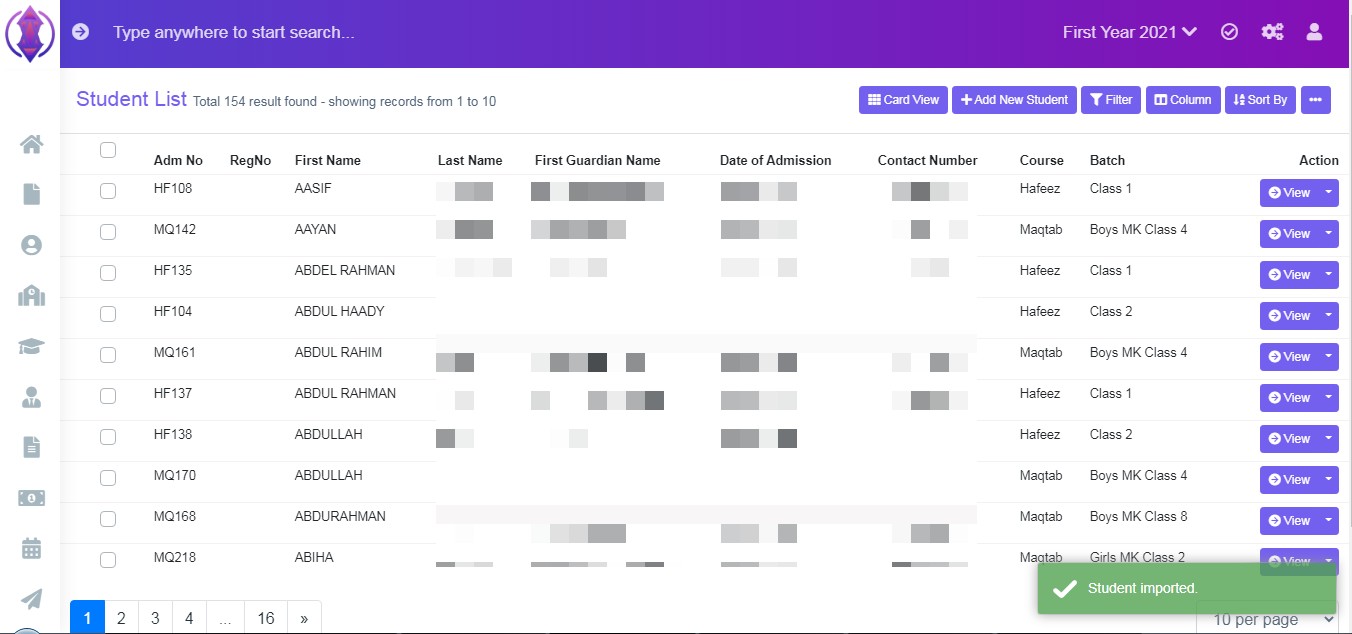
Figure 11Congratulations, your student data has been imported successfully.
Error Rows Information:
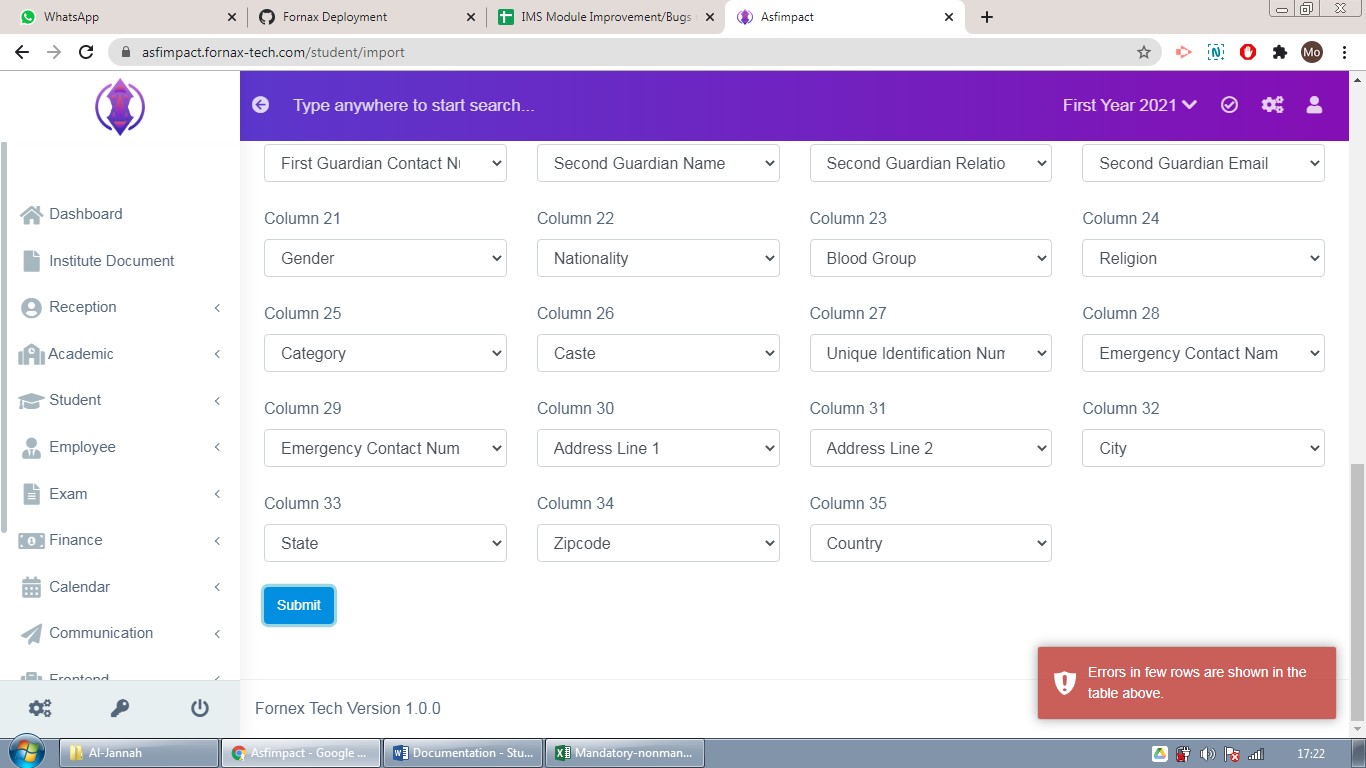
Figure 12
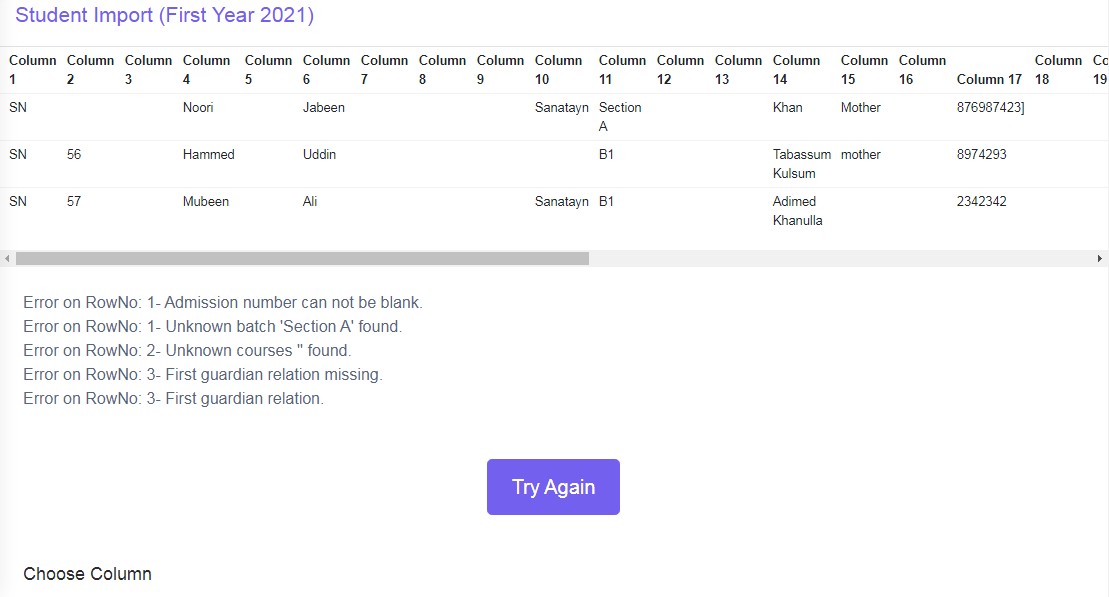
Figure 13If any cell in the required column does not full fill the requirements of the IMS, an error message is displayed below the table.
Error on RowNo: 1- Unknown courses ‘………' found
Error on RowNo: 1- Unknown batch ‘…….’ found
Error on RowNo: 1- Admission number can not be blank.
Error on RowNo: 1- Admission number prefix can not be blank.
Error on RowNo: 1- First name missing.
Error on RowNo: 1- Last name missing.
Error on RowNo: 1- First guardian relation missing.
Error on RowNo: 1- First guardian contact number missing.
Error on RowNo: 1- First guardian name missing.
Error on RowNo: 1- 'SB001' already exist.
Error on RowNo: 1- 'Afroz Jabeen' already exist.
Unknown Course and Batch found: : This error message is shown if the course and batch created in the management system is not matching to the excel sheet.
Unknown Course and Batch found:This error message is shown if the course and batch created in the management system is not matching to the excel sheet.
Example: Course Name or Batch Name – Hafeez in IMS – hafeez in Excel, B1 in IMS – b1 in Excel,
Error on RowNo: 1- Unknown courses ‘hafeez' found, will be displayed in above table.
Admission Number and Prefix cannot be blank: If any cell in the excel sheet of these two column is left empty; this message is displayed.
Missing error message of First Name, Last Name, first guardian Name, first guardian relation, first guardian contact number: If these cells are left empty.
Already exit: If Admission Prefix and Number already exit in the data, this error message is displayed.
Note:
If admission number is different, generally it means two different admissions, and Prefix adding it, is making it unique. Prefix is useful when a student is opting for two courses, were student name duplication, error does not occur.
You should make sure Prefix are properly decided.
You Should thoroughly check duplicate student data in rows of excel before importing.