Mark Attendance
Note: The attendance is automatically marked as soon as the employee logs in to their own portal. To mark the attendance manually please view the following documentation.
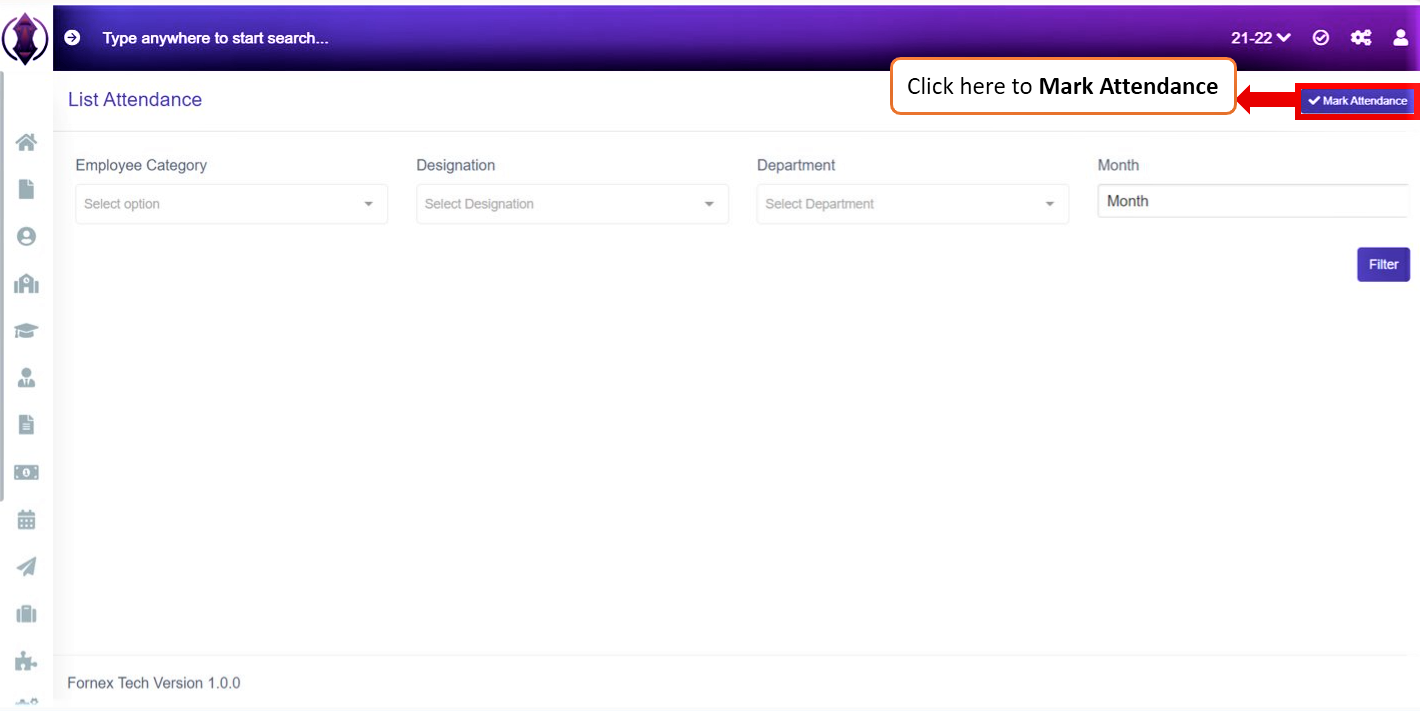
Figure 28Click on Mark Attendance and you will be redirected to the page where you can mark attendance manually for your employees.
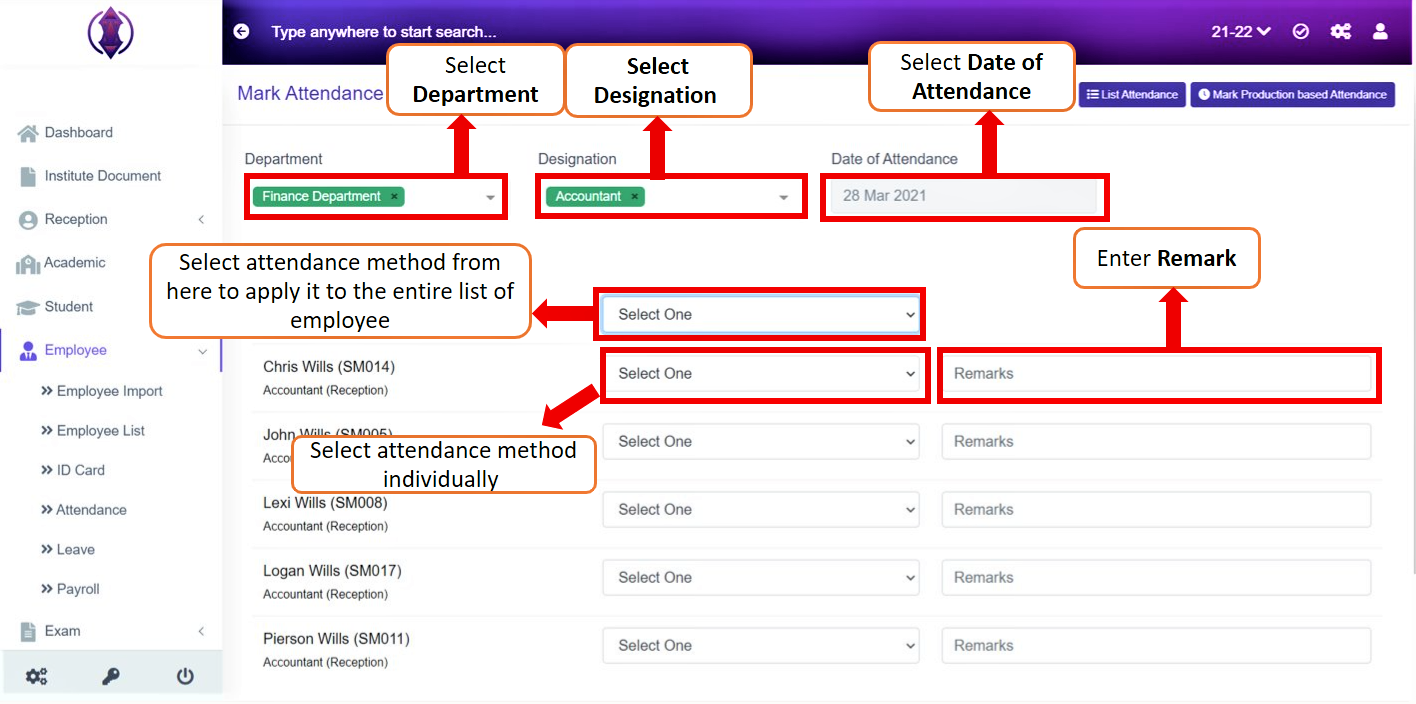
Figure 29Once the user is directed to this page,
- Select Department from the drop-down list,
- Select Designation from the drop-down list,
- Select Date of Attendance from the calendar.
As the details are filled, the employee list of the given department and designation is displayed down.
The individual Select Option that is above the employee list can select one attendance method for all the employees i.e., using the attendance method from this drop-down list applies the same method to every employee.
The Select Option that is beside the employee name can select the attendance method for one individual employee i.e., using the attendance method from this drop-down list applies only to one particular employee.
Once the attendance method is applied you can give in the Remarks(This field is optional).
Note: The Attendance Type can be added to the drop-down list from Configuration.
Go to - Module Configuration >> Employee Configuration >> Attendance Type
Please refer to the Employee configuration documentation for detailed information.
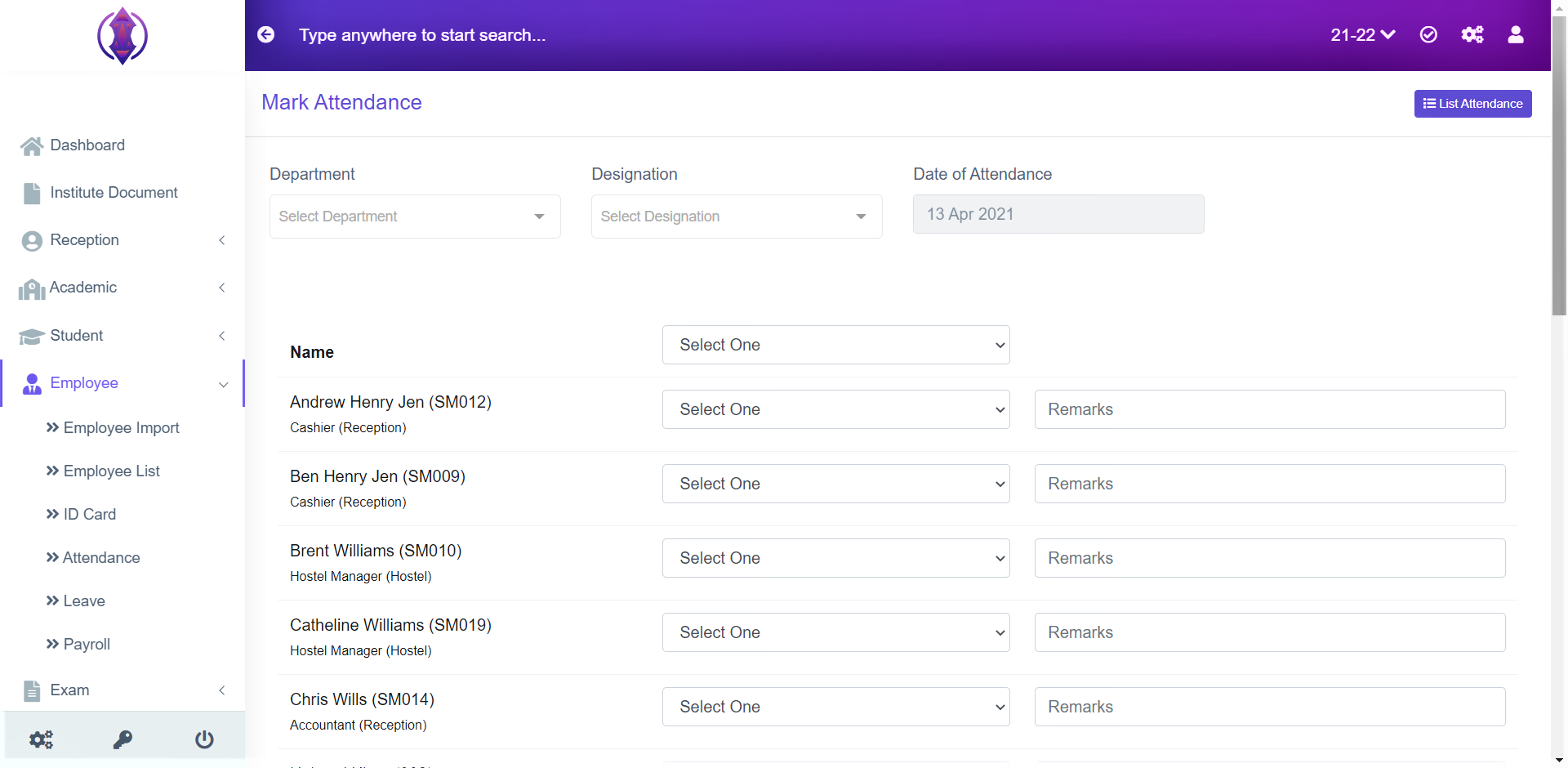
Figure 30The attendance can be allotted to the entire employee list together without assigning Department, Designation and Date of Attendance and directly selecting the attendance method from the drop-down list and giving a remark(This field is optional)
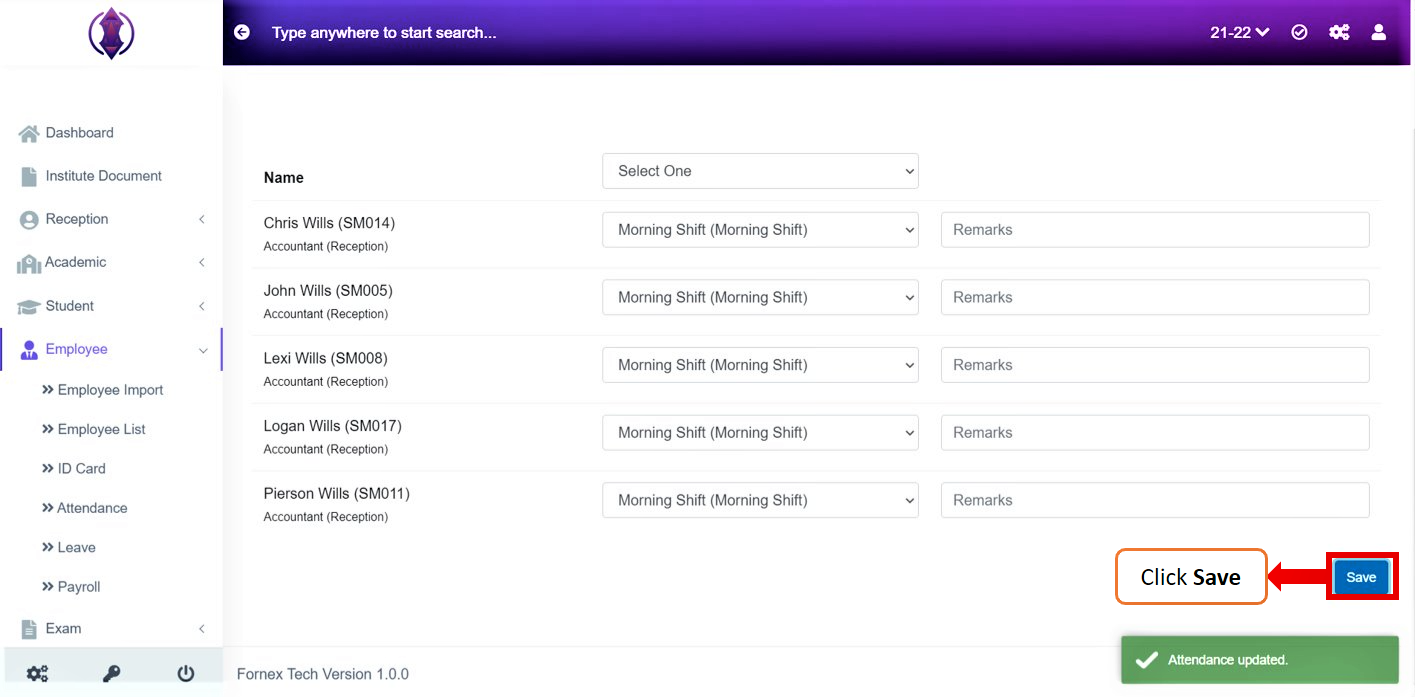
Figure 31Once the attendance is allotted successfully, click Save, a Green Pop-up message will be displayed at the bottom right of the screen as “Attendance Updated”. Refer figure 31.
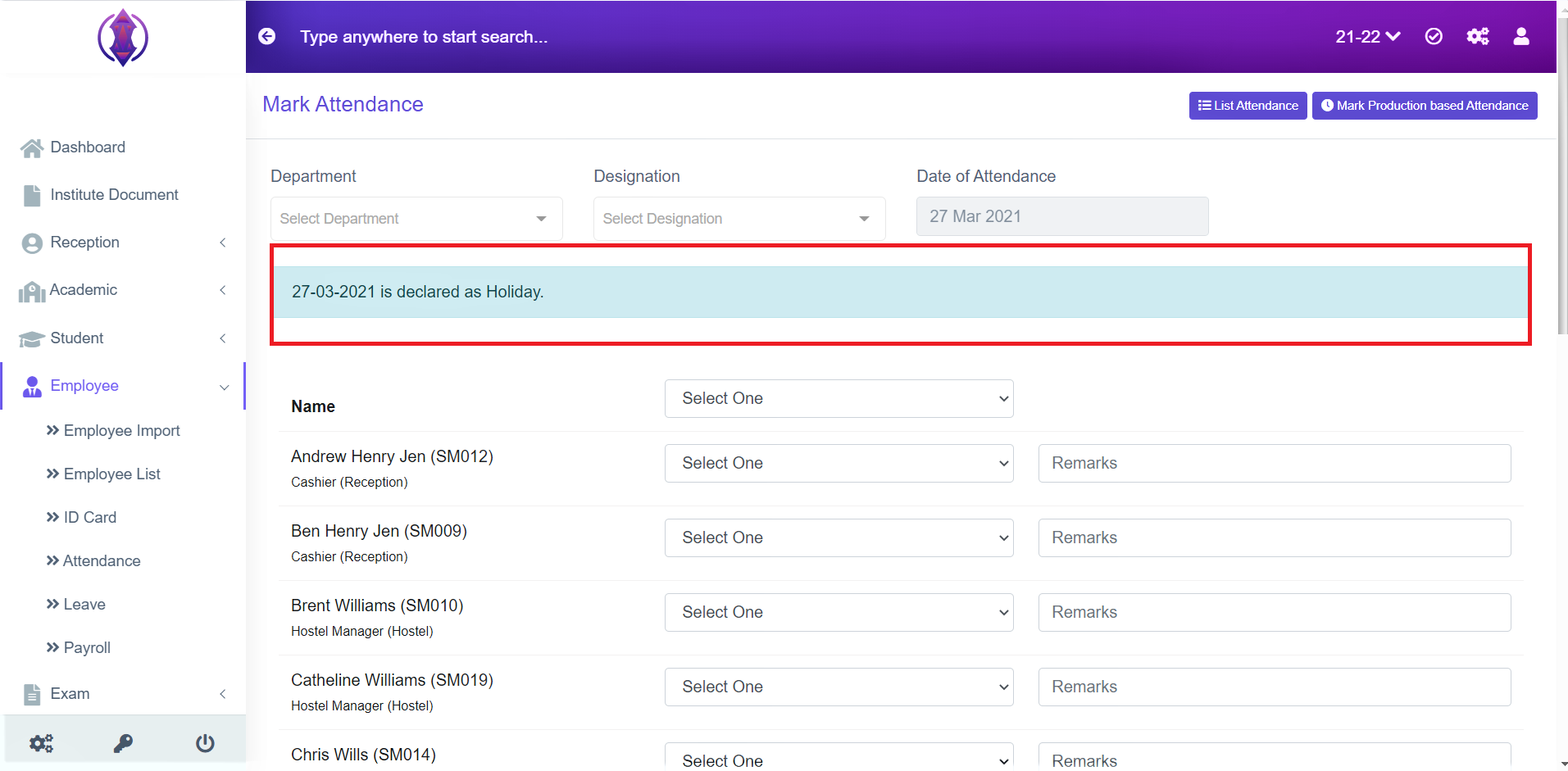
Figure 32If you selected a day that has been assigned as the holiday to mark attendance a blue pop-up message is displayed on screen as “27-03-2021 is declared as Holiday.”
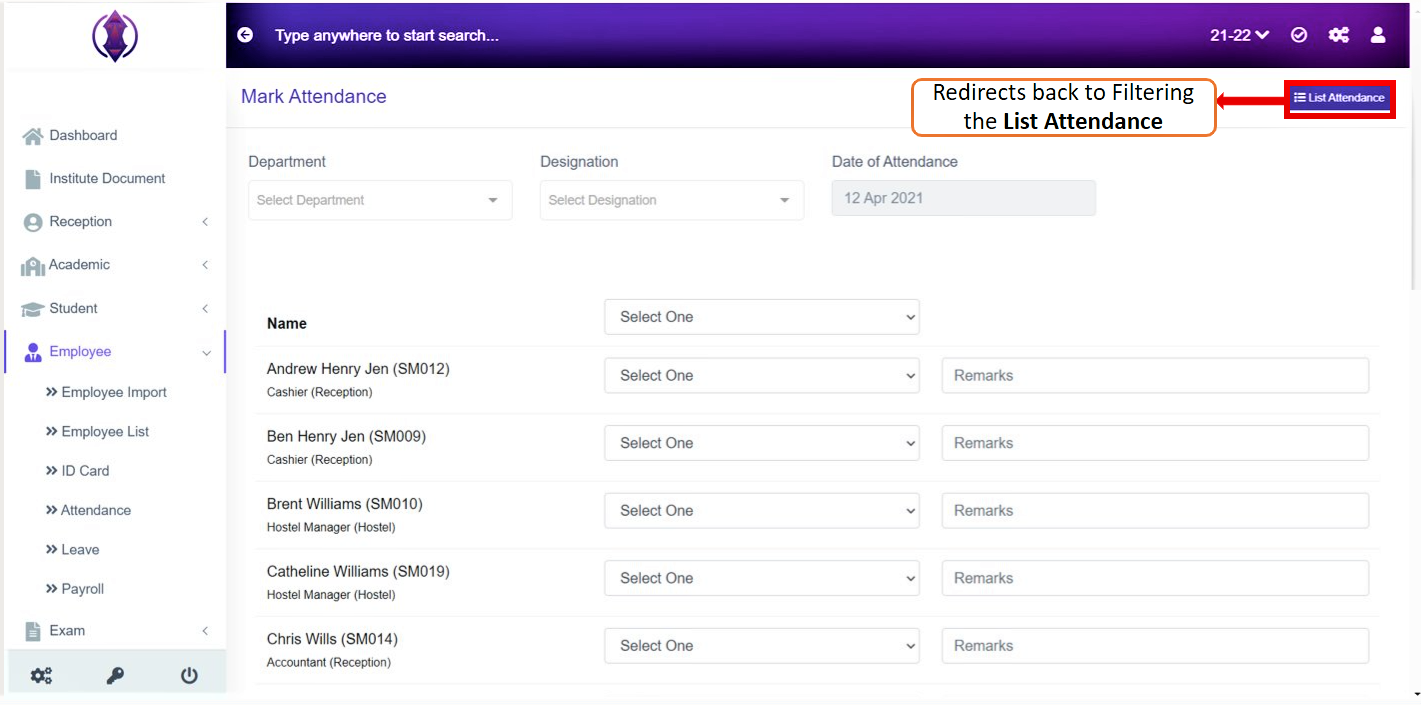
Figure 33
List Attendance: By clicking List Attendance you are redirected to the page where you can filter the employees and view the attendance list. Refer Figure:34
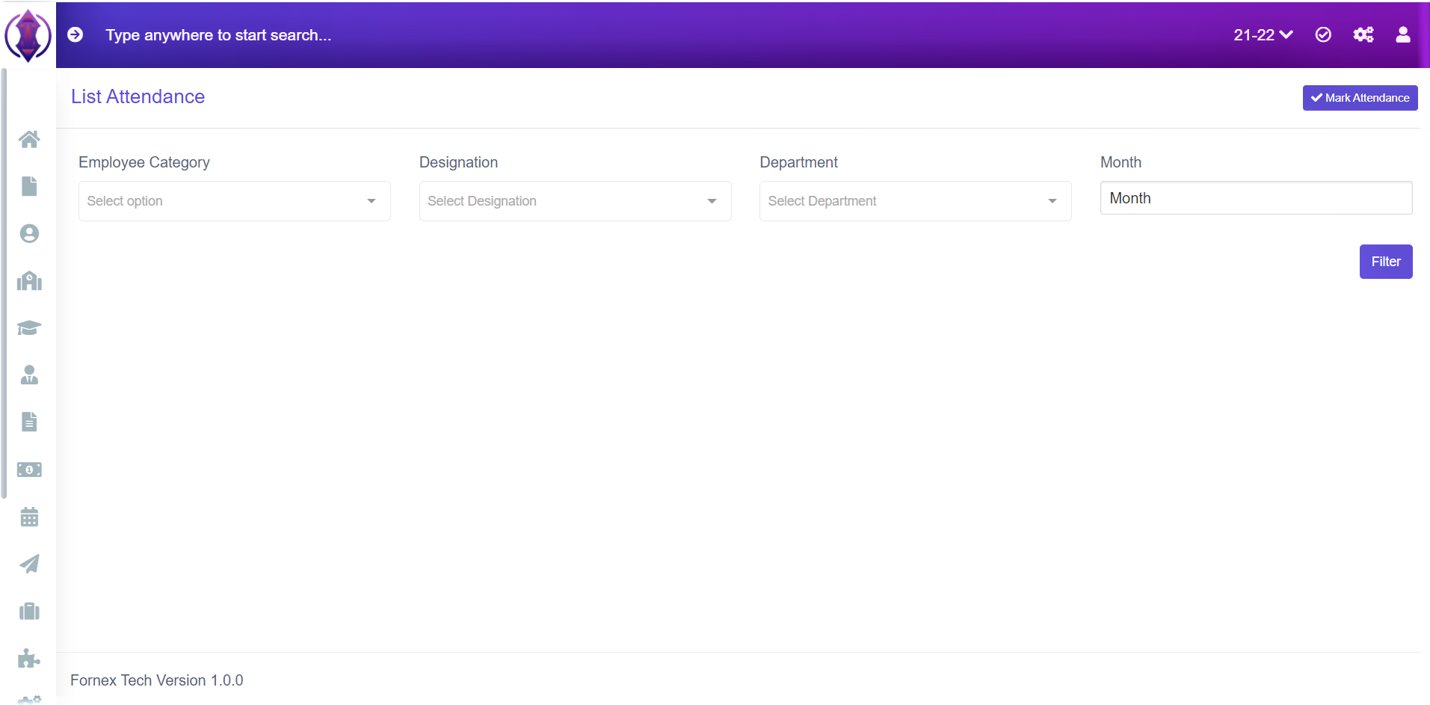
Figure 34