Filter, Sort By & More Options Description
Filter Fields Description
- — Employee
Sort By Lists Description
- — Ascending & Start Date
- — Descending & Start Date
- — Ascending & End Date
- — Descending & End Date
More Options Description
- — Print Option
- — Generate PDF
Filter Fields Description:
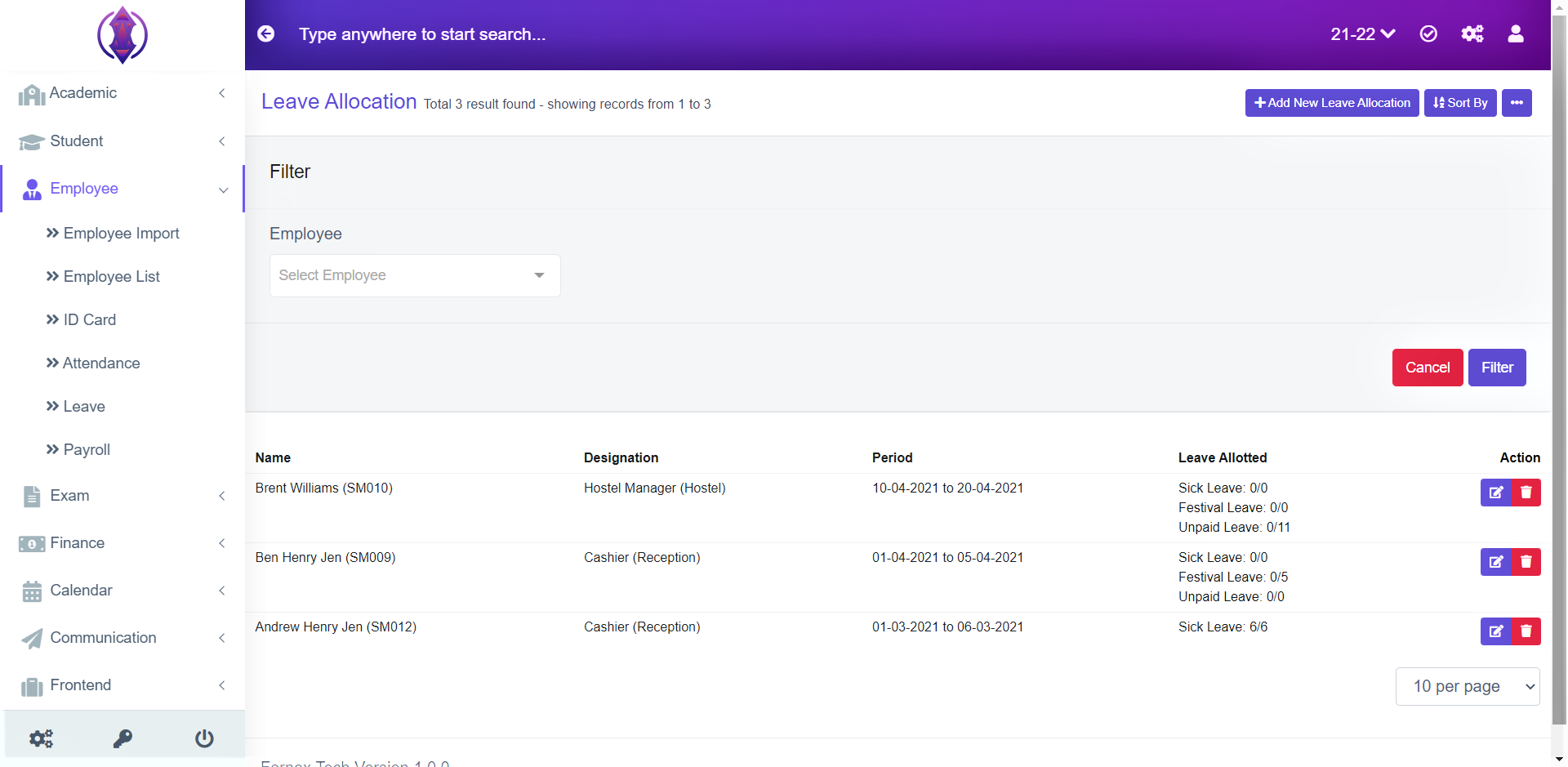
Figure 39
Filter the Leave Allocation by selecting an employee from the drop-down list. Refer figure 39
Employee:
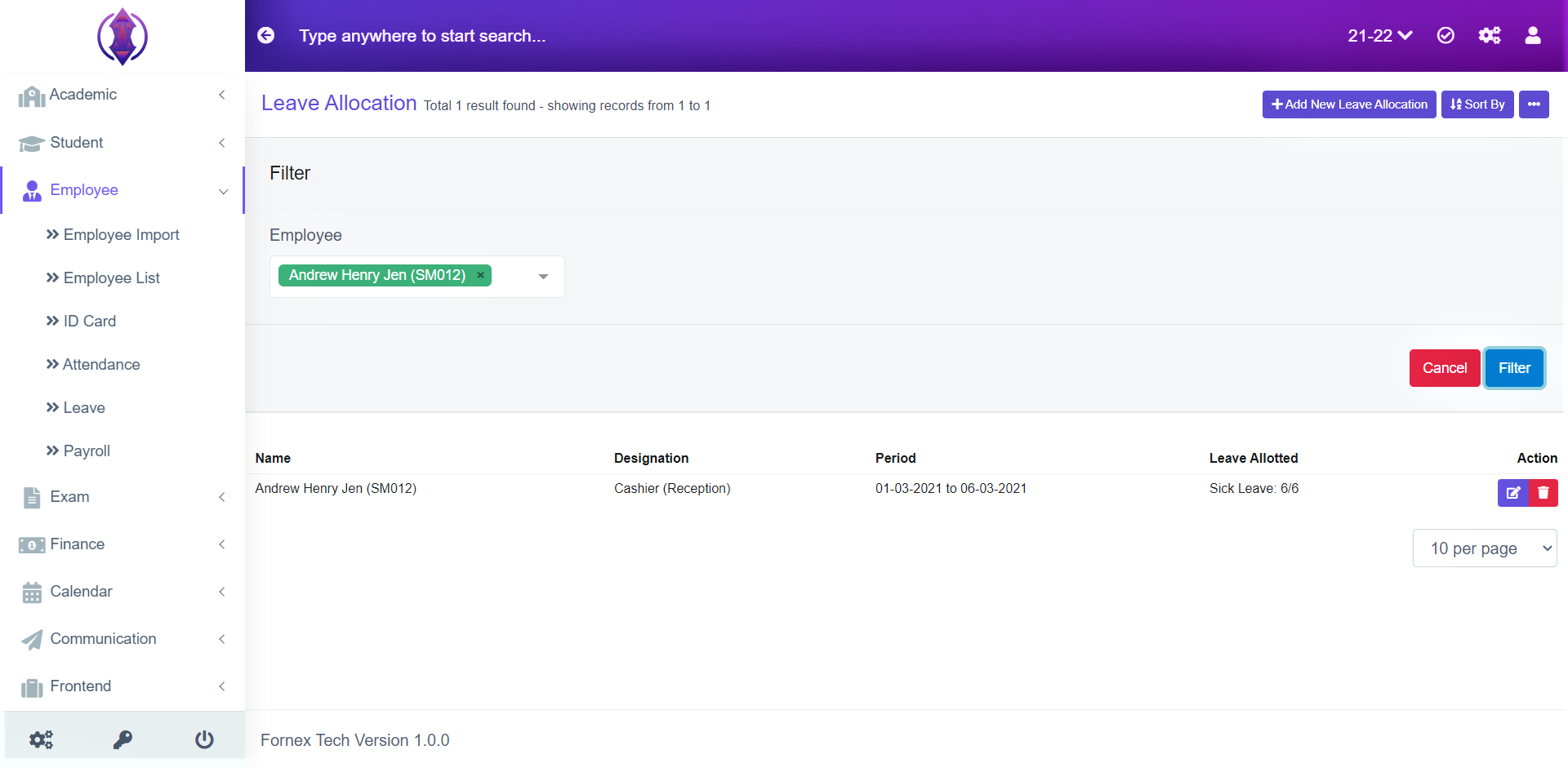
Figure 40
It is used to filter the leave allocations by selecting the Employee from the drop-down list. Select the Employee, you want to filter,
Ex: John, or Andrew, and click ‘Filter’, and the leave allocations from that employee will be displayed in the table list view below the filter screen. Refer figure 40
Sort By Lists Description
Ascending & Start Date:

Figure 41Selected Ascending and Start Date it will list, passed, present and far dates of leave allocation in order. Refer figure:41.
Descending & Start Date:
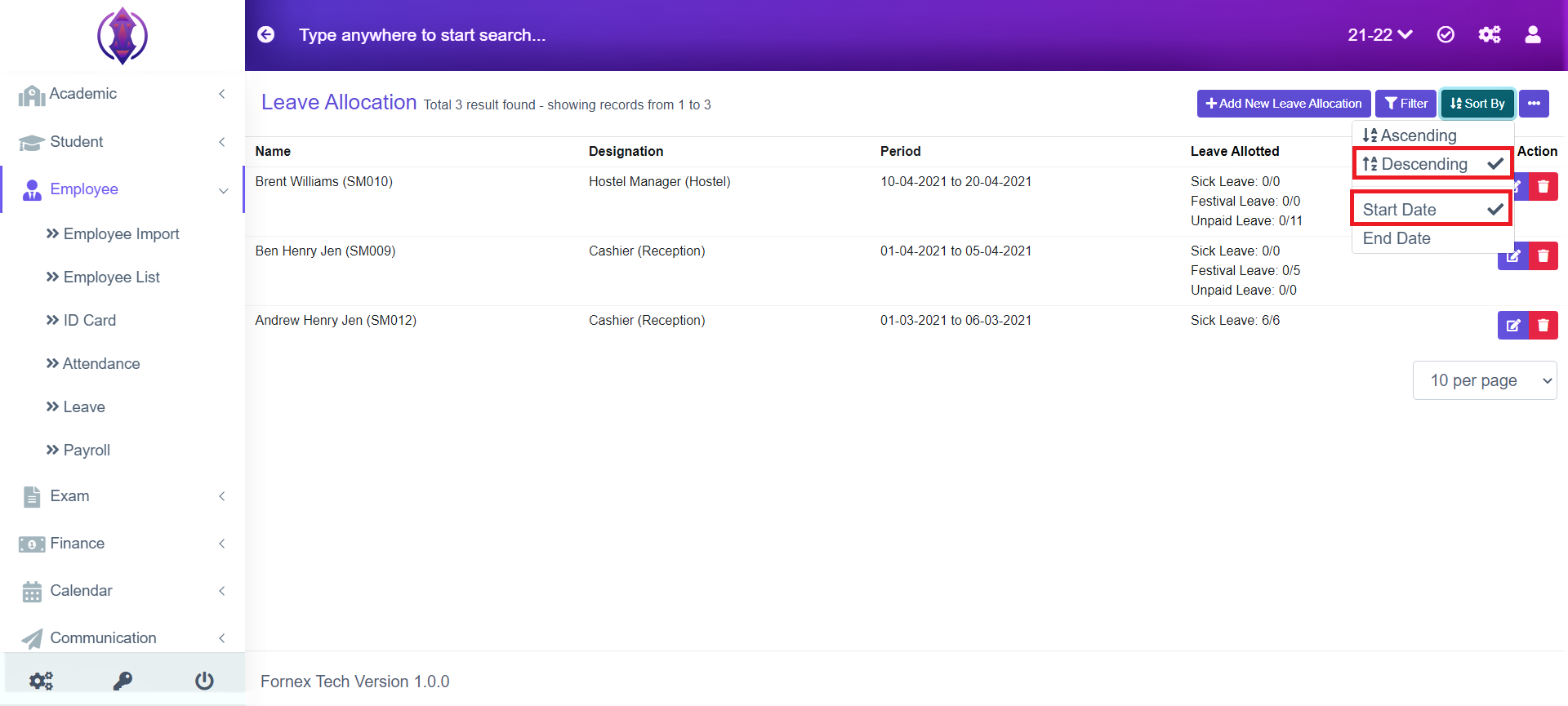
Figure 42Selected Descending and Start Date of it will list, Far, present and passed, dates of leave allocation in order. Refer figure:42.
Ascending & End Date:
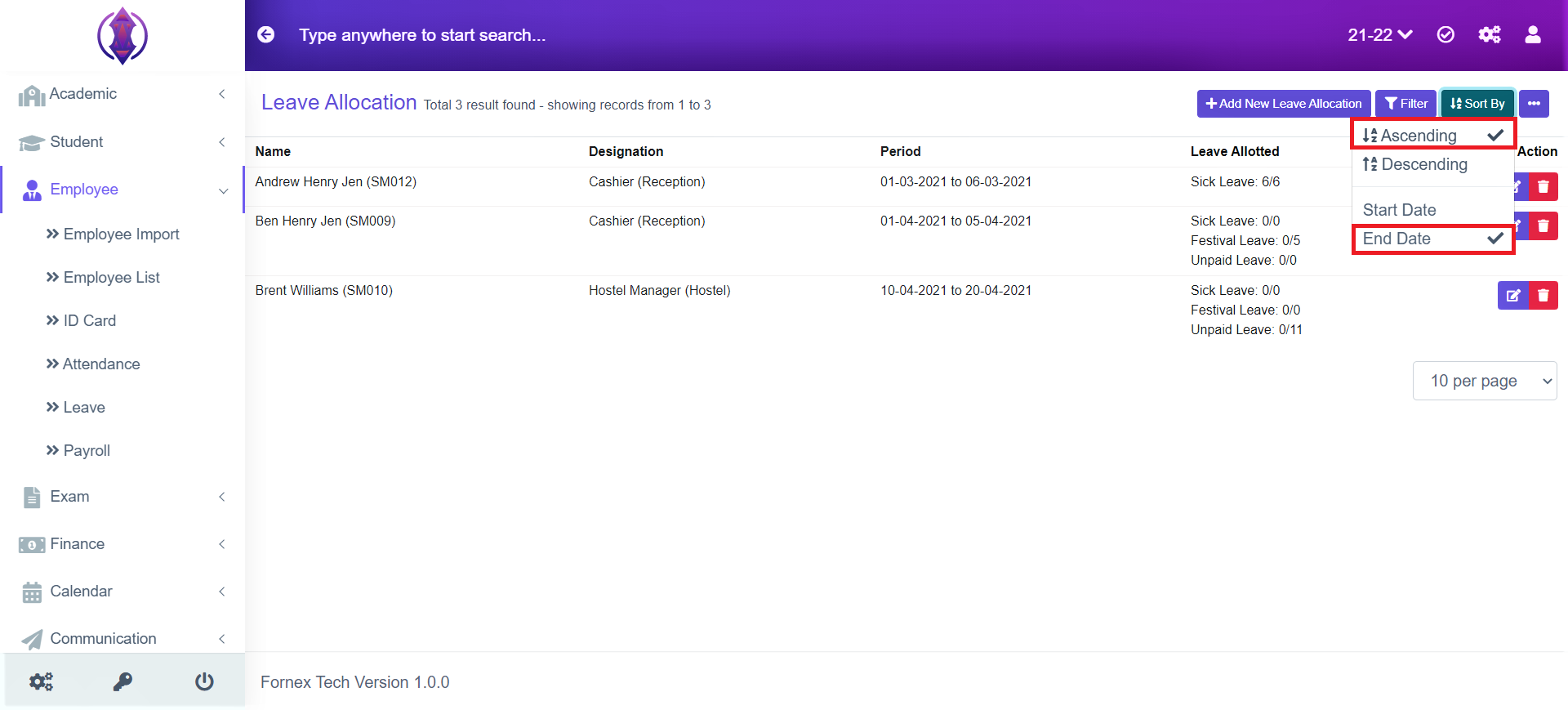
Figure 43Selected Ascending and End Date it will list, passed, present and far dates of leave allocation in order. Refer figure:43.
Descending & End Date:
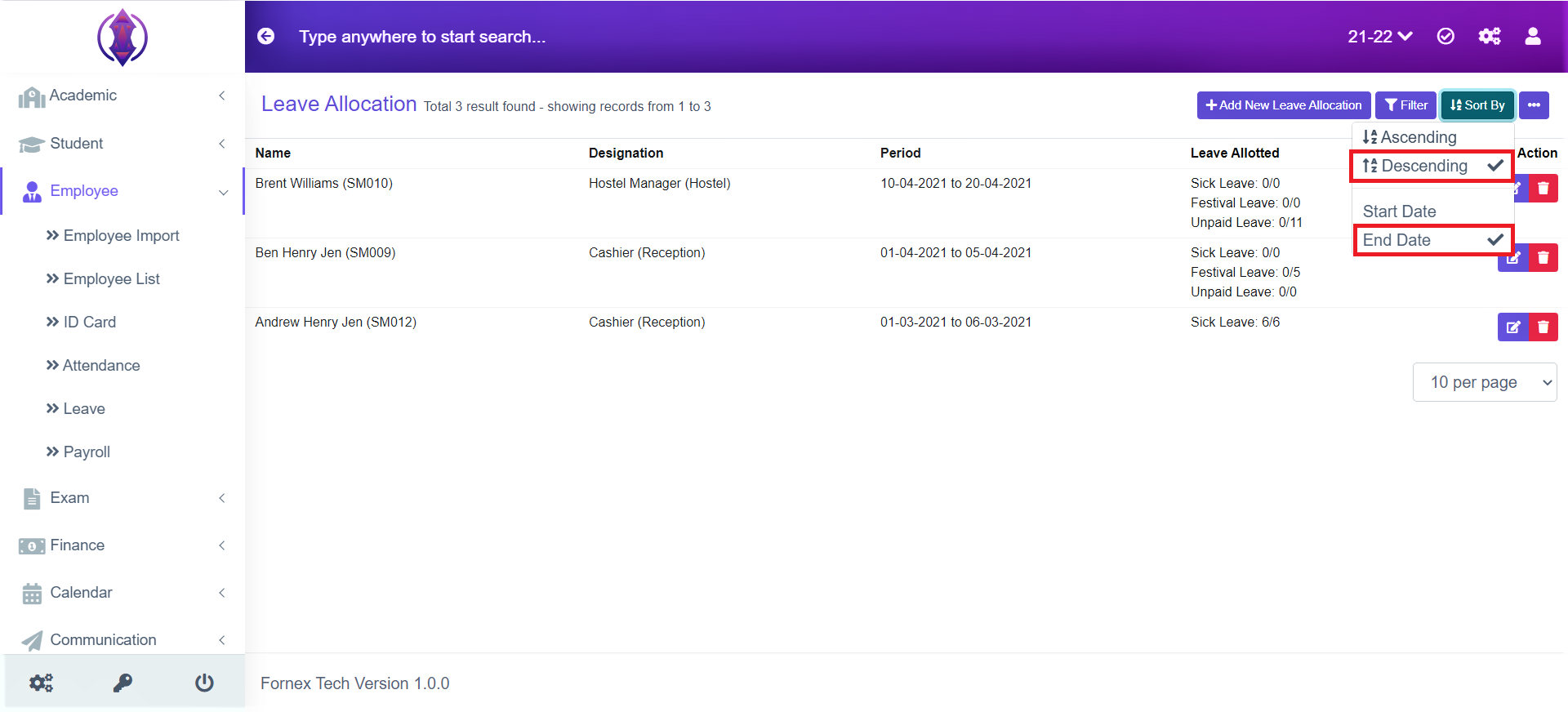
Figure 44More Options Description
Selected Descending and End Date of it will list, Far, present and passed, dates of leave allocation in order. Refer figure:44.
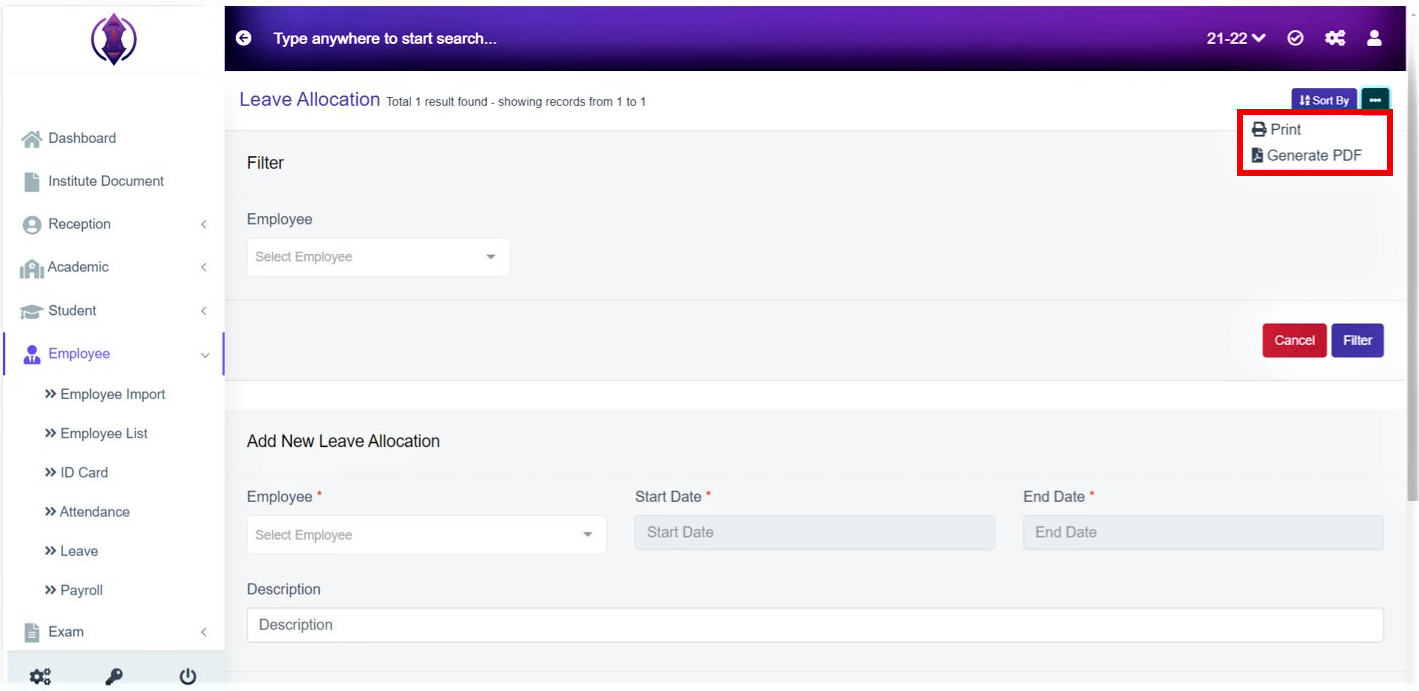
Figure 45The three dots tab contains two options, Print and Generate PDF.
Print Option:

Figure 46To print the data table view data, click ‘Print’, this will Open a new page, listing table view data, to Print. Refer figure:46
To print more specific data,
Ex: all employees with the same Desingnation, use filter option and then use print option, only filtered data will be listed in the new tab to print.
Also print the employee list by choosing any sort option and print the sorted list of employees.
Generate PDF:
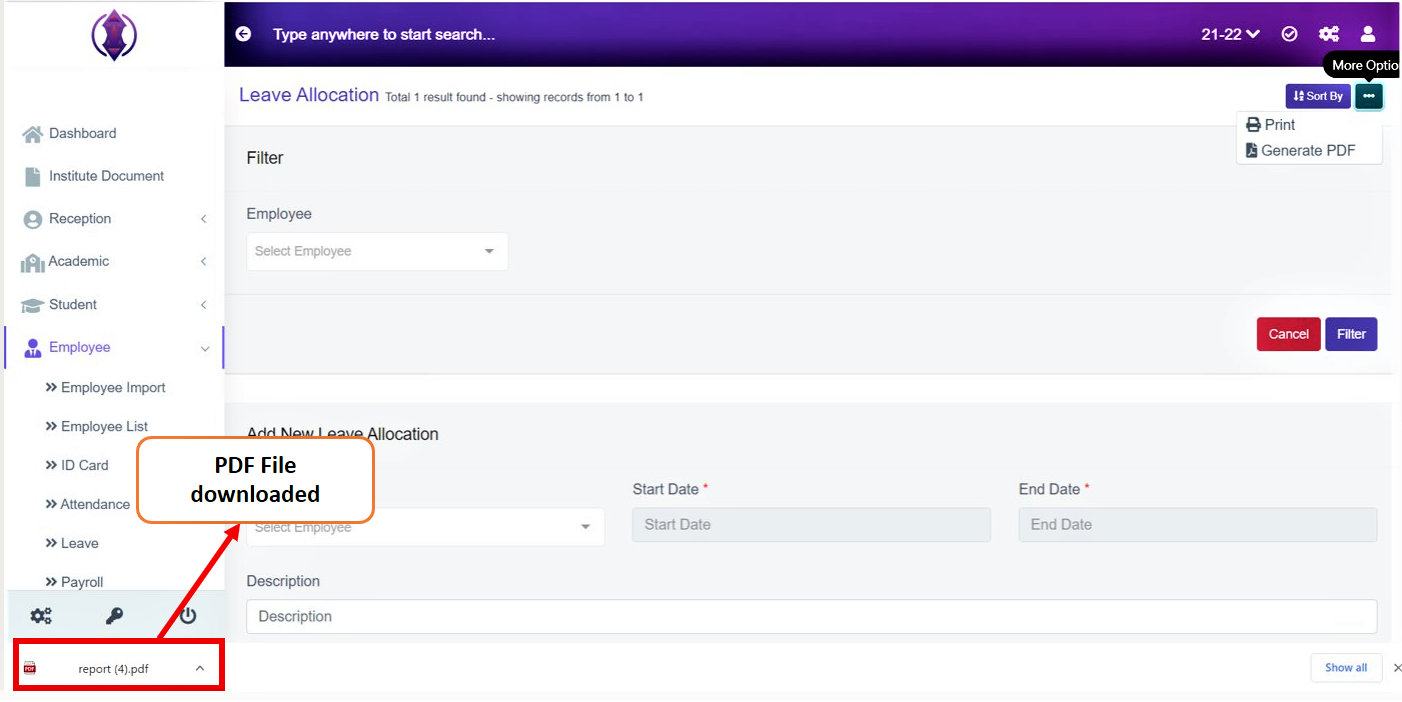
Figure 47To download PDF on the desktop, click ‘Generate PDF’, a pop up save as box will open confirming it to save it on desktop. Click ‘Save’ on the pop up box and the pdf will get saved on your desktop. Refer figure:47. You can also use filters and sort by to export more specific data in pdf.