ID Card
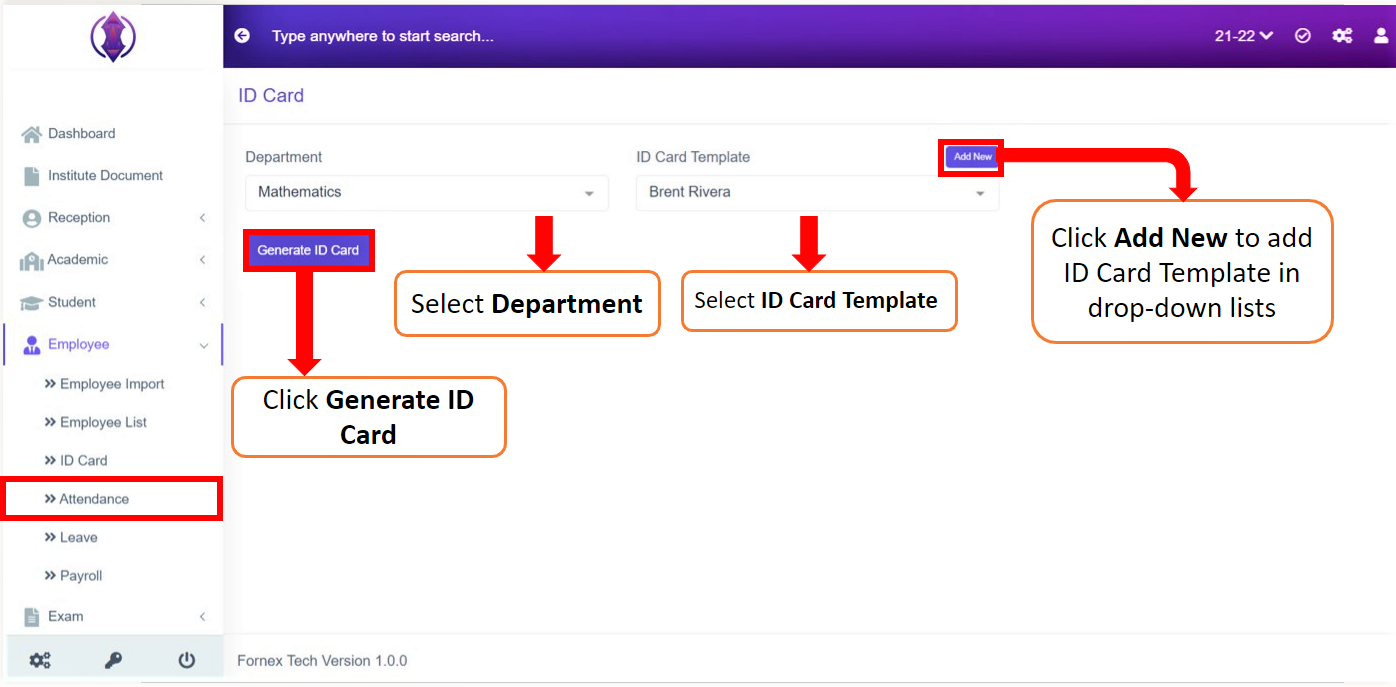
Figure 20 Select Department from drop-down list, select ID Card Template from the drop-down list or add a new ID Card Template by clicking Add New popup.
Then click on Generate ID Card to successfully generate ID Card.
Add New:
Click on Add New to add the drop-down list required for the field: ID Card Template
Once the user clicks on the Add New button a window pops up where you can add the details for the drop-down list required for a particular field, refer figure 21.
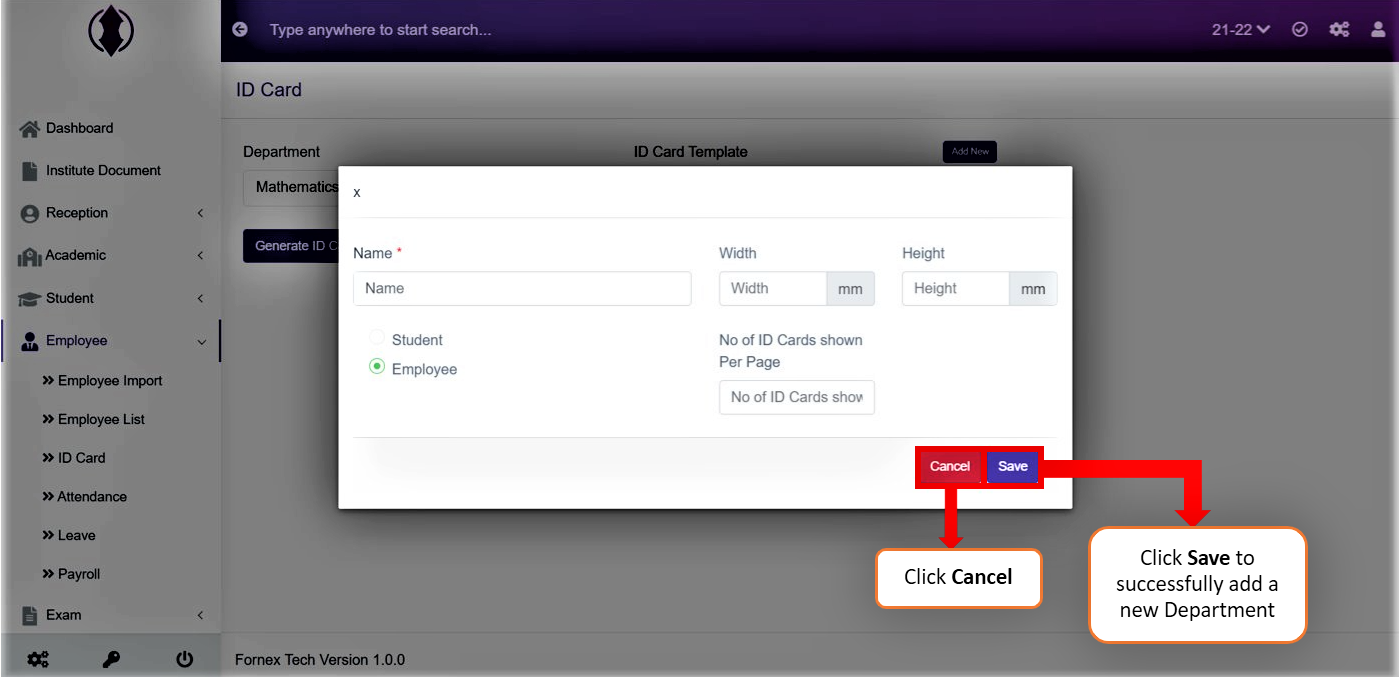
Figure 21 Click on Add new to add a new ID Card Template.
Enter Name, Width ( Minimum 100), Height ( Minimum 80), select Employee option then give in the Number of ID Cards shown Per Page.
After the required information is entered, click ‘Save’, “ID Card Template added", green popup screen will be displayed on the bottom right hand side of the screen.
Once the ID Card Templates are saved, all the added ID Card Template information will be added in the drop-down list.
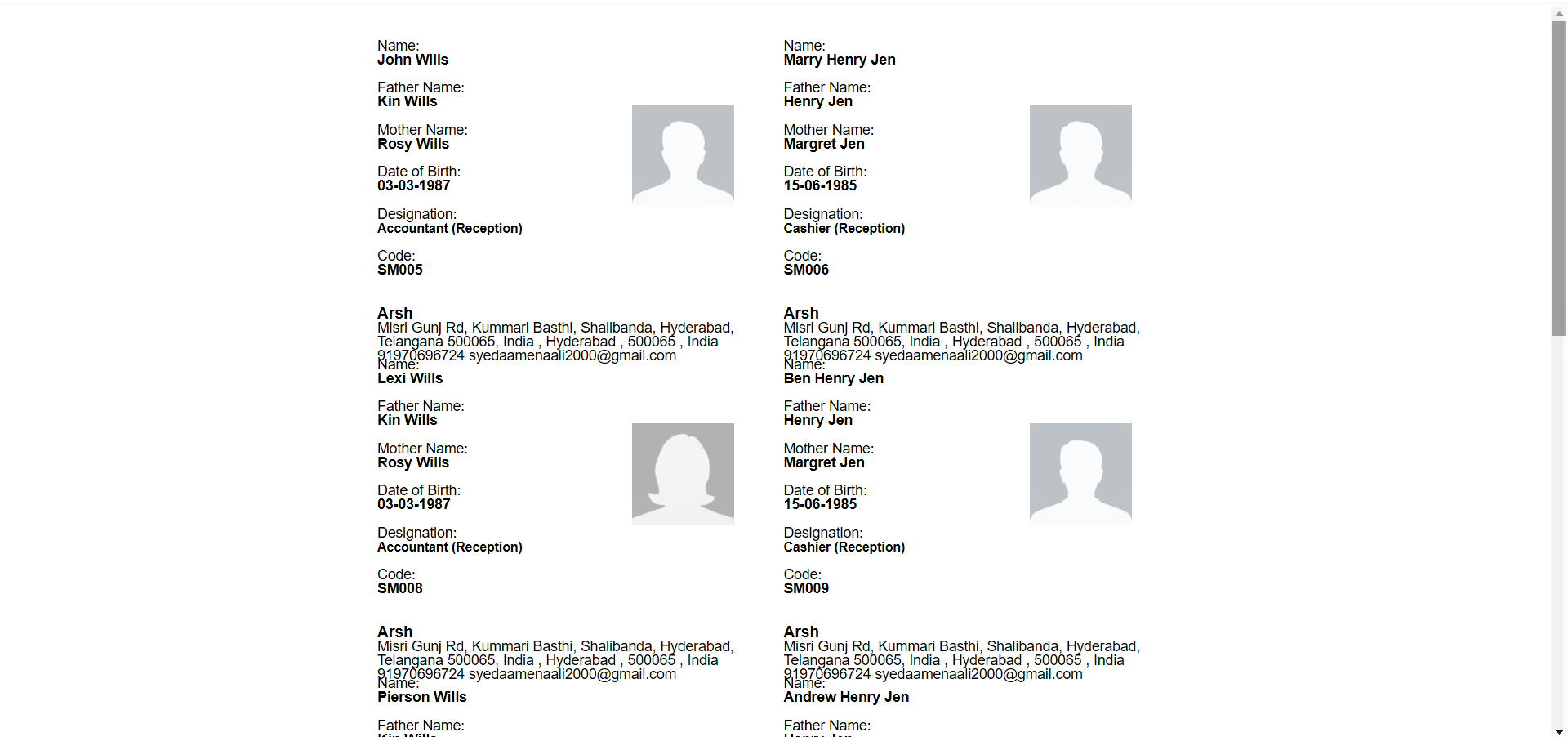
Figure 22The ID Card is generated successfully, Refer figure 22.