Report
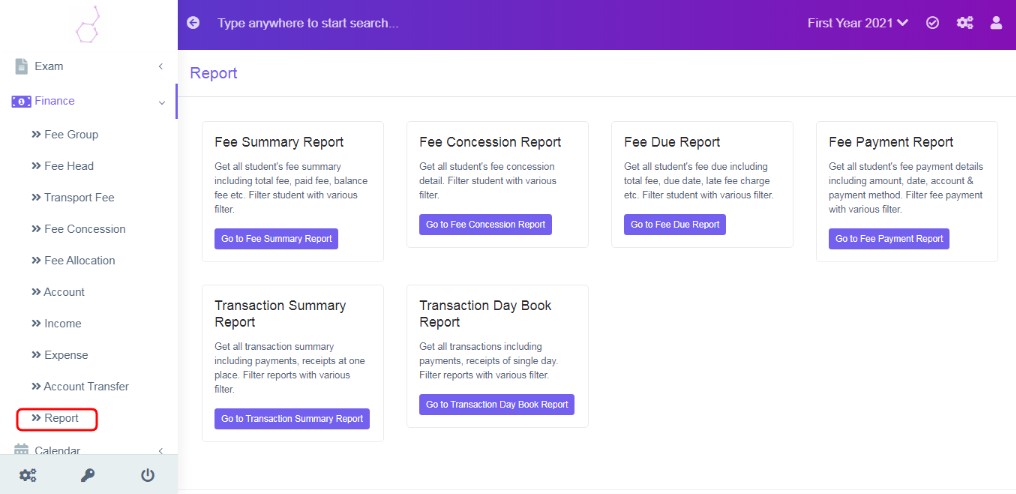
Figure 8
This module helps to view or record students fee, payment and receipts, detailed report of finance related transactions.
Account Transfer
Records transactions between different accounts i.e. credit an account and debit another account.
Fee Summary Report
This Tab, help to, find all student's fee summary including total fee, paid fee, balance fee etc. Filter student with various filter. Record the Fee payment of the students. Send them SMS reminders.
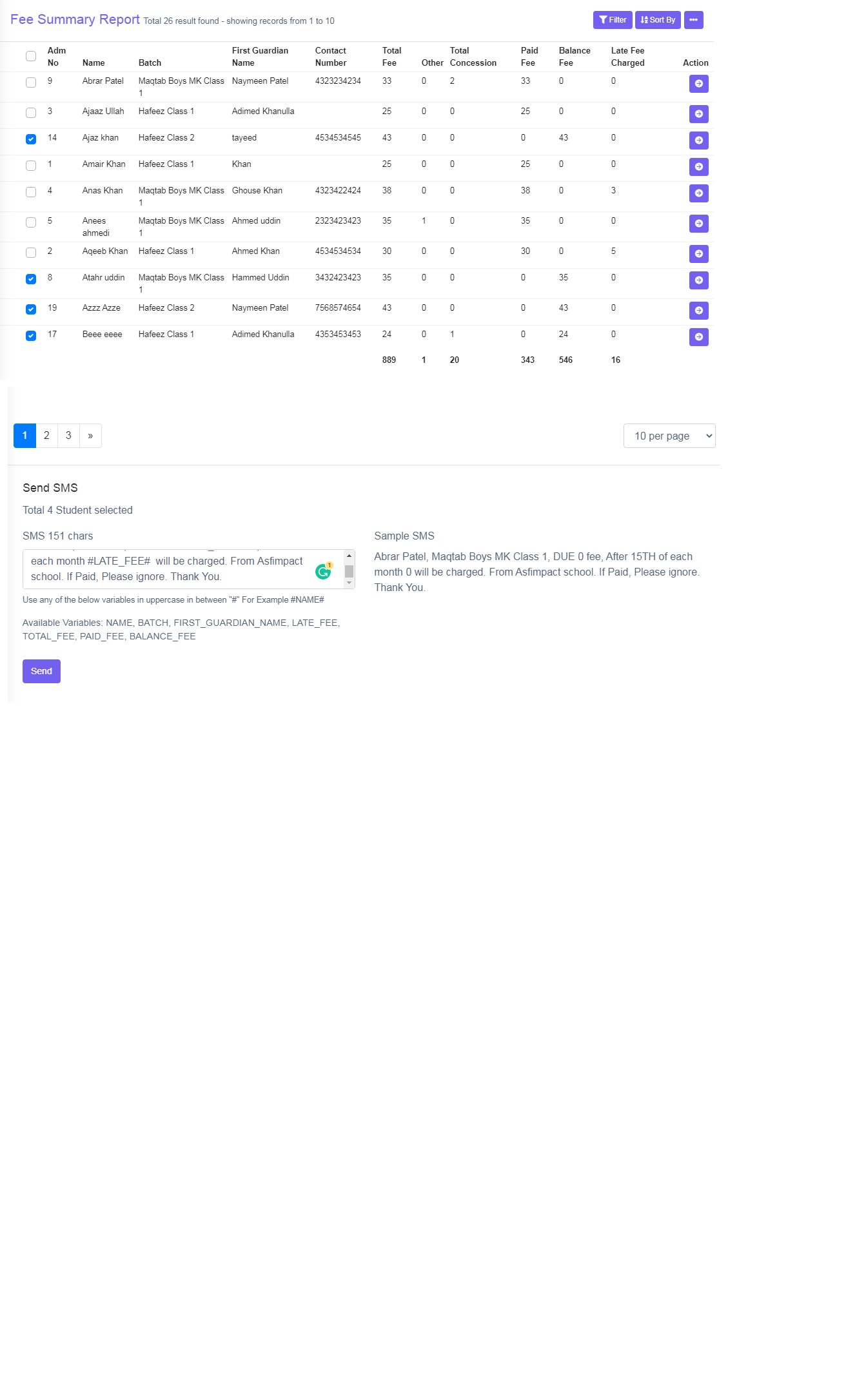
Figure 9
Total Fee, Total Concession, Paid Fee, Balance Fee and Late Fee charged is displayed in data table view.
User Filter and Sort By to view the specific data. Two tasks can be done in this view.
Action: Click ‘Action’ to, it will redirect you to the fee detail of the student, where a View Fee details, Pay Fee or Reset Fee or cancel fee payment, as required.
Send SMS:Select few students clicking on the left hand side tick box and then enter the variables in the SMS box and click ‘Send’.
Either you can use Fee Summary report or Fee Due Report to view the balance/outstanding fee of the student, to record their payments or to send them SMS reminder notification. Refer .figure:9.
Two main workflow of Balance Fee and Paid Fee in Detail:
options – Reset Fee or Pay Fee
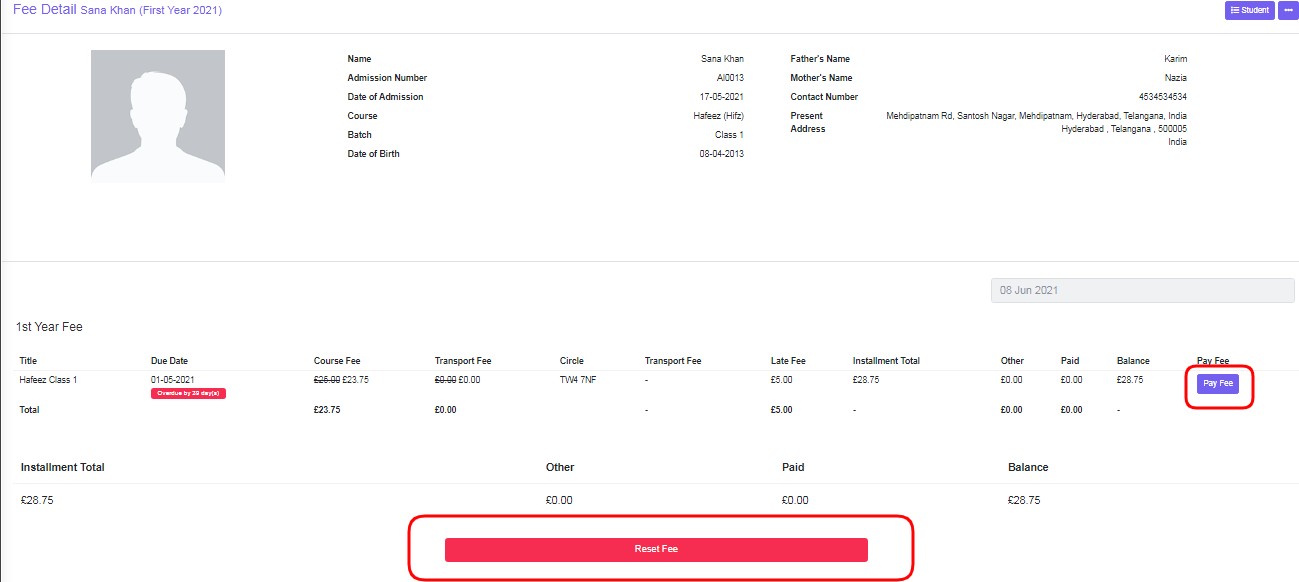
Reset Fee
If want to make changes to Transport Circle , Fee Concession, Click on ‘Reset Fee’ , a pop up tab will request to proceed or cancel, click proceed and a screen will be displayed as below. Do the required changes and click ‘Save’.
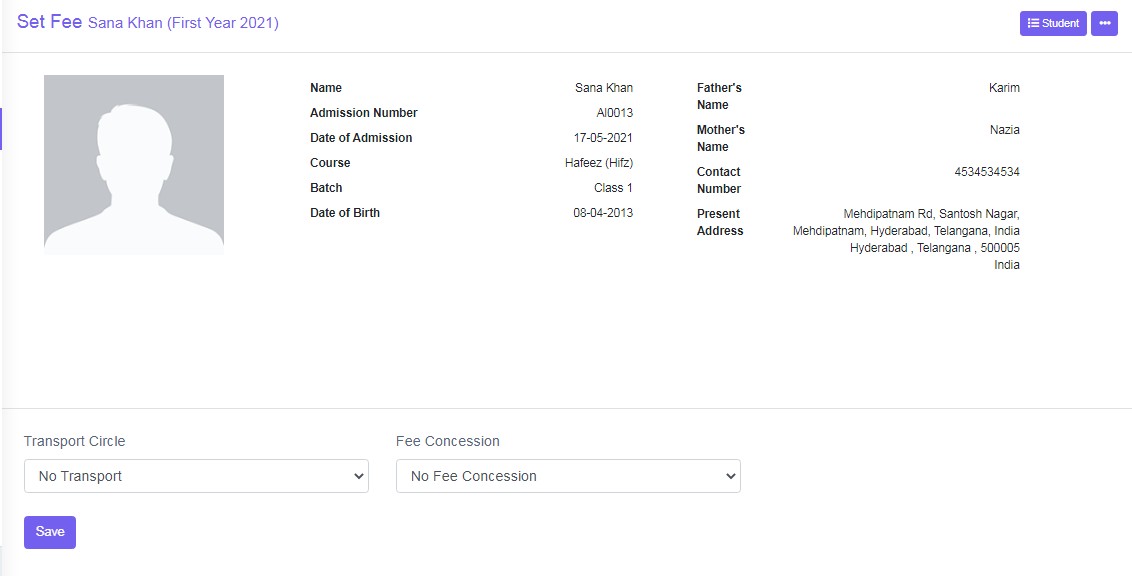
In the above example , no transport and no fee concession is selected and fee is alloted, with new changes , a green pop up will be displayed ‘Student fee is set’.
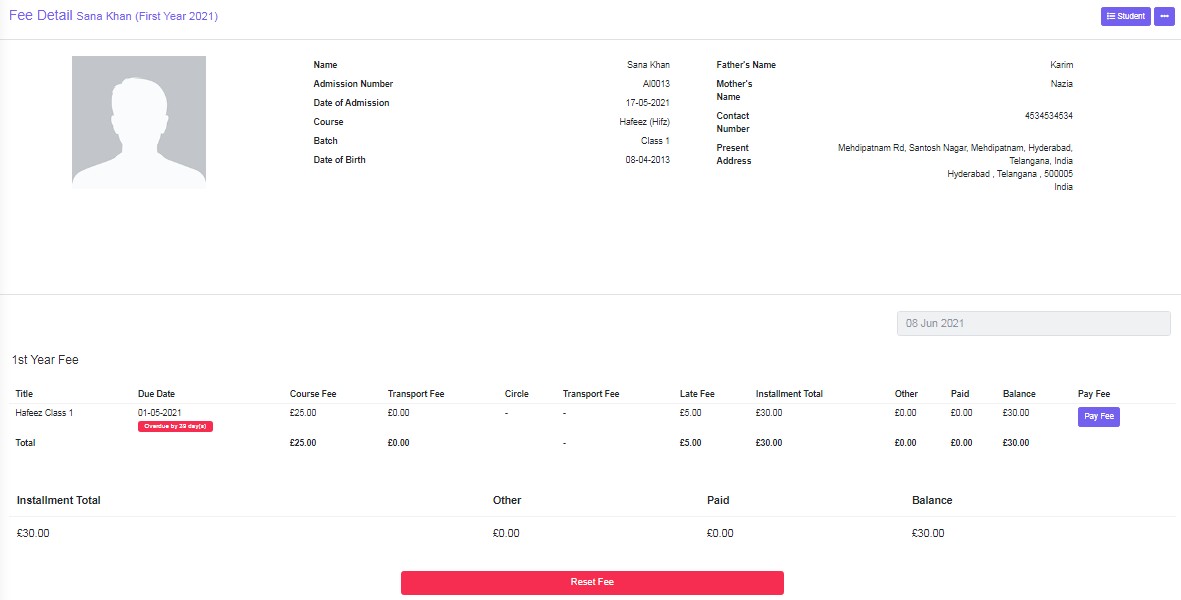
Pay Fee
Click to ‘Pay Fee’ to enter fee details of the student , if fee payment is done. ‘Fee paid’, a green pop up will be displayed
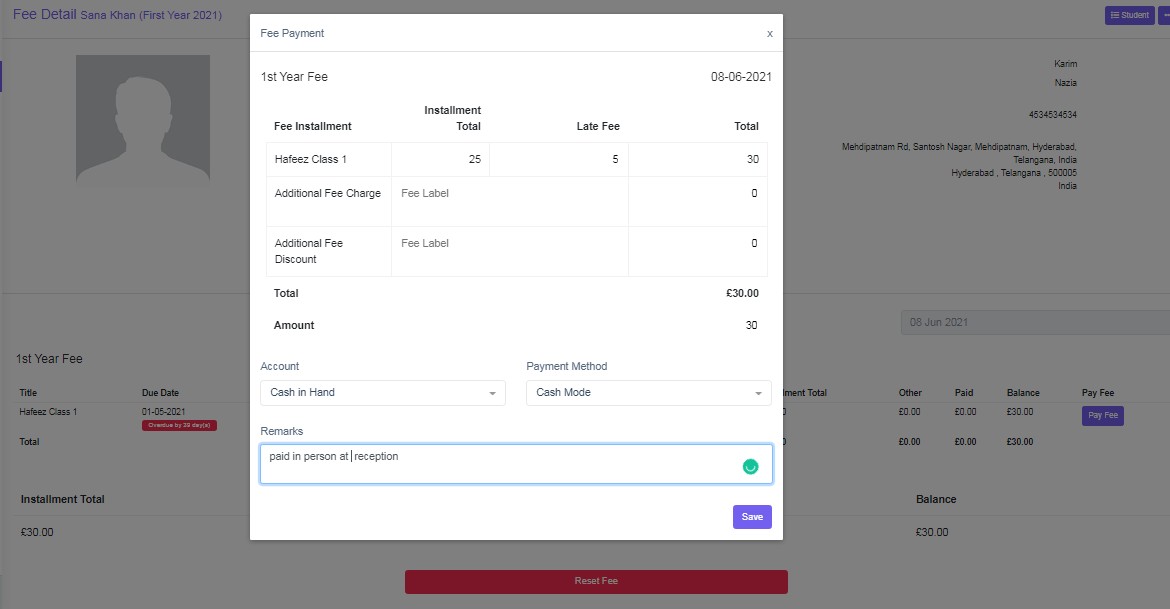
Paid Fee: To print Receipt or Cancel Fee Payment
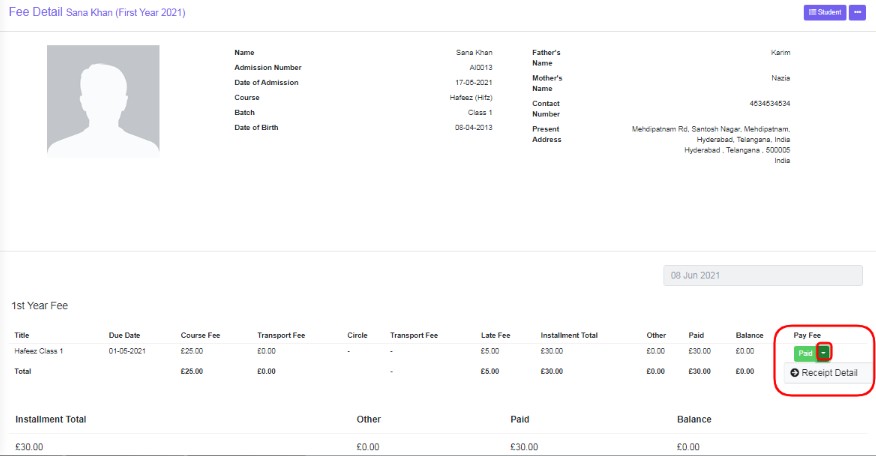
Click on arrow on paid tab and click on receipt detail
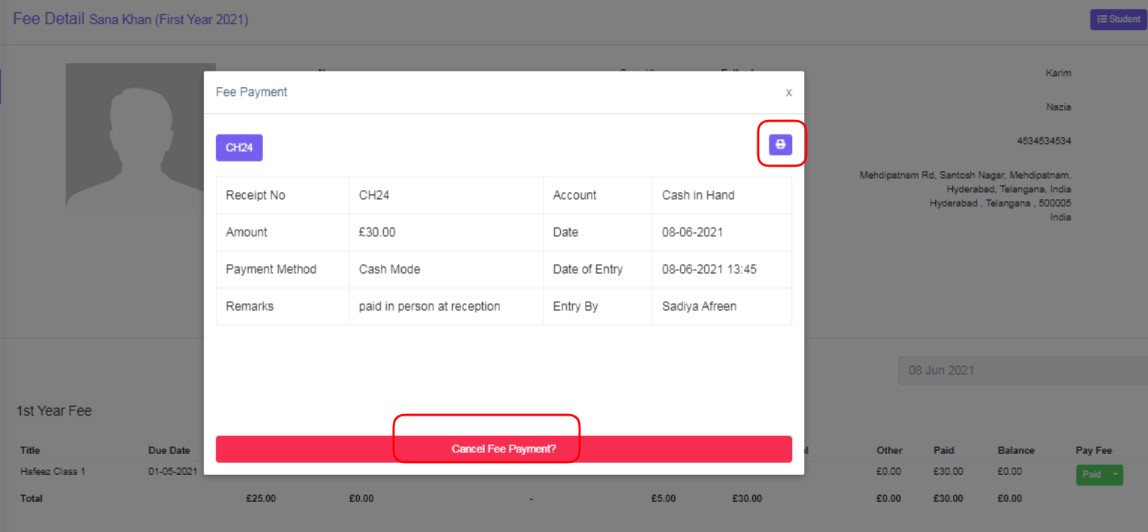
Receipt Print : Click on Print Receipt a , new tab will be opened
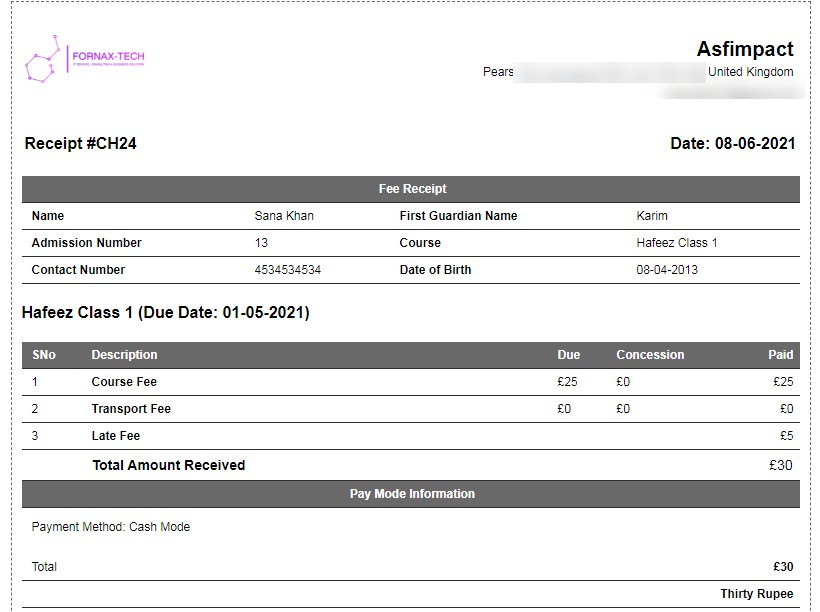
Cancel Fee Payment: Click to cancel fee payment, if want to redo the transcation or entered payment to wrong student.
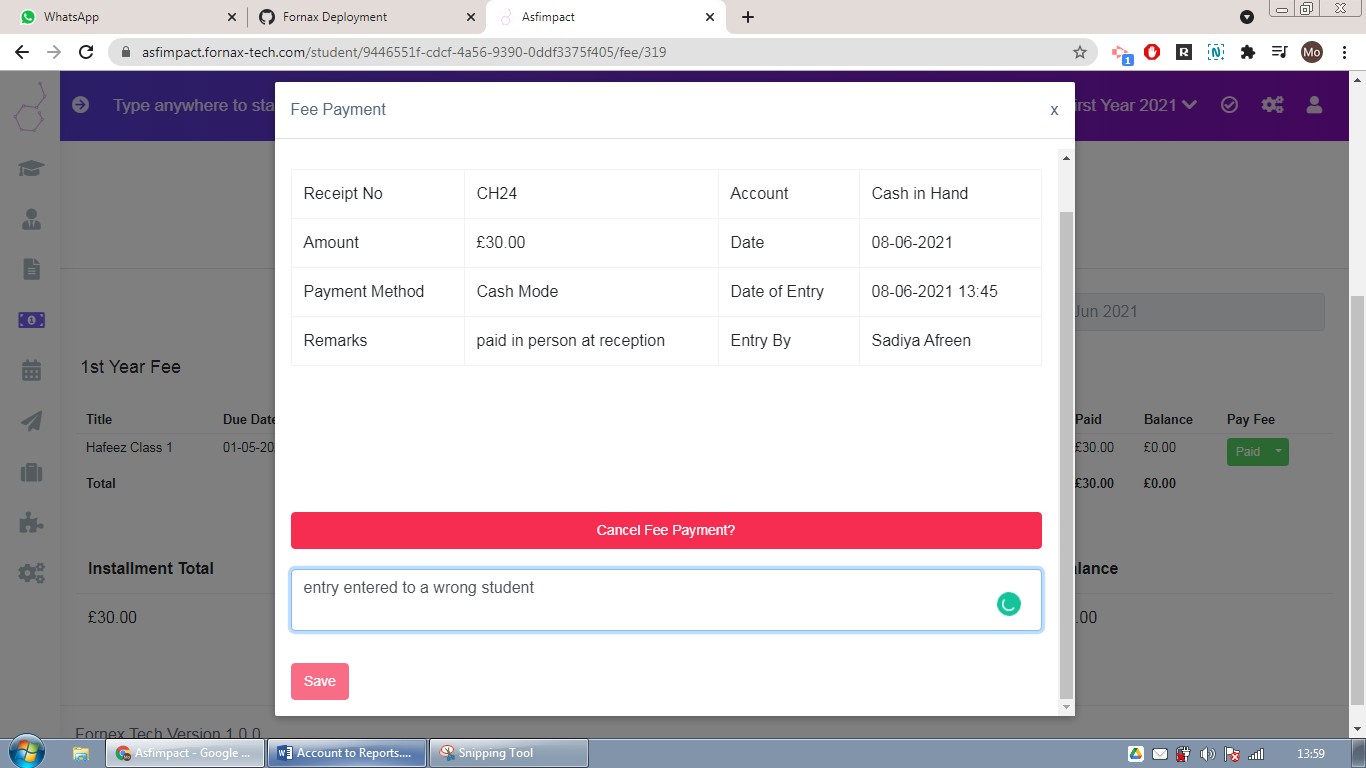
Ex: Receipt No CH24 will be cancelled and payment student will be taken as CH25.