Filter, Sort By & More Options Description
Filter Fields Description
Sort By Lists Description
More Options Description
- — Print Option
- — Generate PDF
Filter Fields Description:
You can use Filter Fields, Sort by List, from more options, Print and Generate PDF, to view and print the displayed table list view data according to your requirements.
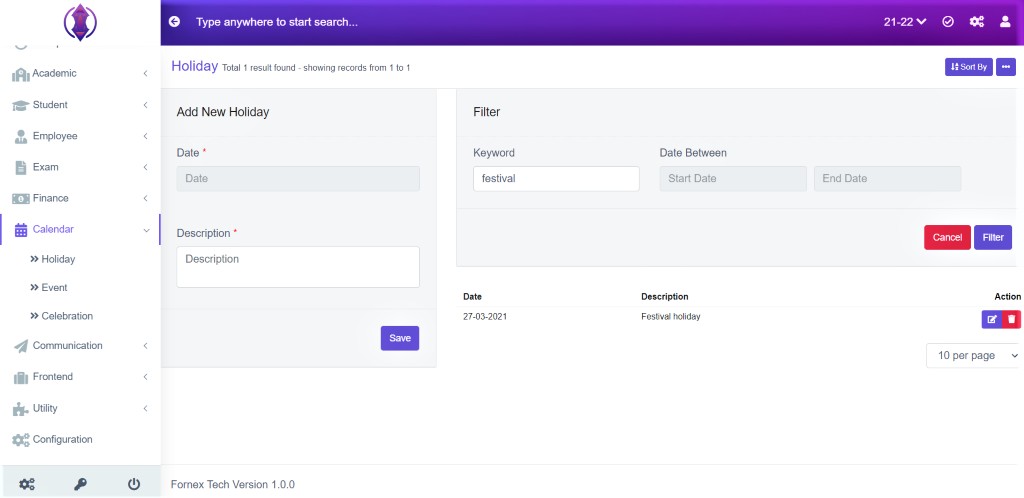
Figure 7
Keyword: It is used to filter the keywords of Description. Enter the word, you want to filter, “ex: festival, or exams, and click ‘Filter’, and the holiday with the entered word will be displayed, in the table list view, refer figure 7.
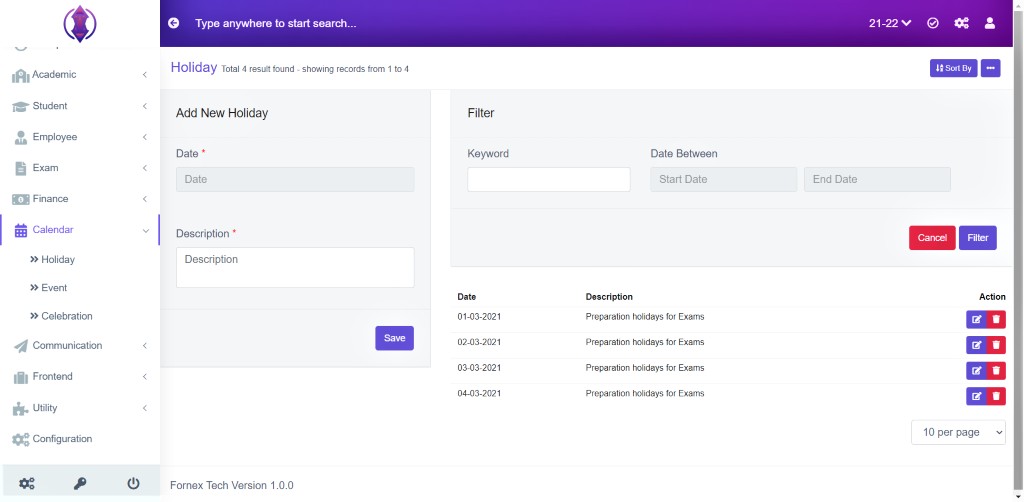
Figure 8
Date Between: It is used to filter the number of holidays present between the ”Start Date” and the “End Date” provided. Click ‘Filter’ once you have given the start date and end date, and the holidays between those to dates will be displayed, in the table list view, See figure 8 .
Sort By
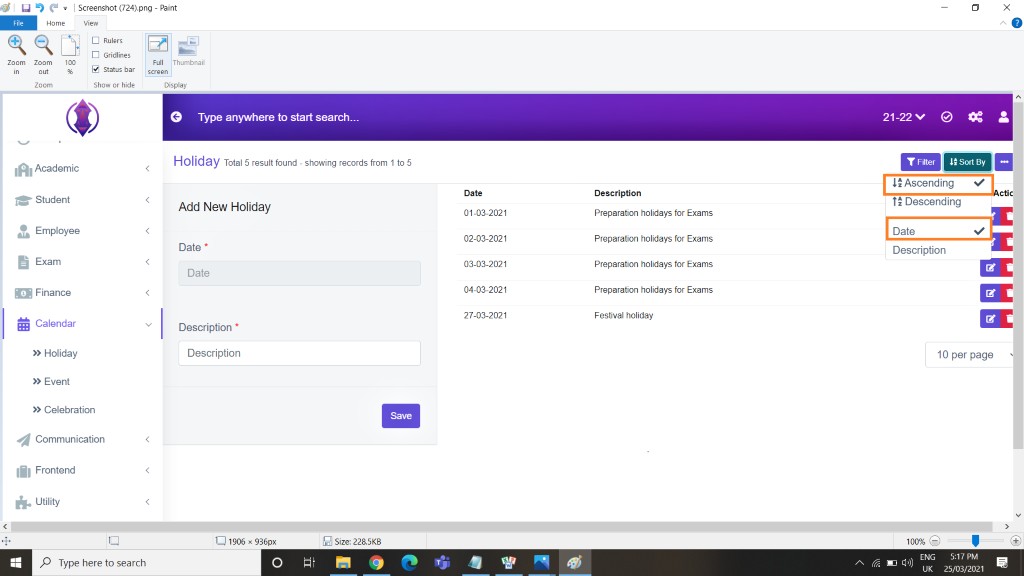
Figure 9
Ascending & Date: Selected Ascending and Date it will list, passed, present and far dates of holidays in order. Refer figure:9.
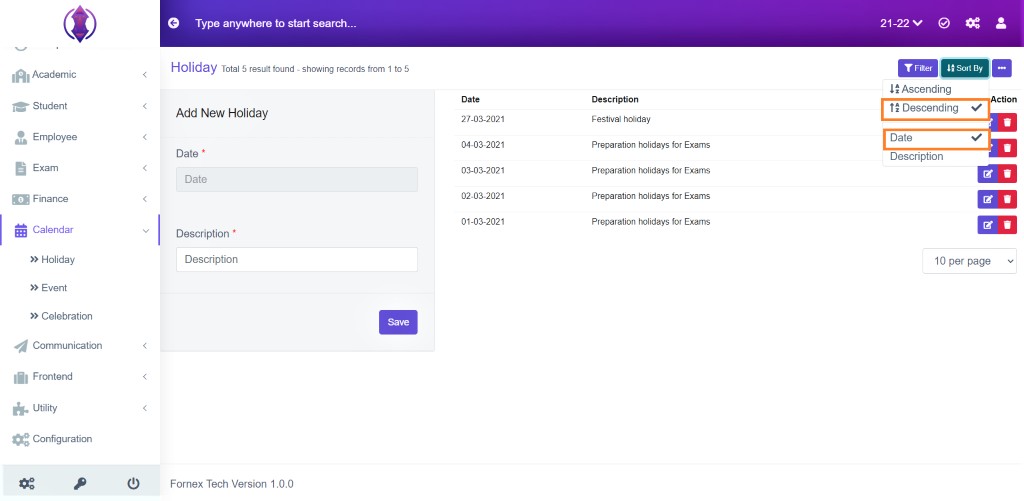
Figure 10
Descending & Date: Selected Descending and Date it will list, passed, present and far dates of holidays in order. Refer figure:10.
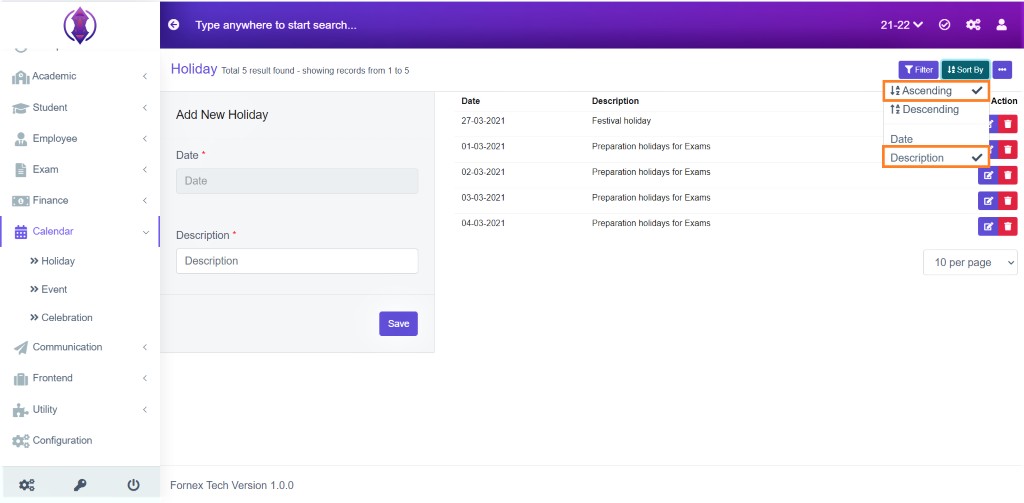
Figure 11
Ascending & Description: Selected Ascending & Description, it will list, holidays, in A to Z, alphabetical description in order. Refer figure:11
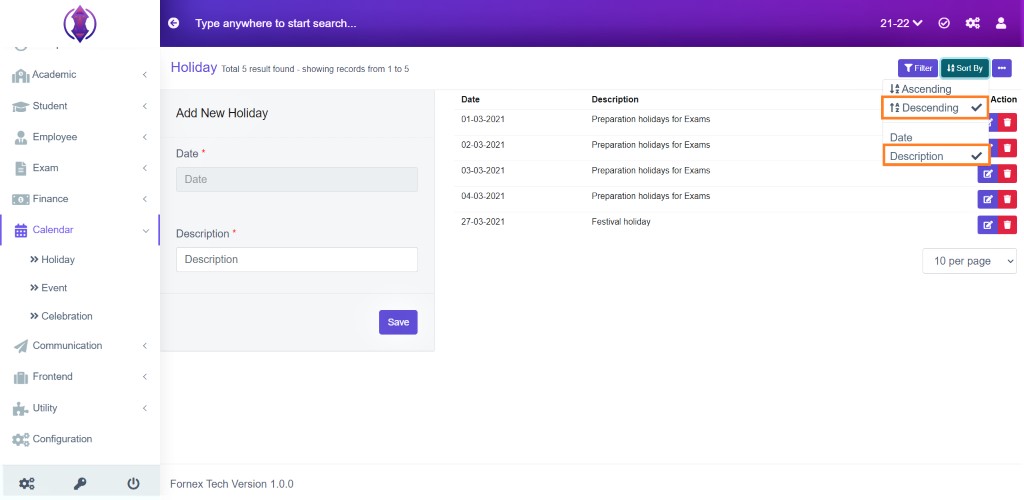
Figure 12
Descending & Description: Selected Descending & Description, it will list, holidays, in Z to A, alphabetical description in order. Refer figure:12
More options Description
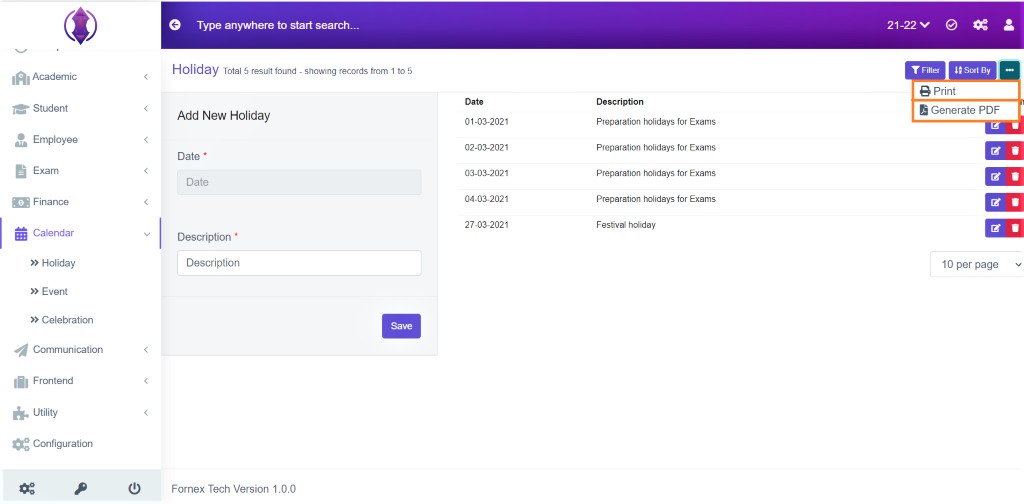
Figure 13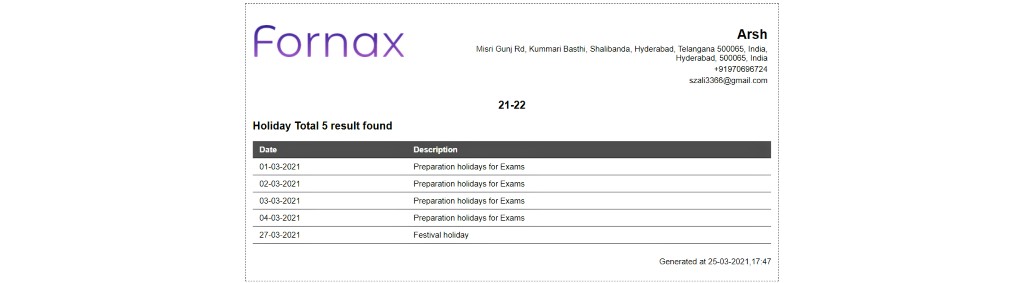
Figure 14Print Option:
This will Open a new tab and the table view data format, to Print, see figure:14.
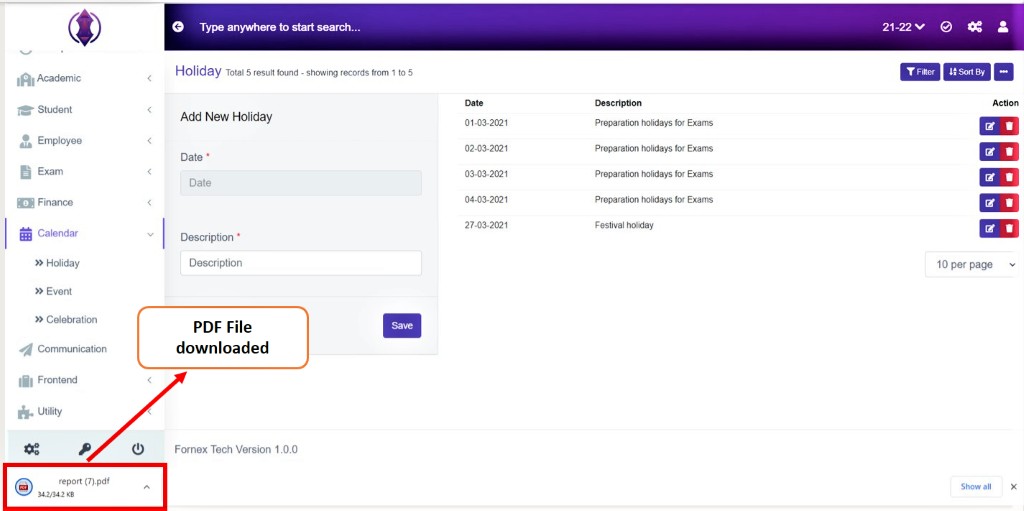
Figure 15Generate PDF:
To download PDF to the desktop, click ‘Generate PDF’, a pop up save as box will open confirming it to save it on desktop. Click ‘Save’ of the pop up box and the pdf will get saved on your desktop. Refer figure:29. You can also use filters, to export more specific data in pdf.