Record Marks
This module is used records the marks of exam of the selected batch. Information like, selected subjects marks of a particular selected batch are recorded, and can be viewed and printable the recorded marks. Refer figure1&2.
Forms Fields Description:
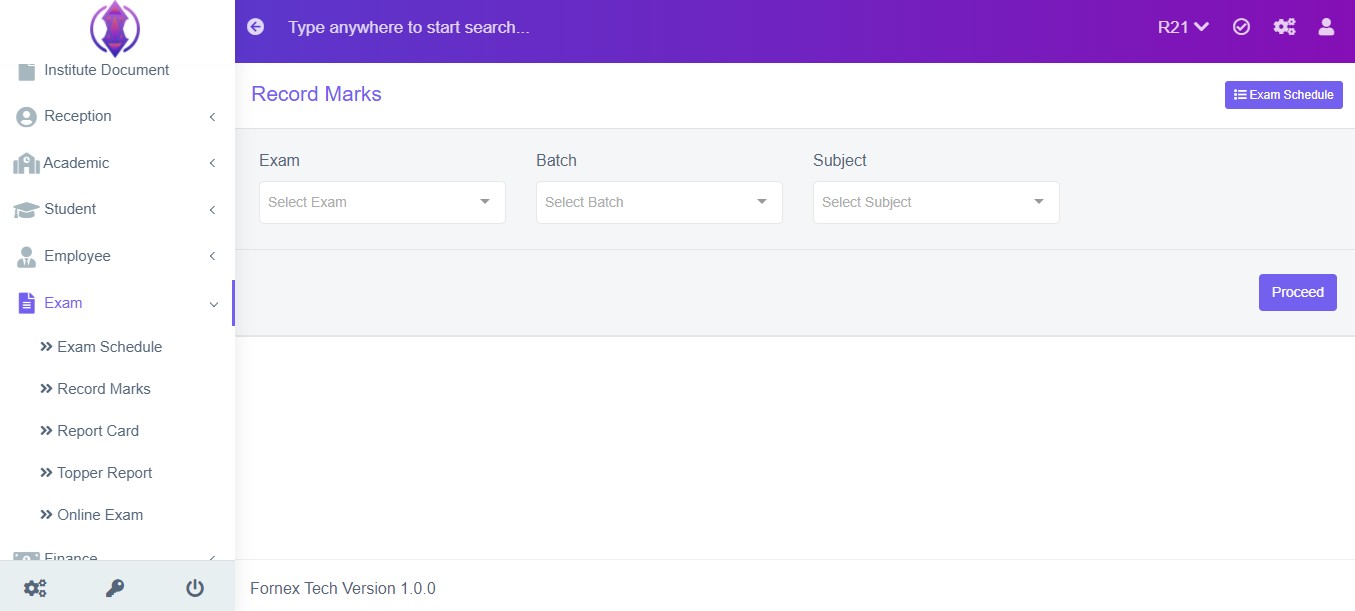
Figure 1
Select Exam: Select the exam from the drop down list to record the marks of Students. Refer figure: 2&3, as example.
If you don’t select the exam in drop down list, you see the drop-down list of Batch and Subject as “list is empty” is displayed, and is empty. This field is Mandatory.
Select Batch: Select the batch from the drop down list to record the marks of the batch of the students.
Select Subject: Select the subject from the drop down list to record the marks of the particular subject.
After the required information is selected in above form fields, click ‘Proceed’, and new screen to enter data is displayed, refer figure:2, enter data in to their respective form fields.
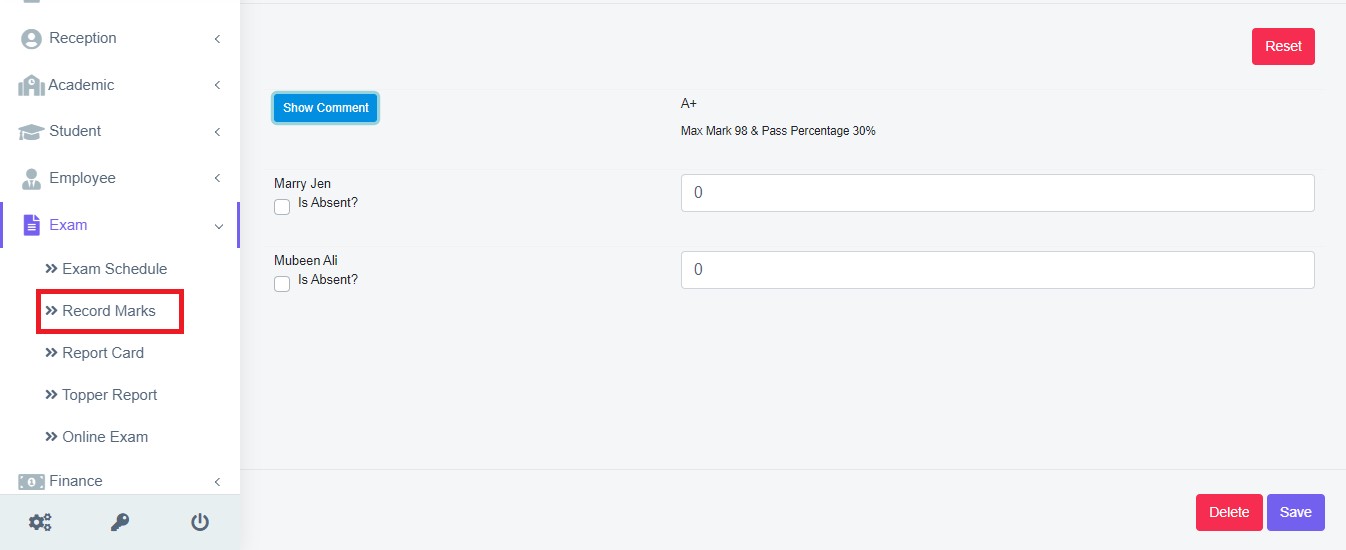
Figure 2Enter the student’s marks in their respective form fields, tick the mark icon  if the Student is absent and click
  to view the hidden comment of form field.
After the required information is entered in above form fields, click ‘Save’, a popup message appears in Green as "Marks Recorded".
Reset: To edit the existing marks, click the  icon and a screen will be displayed to Edit or reset the marks of student. Fill the required information, to do the changes to the form fields . Once done, click ‘Save’, to save the changes. “ Marks Recorded”, green popup notification will be displayed on the bottom right hand side of the screen.
Once the marks are recorded, all the added information can be viewed at one place, at in Report card, refer figure:3 – Report card.