Exam
Exam Schedule
- — To Add a new Exam Schedule
Form Fields Description
Data Table View Description
- — Admit Card
- — Edit Schedule
- — Delete Schedule
Exam Module, this is a place which help you to build exam schedule maintain all the details of internal/external exams, theory/practical test, result preparation and print marks sheets. It allows you to record marks manage and analyze student performance .In this module you can create exams schedule andGenerate reports of students marks .
Features
- Exam sheet generate
- Report card
- Batch wise Exam setup
- Record marks
Exam Schedule
Exam Schedule Module, is the place where you can store various batch wise exams schedule, all at one place. These Documents will be stored online in our database. So there will be no fear of losing the documents or as they may get corrupted, either from office or by saving them on the desktop, due to unforeseen reasons.
To Add a new Exam Schedule
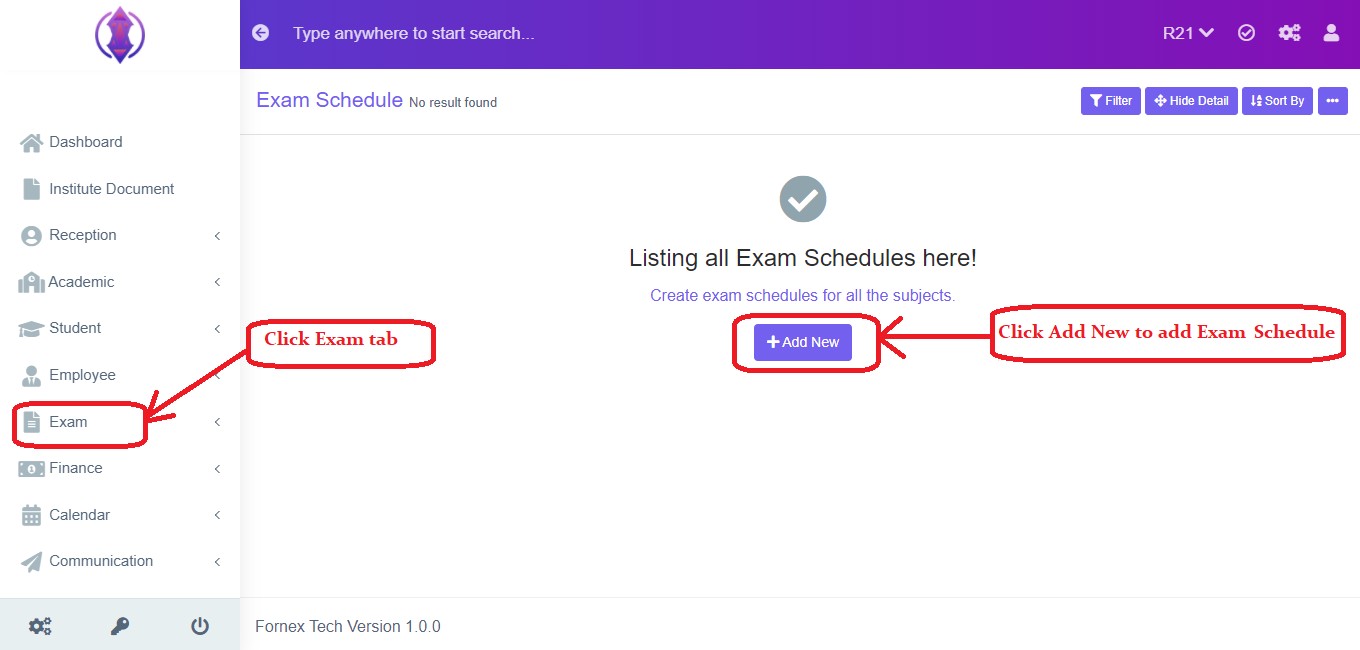
Figure 1
To add a new Exam schedule, click on Exam Tab, refer figure:1, click on ‘Add New’ and new screen to enter data is displayed, refer figure:2, enter data in to their respective form fields.
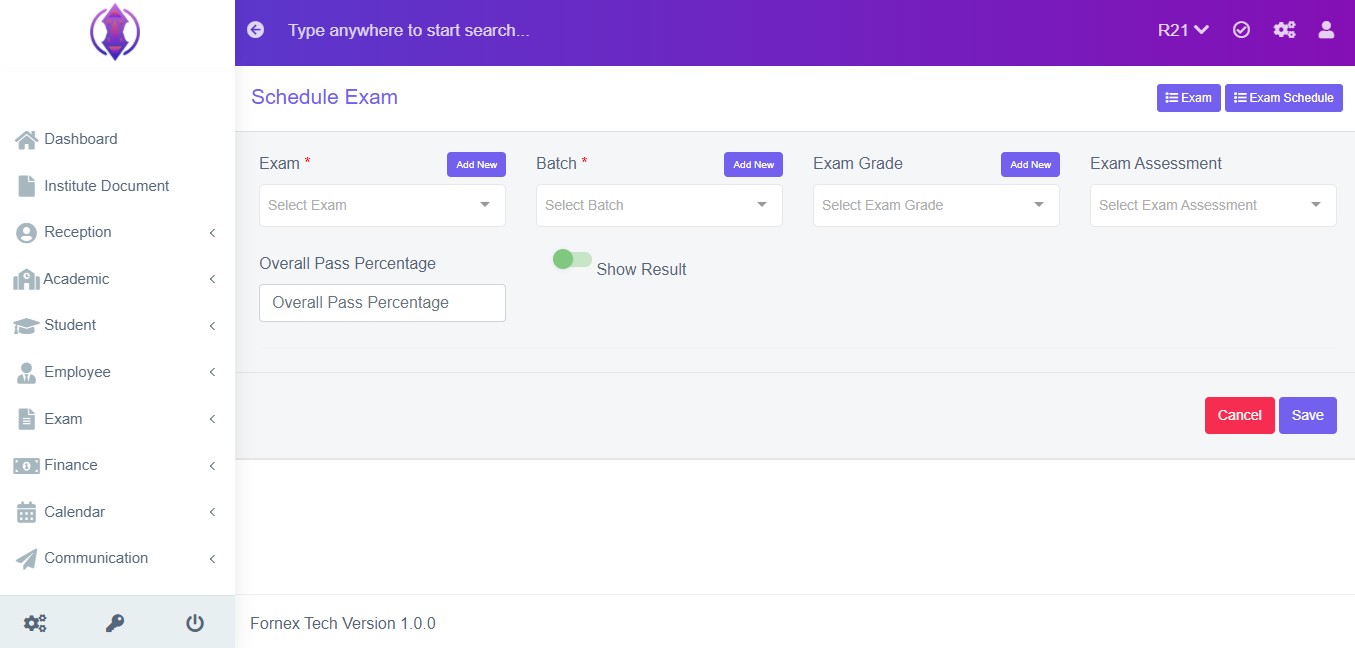
Figure 2
To add new Exam in the schedule exam Click on  button on the right side as shown in figure 3 , it will be redirected you to the Exam page as refer in the figure 4
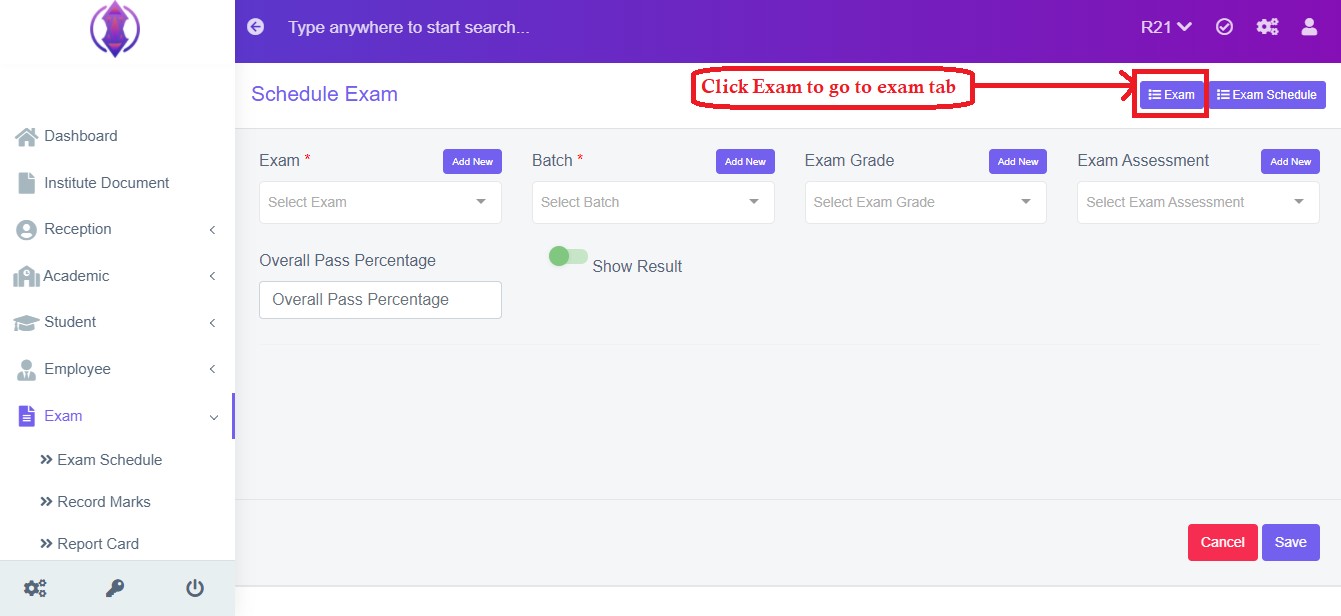
Figure 3
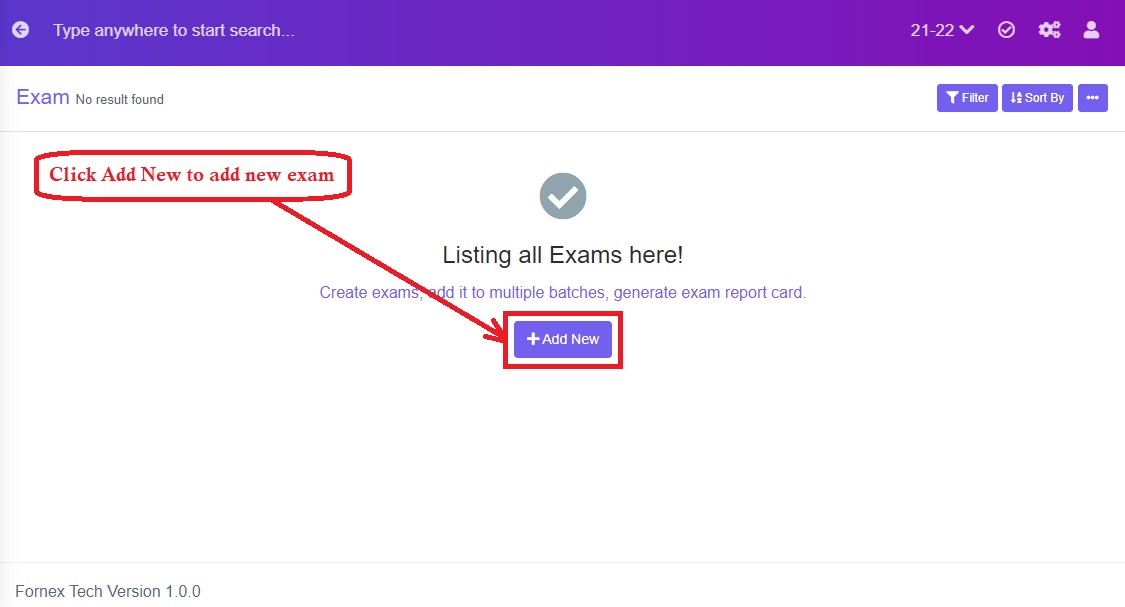
Figure 4
To add a new exam, click on ‘Add New’ and a new screen to enter data is displayed, refer figure:5, enter data into their respective form fields.
Form Fields Description
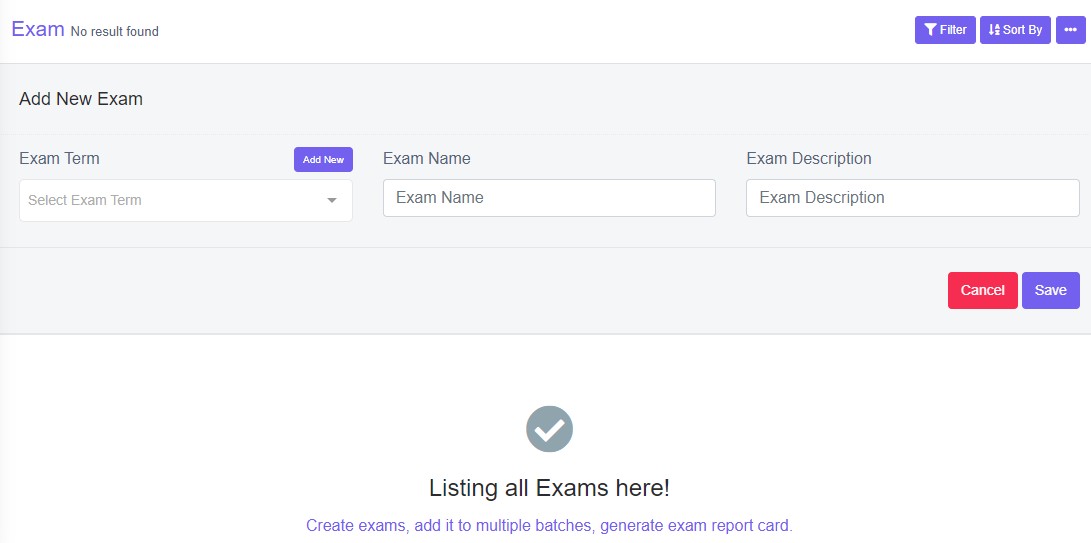
Figure 5
Exam Term: Select exam term from the drop down list for the specific exam.
To Add New Exam term: Click on ‘Add New’ tab to add exam term, refer figure:4, a screen will be displayed, refer figure:5, enter the data in respective form fields.
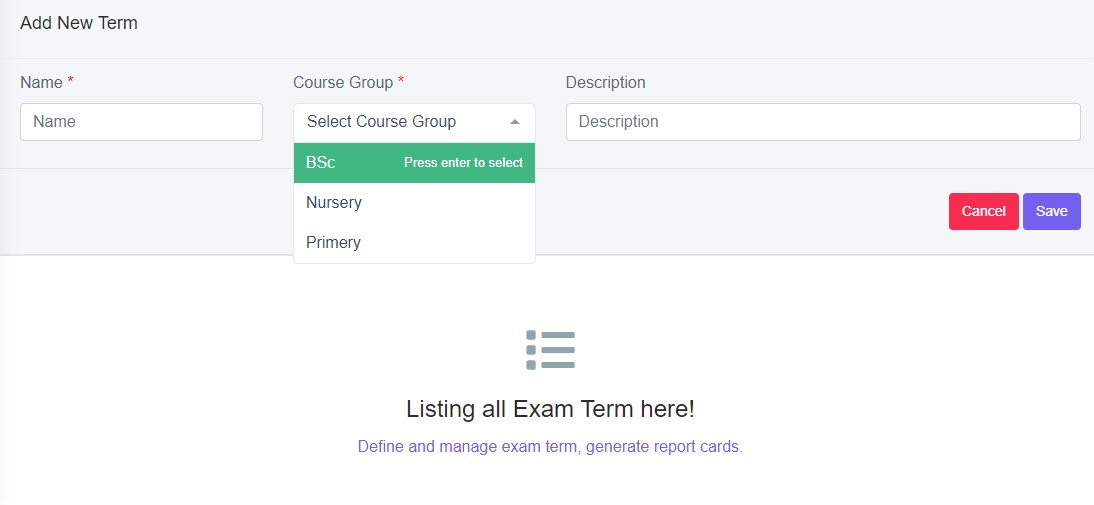
Figure 6
Name: Enter a name for the exam term.
Course Group: Select course group from the drop down list for the specific exam term.
Description: It is to give description to the exam term, in detail. If this field is left empty, in the data table view, description column will be empty. This field is optional.
Exam Name: Enter name of the exam.
Exam Description: If you want to give description to the document, in detail, it can be given here. This Field is optional.
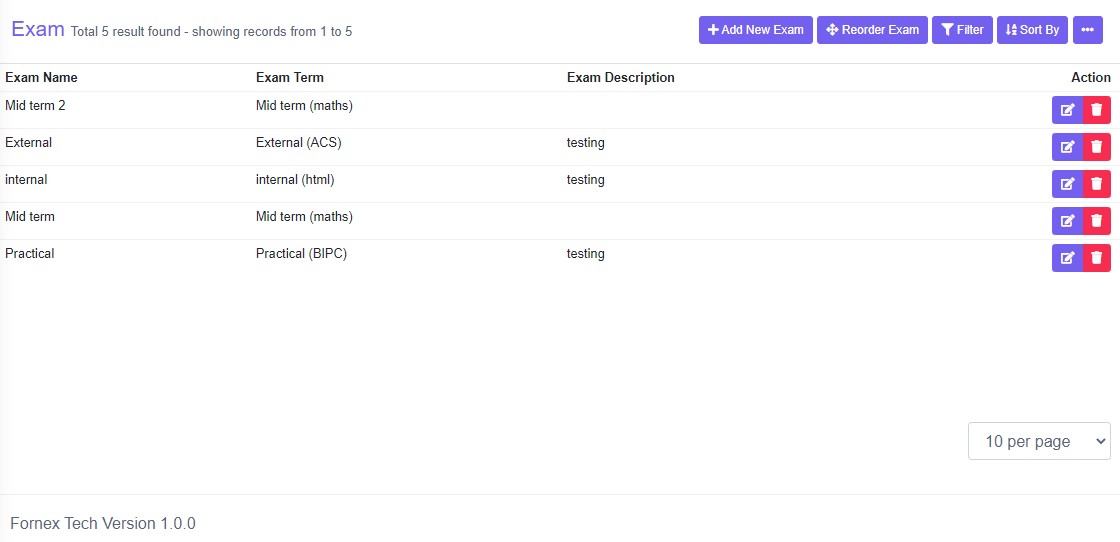
Figure 7Data Table View Description:
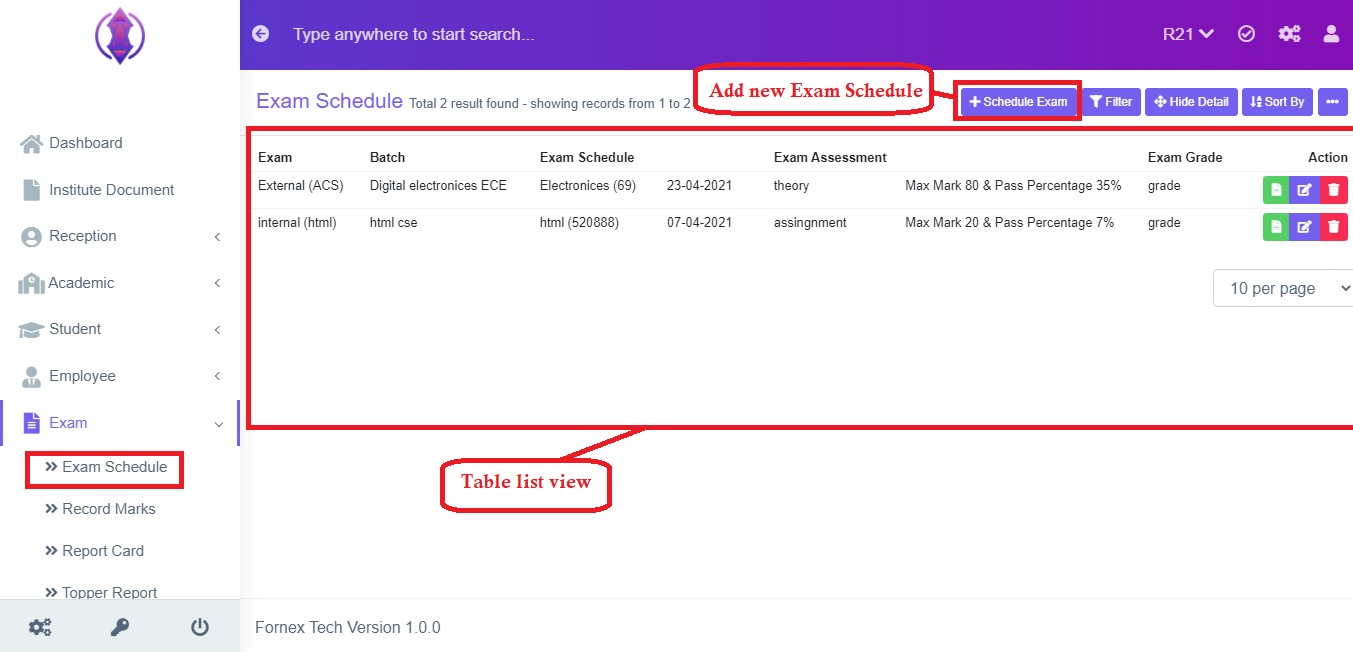
Figure 15
Add New Exam Schedule : If you have already added an exam schedule, from the middle of the screen, the “Add New Exam“ schedule tab, will get shifted to the top-right hand side, of the page title bar. And Data table View with different columns is displayed. refer figure:15.
Admit card
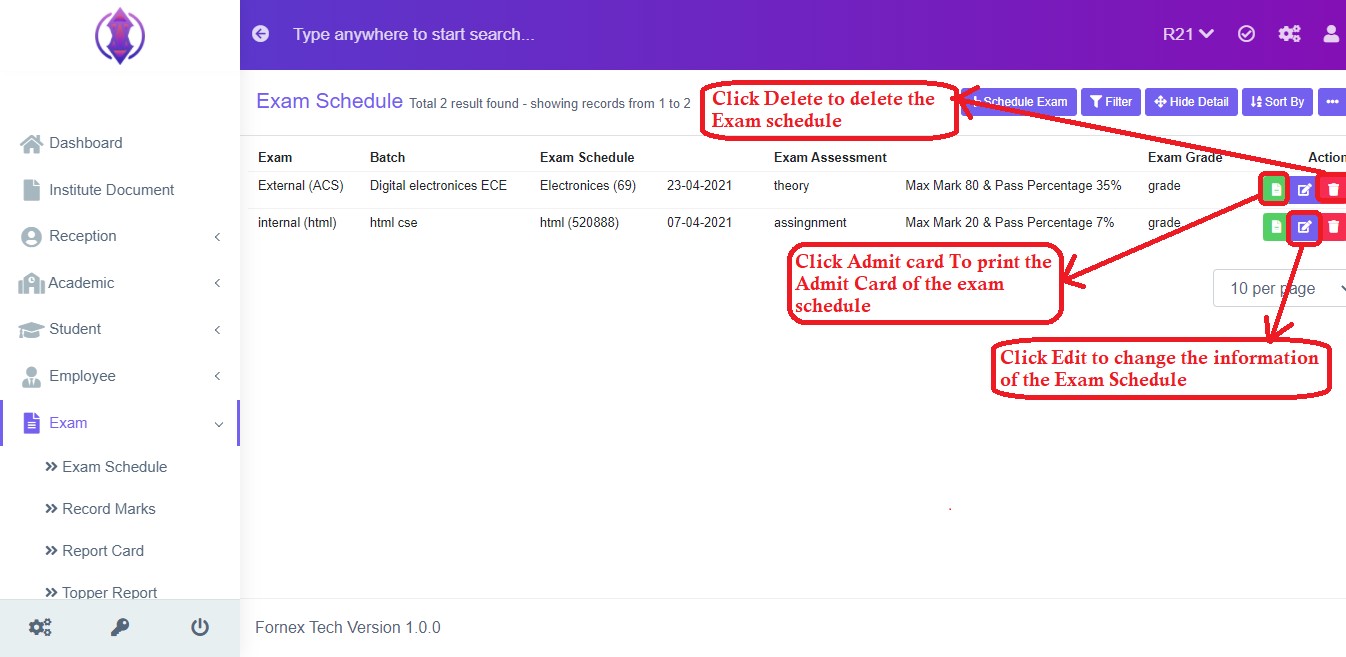
Figure 16
To Print/Download the uploaded Schedule , click  from the Actions, and you will get a popup screen, refer figure:16.
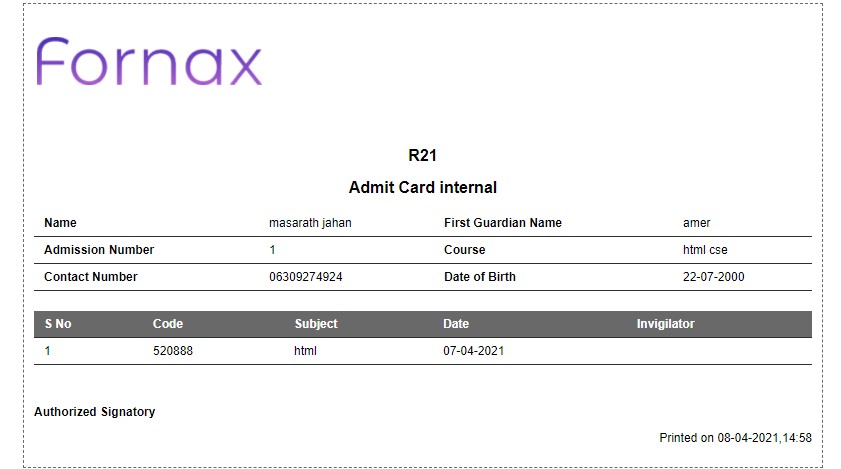
Figure 17
Refer figure:17, The Admit Card name will be displayed, along with Admission number and Contact number at i.e. Code and Subject information with date , at the bottom left and right of the screen.
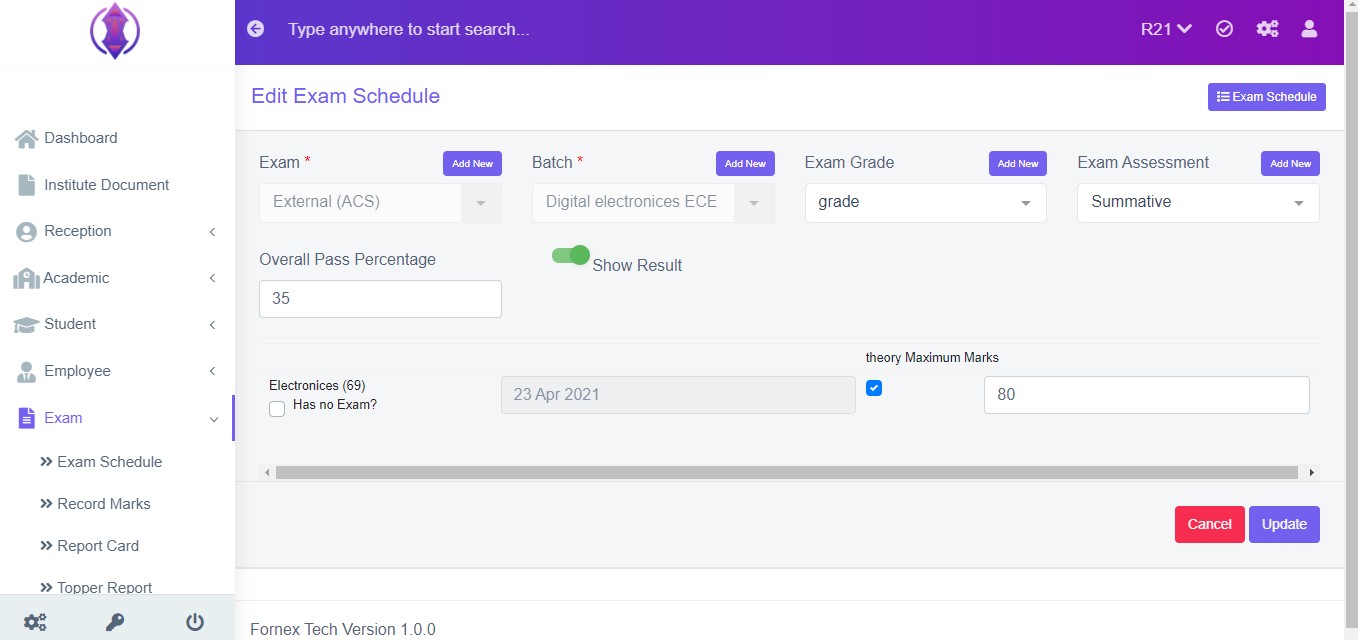
Figure 18Edit Schedule
Figure 18 To edit the existing Exam schedule click  icon and a screen will be displayed to Edit schedule. Fill the required information, to do the changes to the form fields or to upload documents. Once done, click ‘update’, to save the changes. “Exam Schedule updated”, green popup notification will be displayed on the bottom right hand side of the screen.
Delete Schedule
To delete , the saved exam schedule , click delete  icon and a pop up screen comes up, asking for your confirmation
 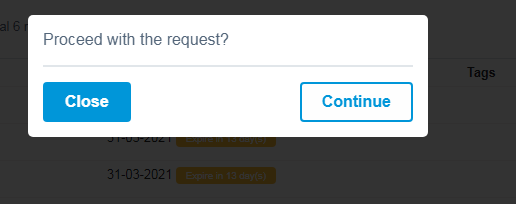 to proceed with the request, click, continue, to delete the data or click close to go back to the data table view. Data will get deleted from the database and it cannot be retrieved again.
You can use Filter Fields, Sort By List and more options, Print and Generate PDF, to view and print the displayed data table views’ data according to your requirements.