System Configuration Tab
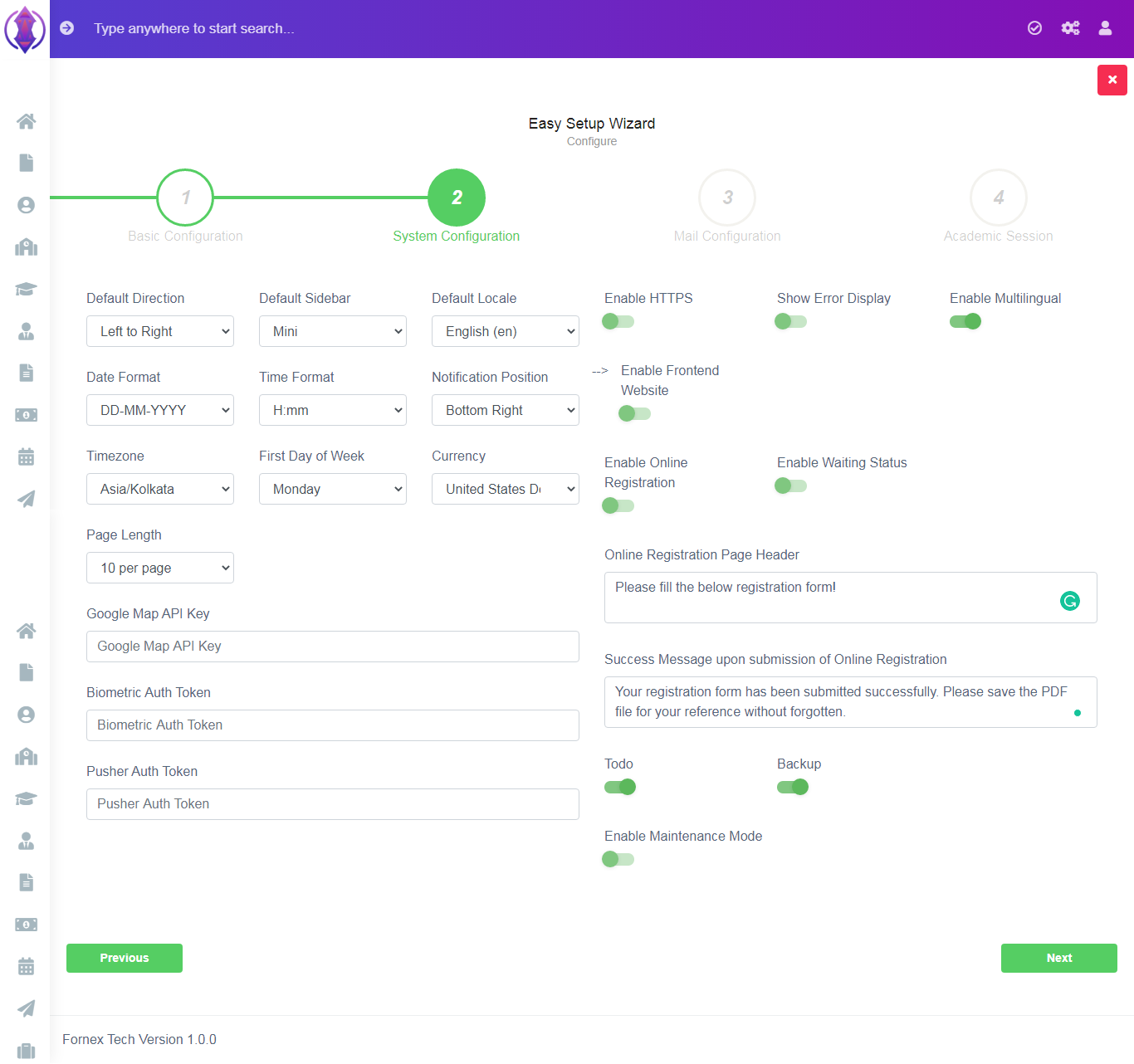
Figure 6
Default Direction: Select Left to Right is for English format, Right to Left Direction of words, for Arabic format.
Default Sidebar: Select Minimum or Normal Side Bar Screen, to be displayed as your default screen.
Default Locale: Select English/Arabic /Hindi default language of IMS.
Date Format: Select required date format from the drop down list.
Time Format: Select required time format.
Notification Position: Select default notification position on the screen.
Time Zone: Select your time zone.
First Day of Week: Select default first day of the week.
Currency: Select your default currency of your domain IMS.
Page Length: Select the number of rows per page to be displayed in the data table view in complete IMS.
Google Map API Key: Enter your Google Map API Key. Mandatory.
Biometric Auth Token: Enter your Biometric Autho Token.
Pusher Auth Token: Enter your Pusher Auth Token.
Enable HTTPS: Enable HHTPS redirection of your domain
Show Error Display: Enable to shows errors on the screen.
Enable Multilingual: Enable for Multilingual option.
Enable Frontend Website: Enable this for Public Pre-Built Website.
Enable Online Registration: Enable this to accept Online Registration of Students on your public website.
Enable Waiting Status: Enable this to show Waiting List Status, to be checked by the students, for admission enquiry of submitted online/offline registration form.
Online Registration Page Header: Enter any information, which you want to be displayed above the online registration form. For ex: Please fill the application form!
Success Message upon submission of Online Registration: Enter information you want to be displayed and clicking submit button, of the online registration form. For ex: Thank You, an email has been sent to you.
Todo: Enable this, to use Todo List functionality.
Backup: Enable Backup to download and save back to your desktop, manually.
Enable Maintenance Mode: Enable or Disable Maintenance Mode.