Role
.png)
Figure 1.png)
Figure 2Click on Configuration tab or icon, refer figure:1, then, click on Role tab, refer figure:2.
This Module helps to examine the essential roles and responsibilities of key school personnel.
School personnel can be divided into different distinct categories, including Accountant, Admin, Manager, Librarian, Faculty, Support staff etc.
0.1.png)
Figure 3To Add New Role:
Form Fields Description:
Click on ‘Add New Role’ tab present on the top-right hand side of the page title bar to add a new role, refer figure:3, a screen will be displayed, refer figure:4, enter the data in respective form fields.
0.2.png)
Figure 4
Role:Enter essential roles and responsibilities of key school personnel.
EX: Principle, Vice Principal, Staff, Student etc.
0.3.png)
Figure 5After the required information is entered, click ‘Save’, “Role Added", a green popup screen will be displayed on the bottom right hand side of the screen, refer figure:5.
Once the roles are saved, all the added role information can be viewed at one place, at front–end, in data table list View, refer figure:6 – Data table View.
Data Table View Description:
0.4.png)
Figure 6
Role:All the entered essential roles you added are displayed in data table view, refer figure 6.
Delete Role:
To delete , the saved role, click delete  icon and a pop up screen comes up, asking for your confirmation
 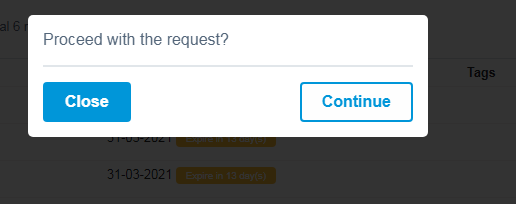 to proceed with the request, click, continue, to delete the data or click close to go back to the data table view. Data will get deleted from the database and it cannot be retrieved again.