Institute Information
Institute Information
Form Fields Description
Data Table View Description
Choose Logo
Where will the logo be displayed?
- — Login Page
- — Front-End Website
Choose Icon
Where will the icon be displayed?
- — Domain/Portal
- — Favicon
.png)
Figure 10.1.png)
Figure 2Click on Configuration tab or icon, refer figure:1, then, click on Basic Configuration, refer figure:2.
Fill in the form with all the required institute information.
0.2.png)
Figure 3Form Fields Description:
0.3.png)
Figure 4
Basic Information:
Institute Name: Enter the Institution Name.
Institute Running Body: Enter the Institution Running Body.
Institute Foundation Date: Enter the institution Foundation Date.
Institute Recognition Body: Enter the institution Recognition Body.
Institute Recognition Number: Enter the institution Recognition Number
Contact Information:
Address Line 1: Enter the institutions Address Line 1.
Address Line 2: Enter the institutions Address Line 2.
City: Enter the city the institution is located in.
State: Enter the state the institution is located in.
Zipcode: Enter the zipcode of the area the institution is located in.
Country: Enter the Country.
Phone: Enter the Phone Number.
Fax: Enter the Fax
Email: Enter the email address.
Website: Provide the institution website.
0.4.png)
Figure 5 After the required information is entered, click ‘Save’, “Configuration Stored", a green popup screen will be displayed on the bottom right hand side of the screen, refer figure:5.
Once the Information is saved, all the added information can be viewed at one place, on the right-hand-side, in data table list View, refer figure:6 – Data table View.
Data Table View Description:
0.5.png)
Figure 6The data table view displays all the required information added in the form field. If one chooses to leave any form field empty, the data in table view will also be empty in that particular field.
Choose Logo
0.6.png)
Click on Choose Logo, Select the Logo which you want to upload and click Open.
0.7.png)
The logo chosen is displayed click Upload to successfully upload the logo or click Cancel Upload if required.
0.8.png)
Figure 7Once the Logo is successfully uploaded, a Green Pop up message will be displayed at the bottom right of the screen as “Logo Uploaded”. Refer Figure 7.
0.9.png)
To delete , the saved Logo forever, click remove and a pop up screen comes up, asking for your confirmation 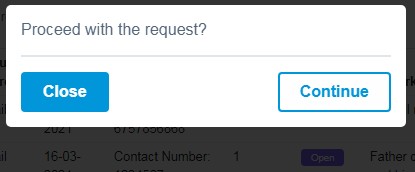 to proceed with the request, click, continue, to delete the logo or click close to go back to the page view. Logo will get deleted from the database and it cannot be retrieved again.
1.0.png)
Figure 8Once the Logo is successfully removed, a Green Pop up message will be displayed at the bottom right of the screen as “Logo Removed”. Refer Figure 8.
Choose your desired logo by Clicking Choose Logo repeating the previous process again.
Where will the logo be displayed?
Login Page:
1.1.png)
Figure 9Front-End Website:
1.2.png)
Figure 10Choose Icon
1.3.png)
Click on Choose Icon, Select the Icon which you want to upload and click Open.
1.4.png)
The icon chosen is displayed click Upload to successfully upload the icon or click Cancel Upload if required.
1.5.png)
Figure 11Once the Icon is successfully uploaded, a Green Pop up message will be displayed at the bottom right of the screen as “Icon Uploaded”. Refer Figure 11.
1.6.png)
To delete , the saved Icon forever, click remove and a pop up screen comes up, asking for your confirmation to proceed with the request, click, continue, to delete the Icon or click close to go back to the page view. Icon will get deleted from the database and it cannot be retrieved again.
1.7.png)
Figure 12 Once the Icon is successfully removed, a Green Pop up message will be displayed at the bottom right of the screen as “Icon Removed”. Refer Figure 12.
Choose your desired icon by Clicking Choose Icon repeating the previous process again.
Where will the icon be displayed?
Domain/Portal:
1.8.png)
Figure 13Favicin:
1.9.png)
Figure 14