Academic Session Tab
Academic Session Module is where you can create multiple academic sessions, choose your default sessions and switch between those sessions. It can be a year, half year, quarter or monthly or days sessions.
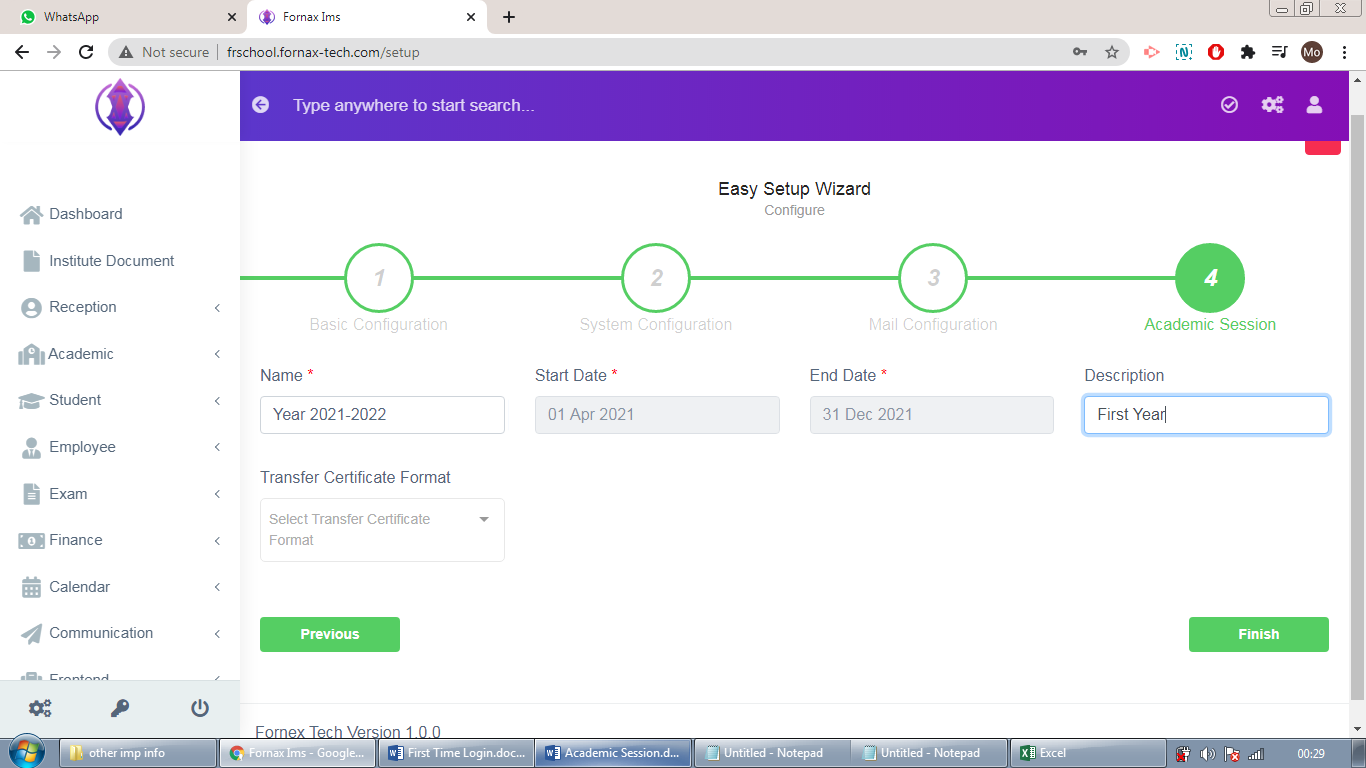
Figure 8
Name: Enter Name of the academic session.
Start Date: Enter the Start Date
End Date: Enter the End Date
Description: Enter Description as required. This field is optional.
Transfer Certificate Format: Select Transfer certificate from drop down list. This field is optional.
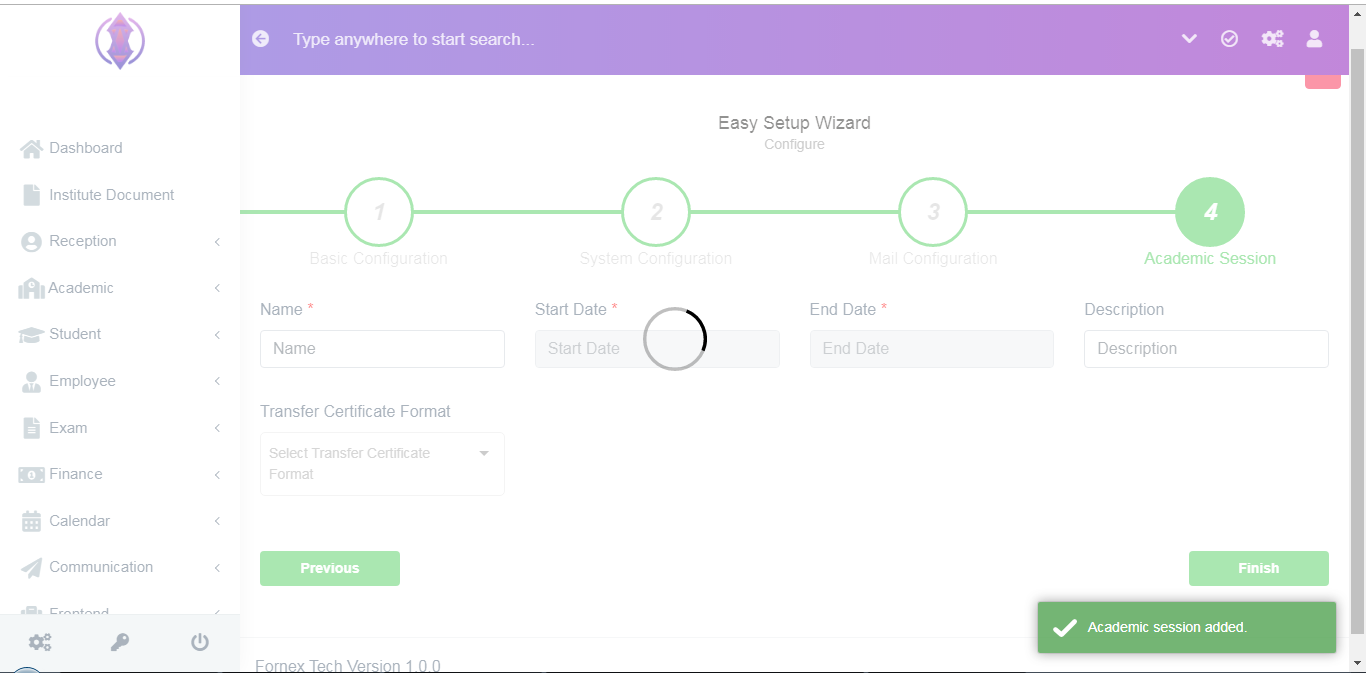
Figure 9
Click the ‘Finish’ button, a green pop up will be displayed at bottom right, confirming as,
“Academic session added”, refer figure:9. And you will be redirected to the home screen, which is Dashboard screen.
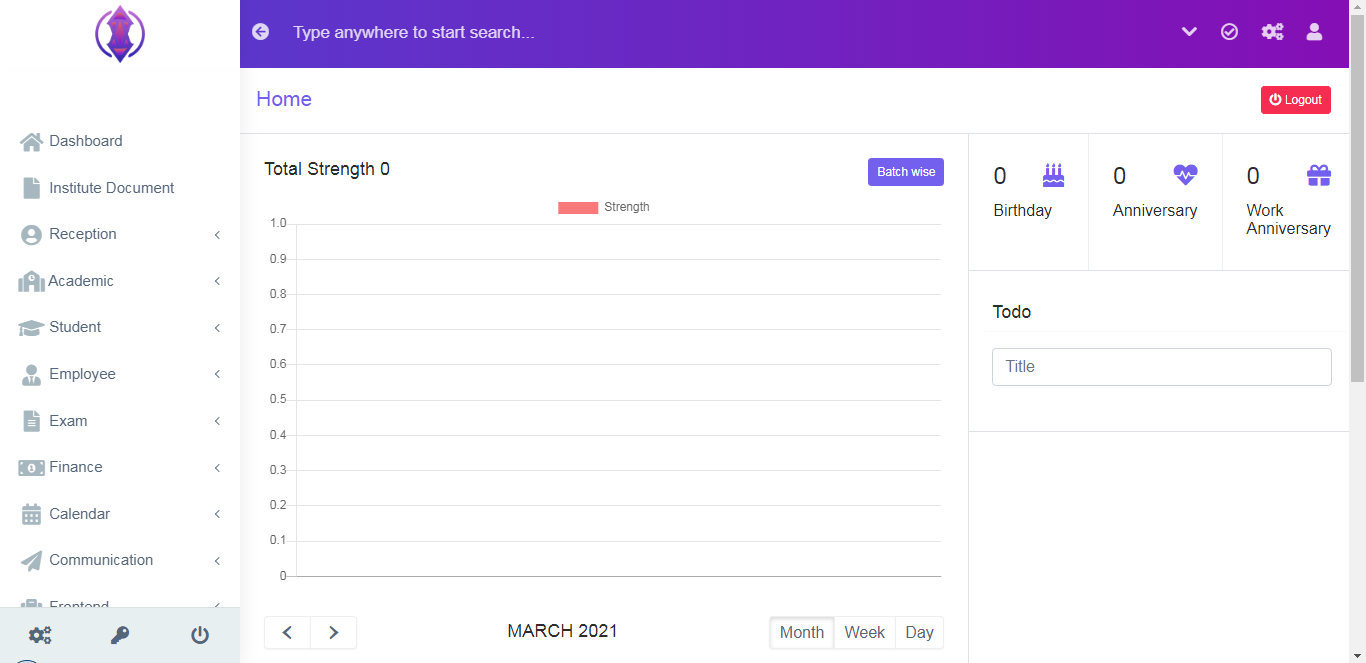
Figure 10After the completion of the Easy Setup Wizard, Dashboard Screen will be displayed, refer figure:10, where you can access all other tabs, to manage your daily activities.