Points To Be Noted
- 1. Course
- 2. Current Institute
- 3. Important Fields Description
- 4. To Add, Edit or Delete any Drop down lists
1. Course:
Courses should be created in the initial stage setup of the management system, for it to be listed in the drop down list.
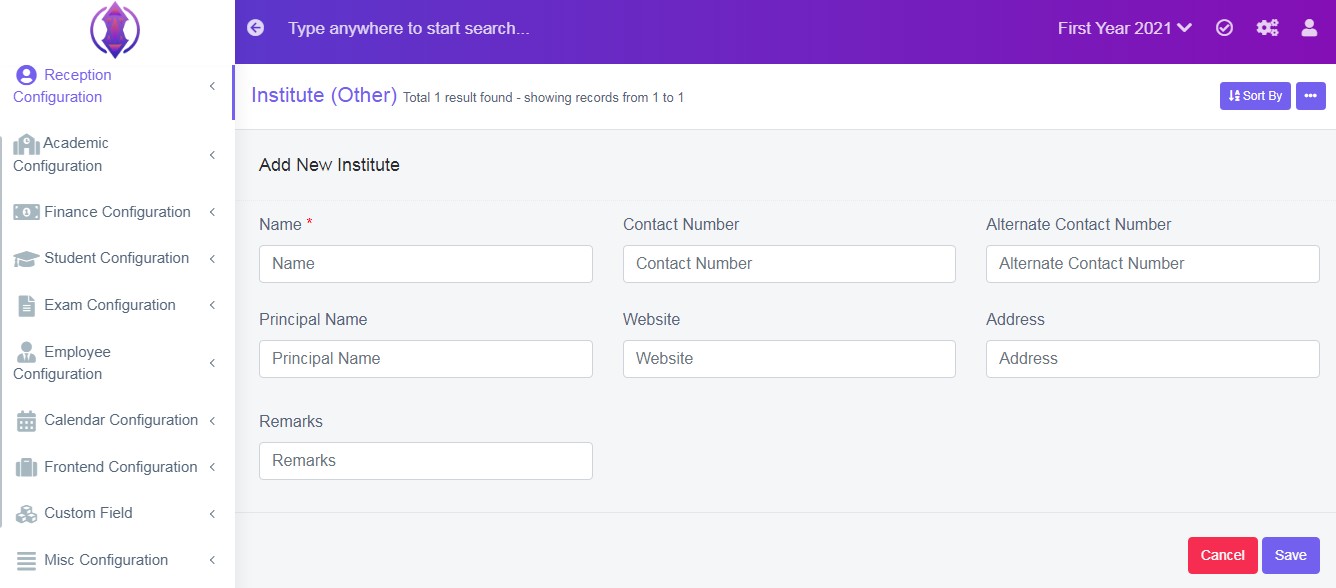
Figure 142. Current Institute:
In the initial stage of setup of the management system, you see the drop-down list as “list is empty – No option found” is displayed 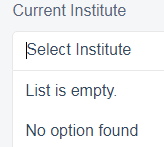 and is empty.
In order to select, specific institute, Click Configuration  ,Click, Module Configuration
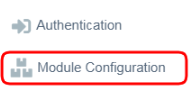 , click
  , and click
  and enter the required information, in respective fields, refer figure:14 and click ‘save’, a popup message appears in Green as “
Institute added”.
You can add as many as institutes names, as you required, for it to be displayed in the drop down list in the front-end form.
3. Important Fields Description:
Data table View Columns, only other important columns’ fields & icons is being described, as the rest of the columns fields name are same, as that of forms fields. Ex: Enquiry Type, Enquiry Source, Date of Enquiry, Contact Number and Remarks is already described in form fields description.
4. To Add, Edit or Delete any Drop down lists:
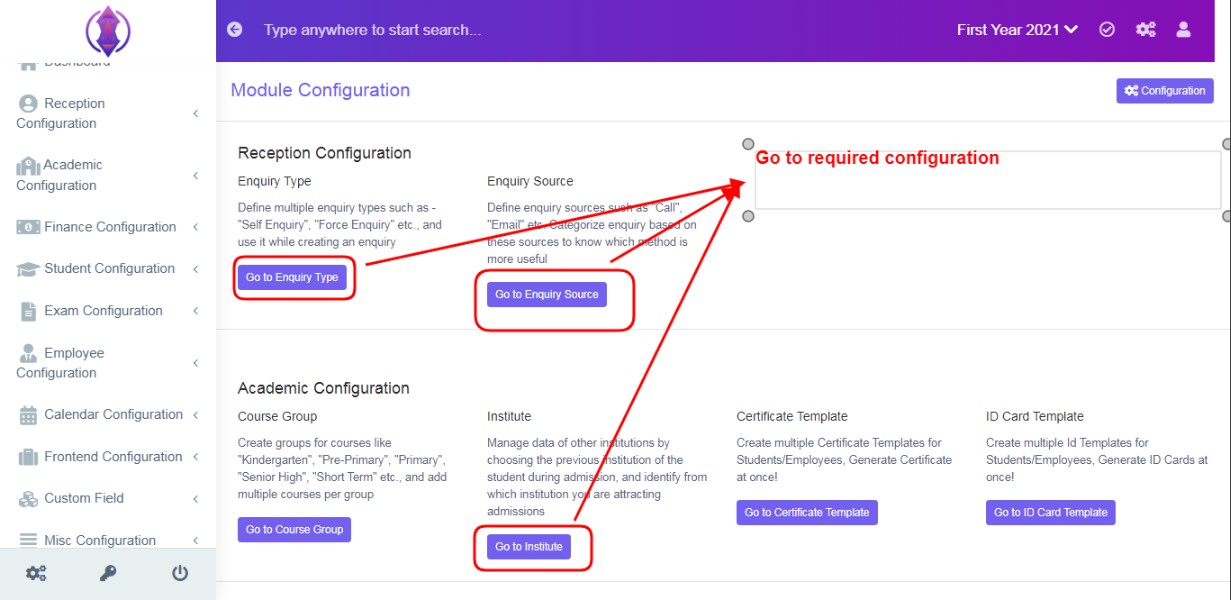
Figure 15To add, edit or delete any data from any drop down list of this module, ex: Enquiry List, Enquiry Source or Current Institute, click - Configuration, Module Configuration and then go to the required configuration tab, a screen will be displayed, refer figure:15&16.
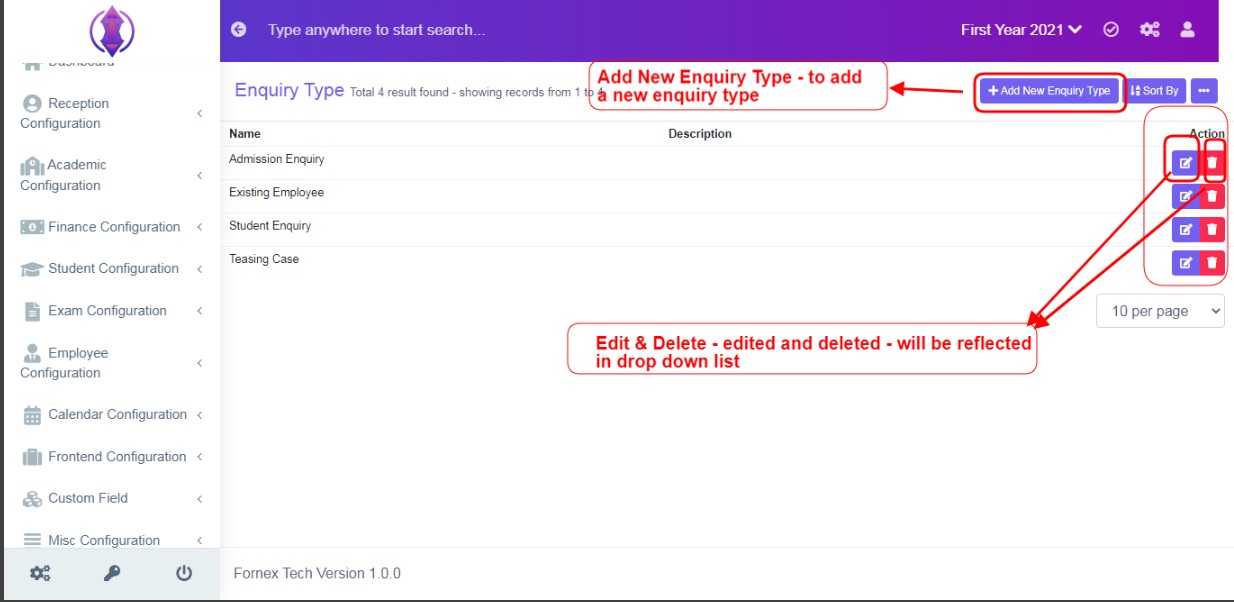 Figure 16
Refer figure:16, you can edit, delete and add a new enquiry type, enquiry source, previous institute, of this module, from here. Edited & Deleted entries here, will be reflected in the drop down list in the front-end module.