Custom Field
- — To Add New Custom Field
Form Fields Description
- — Student Basic Form
- — Employee Basic Form
- — Student Parent Form
- — Student Contact Form
- — Employee Contact Form
- — Student Registration Form
- — Student Online Registration Form
- — Type
- — Width
Data Table View Description
.png)
Figure 1
0.1.png)
Figure 2Click on Configuration tab or icon, refer figure:1, then, click on Module Configuration tab, refer figure:2, and click on Custom Field Tab, refer figure:3.
.png)
Figure 3Add Custom Fields to Various available form and grab input from users.
To Add New Custom Field:
0.1.png)
Figure 4Click on ‘Add New’ tab to add a new Custom Field, refer figure:4, a screen will be displayed, refer figure:5, enter the data in respective form fields.
0.2.png)
Figure 50.3.png)
Figure 6
Form: Select a form, from the drop down list, for which a custom field needs to be added. Locations of the various available forms is displayed in below images.
Form Fields Description:
Student Basic Form:
Student Module >> Student List Tab >> Select Student >> Basic Information >> Edit
0.4.png)
Employee Basic Form:
Employee Module >> Employee List Tab >> Select Employee >> Basic Information >> Edit
0.5.png)
Student Parent Form:
Student Module> > Student List Tab >> Select Student >> Parent Information >> Edit
0.6.png)
Student Contact Form:
Student Module >> Student List Tab >> Select Student >> Contact Information >> Edit
0.7.png)
Employee Contact Form:
Employee Module >> Employee List Tab >> Select Employee >> Contact Information >> Edit
0.8.png)
Student Registration Form:
Student Module >> Registration Tab >> Click Add New Registration 0.9.png)
01.0.png)
Student Online Registration Form:
Configuration >> System Configuration >> 1.1.png) , Click on Online Registration Menu
, Click on Online Registration Menu
1.2.png)
Type:
Text Input1.3.png) |
1.4.png) Min –Max Length: Minimum Characters to Maximum Characters. Min –Max Length: Minimum Characters to Maximum Characters. Text Input box accepts Alpha-numeric characters. |
Numeric Input1.5.png) |
1.6.png) Min – Max Value: Scenario 1: Selected Value range Min 1 – Max 10, One has to enter 1,2,3,4…until 10 as Max Value. Scenario 2: If you want users’ contact number/Mobile number then Min Value or Max Value can be left empty. Min – Max Value: Scenario 1: Selected Value range Min 1 – Max 10, One has to enter 1,2,3,4…until 10 as Max Value. Scenario 2: If you want users’ contact number/Mobile number then Min Value or Max Value can be left empty. Text Input box accepts Numeric values only. |
Multi Line Input1.7.png) |
1.8.png) Min - Max Length: Minimum Characters to Maximum Characters. Min - Max Length: Minimum Characters to Maximum Characters. Text Input box accepts Alpha-numeric characters. |
Datepicker Input1.9.png) |
2.0.png) It displays Calendar View to select da It displays Calendar View to select da |
Checkbox Input2.1.png) |
2.2.png) Click on Add New Value and enter the data in the value box as required. User can tick on as many as value in selection method. Click on Add New Value and enter the data in the value box as required. User can tick on as many as value in selection method. |
Radio Input2.3.png) |
2.4.png) Click on Add New Value to add a value. User can select, only one value from drop down list, as selection between any number of value fields. Click on Add New Value to add a value. User can select, only one value from drop down list, as selection between any number of value fields. |
Dropdown Input2.5.png) |
2.6.png) Click on Add New Value to add a value. User can select, only one value from drop down list, as selection between any number of value fields. Click on Add New Value to add a value. User can select, only one value from drop down list, as selection between any number of value fields. |
Width:
Select Width size.
| Full Width | 2.7.png) |
| Half Width | 2.8.png) |
| One Third Width | 2.9.png) |
| One Fourth Width | 3.0.png) |
Data Table View Description:
3.1.png)
Table View Column fields are same as form fields description. Data entered in form fields, is displayed in the data table, one can view or edit and make any changes as required.
Reorder Custom Field:
It help you to reorder fields, click 0.3.png) , to change, order of the question in the form, it can be moved and arranged as required.
, to change, order of the question in the form, it can be moved and arranged as required.
3.2.png)
3.3.png)
Edit Custom Field:
To edit the existing Custom Field, click  icon and a screen will be displayed to the Edit Custom Field. Fill the required information, to do the changes to the form fields. Once done, click ‘update’, to save the changes. “Custom Field updated”, green popup notification will be displayed on the bottom right hand side of the screen.
Delete Custom Field:
To delete , the saved Custom Field, click delete  icon and a pop up screen comes up, asking for your confirmation
 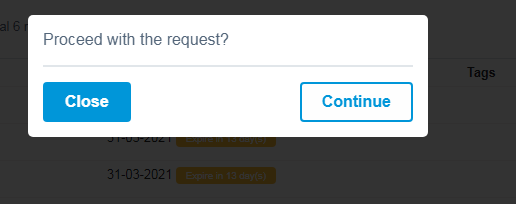 to proceed with the request, click, continue, to delete the data or click close to go back to the data table view. Data will get deleted from the database and it cannot be retrieved again.
You can use, Sort By List and more options - Print and Generate PDF, to view and print, the displayed data table, according to your requirements.