Sign Up Page
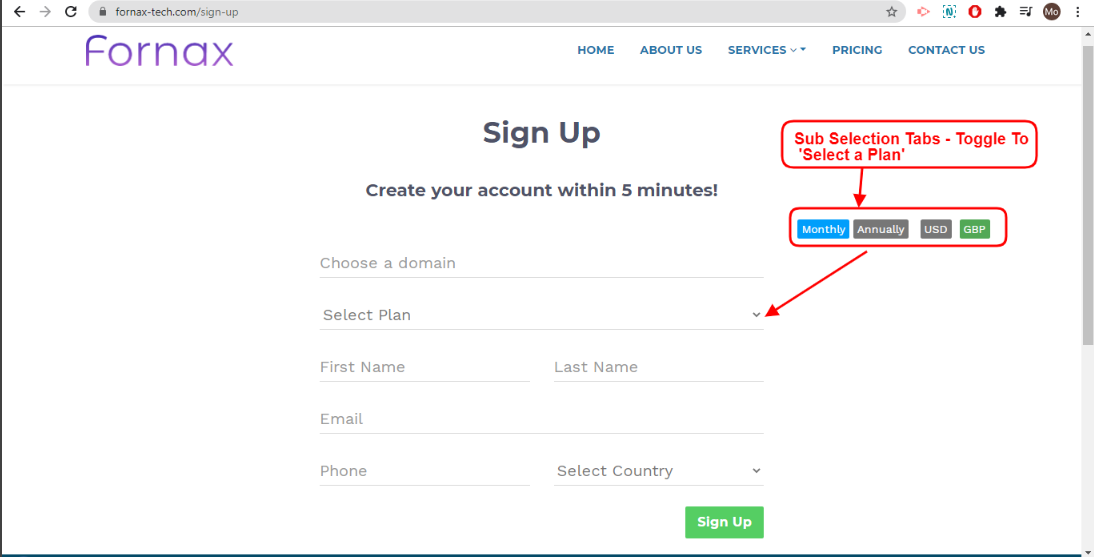
Figure 3Once the signup tab is clicked, it will get redirected to a new sign up form page. In this page, toggle between sub selection tabs and choose to select a plan, you will create your domain name, in choose a domain field and fill in respective form field of signup page. Refer figure:3
Sign Up Form Fields Description
Create a domain name:

Enter the domain name, you would like to be your domain url name. This name is used in the installation process/wizard of the domain setup.
This can be your name or your school/institute name or any other desired word.
Ex: A word, a name of a person – sana, in the url yourname.fornax-tech.com, it is as sana.fornax-tech.com

Ex: A word, a school name – montessorihighschool, in the url yourschoolname.fornax-tech.com, it is as montessorihighschool.fornax-tech.com

Ex: Entered a word as – infotech, in the url yourword.fornax-tech.com, it will as infotech.fornax-tech.com
So, the name chosen and entered here, will be used in the installation process and to set up your domain.
Domain From - Ex: infotech.fornax-tech.com/install to
infotech.fornax.tech.com/login
Select a Plan:
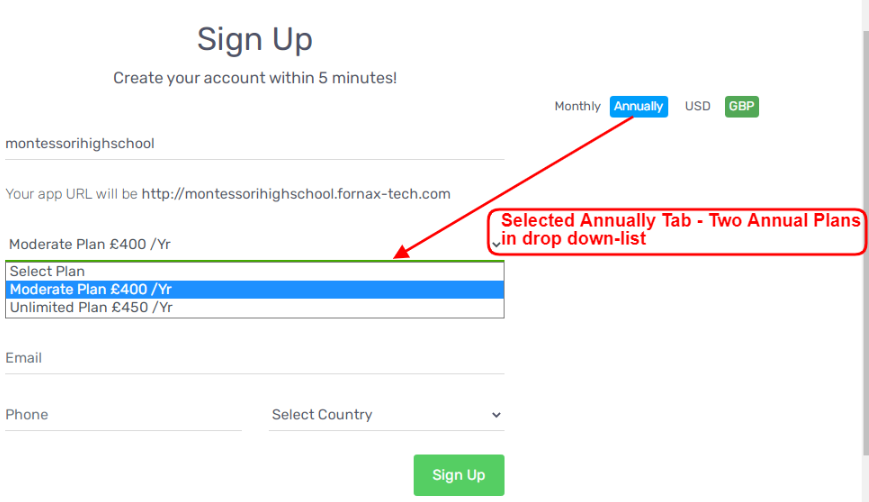
Here you need to select from the drop down list either Moderate or Unlimited Plan –choosing Monthly / Annually tab and USD / GBP from sub selection tab.
Toggle between Monthly / Annually plan and toggle between USD / GBP from the sub selection tab.
Sub Selection Tabs:
Right side of the page, a sub selection tab is displayed to choose between, Monthly or Annually Plan, Currency USD or GBP.
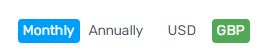
Monthly:Select this tab, if you do monthly recurring payment as your subscription.
Annually:Select this tab, if you want to do one-year payment as your subscription.
USD & GBP: Select the tab, USD or GBP currency.
Monthly Plan:
Annually Plan:
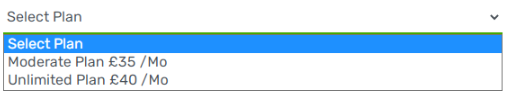
If you have selected in the sub selection tab as Monthly and GBP, you have two monthly plans, Moderate / Unlimited Plan in drop down list, as above.
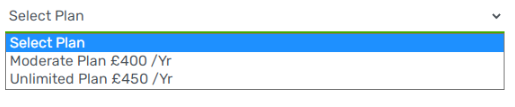
If you have selected in the sub selection tab as Annually and GBP, you have two annual plans, Moderate / Unlimited Plan in drop down list, as above.
So, toggled between the sub selection tab and click drop down arrow, to ‘Select a Plan’.
First Name: Enter your First Name.
Last Name: Enter your Last Name.
Email: Enter your email address, it can be your personal email address or your business email. where you want the authorization key to be sent to.
This authorization key is essential to install your domain. Without this key, your domain cannot be installed and set up.
Phone: Enter your phone number.
Select Country: Select your country.
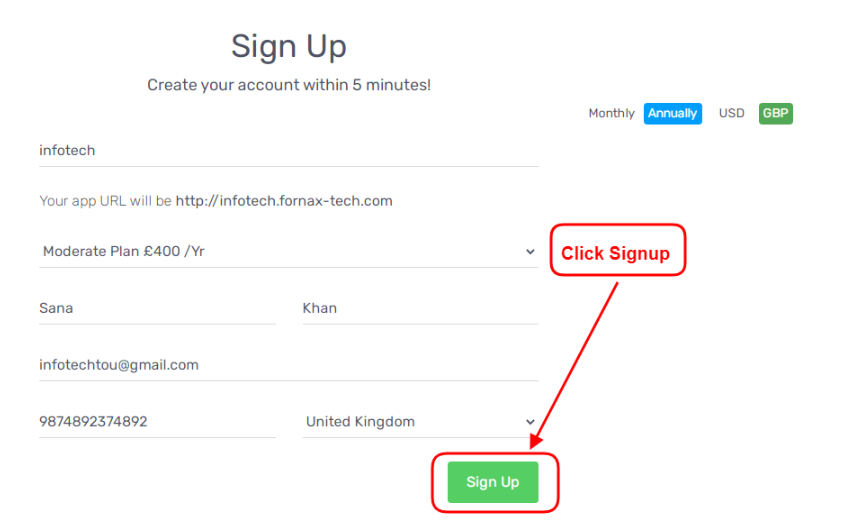
Figure 4
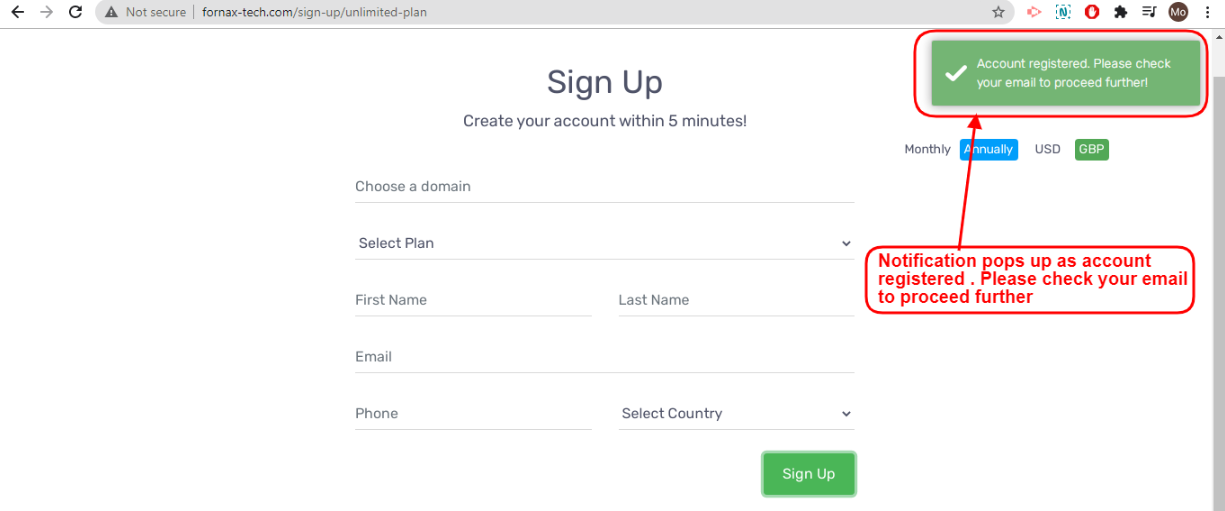
Figure 5Once the required data is entered in respective form fields of signup form, click the ‘Sign up’ button. Refer figure:4.
A green notification pops up at the upper right hand side notifying as,
“Account registered" Please check your email to proceed further.. By here, your signup process, your domain url selection and subscription is completed. Refer figure:5.
You will receive an email with activation key and a link to your domain url, from fornax-tech.com. Refer figure:6.